Saturday, 9 am. Four messages are waiting on Instagram: "Are you open today?", "Do you have anything gluten-free?", "How much is a cake for 12?" and "Is there room in the garden for a birthday on Sunday?". You answer between two espressos, and by the time you reach the third, the first person has already gone for coffee next door.
Cafés and bakeries have a particular problem: the menu changes, the hours shift, and the most valuable customers (cakes, celebrations, regulars) come through messages. Instagram is great for atmosphere but poor for answers. A website is where those answers stay put, so people don't have to ask.
This post goes from the questions you get to how your website can handle them. An overview of every feature for cafés is on the Website for a café page, and we wrote about a menu that reads well on a phone in A website for a restaurant.
The questions that land in your messages
Write down the questions from your messages for one week. For most cafés and bakeries the list looks similar:
- Are you open today, until when, are you open on the holiday?
- What do you have and how much is it?
- Anything gluten-free, sugar-free, vegan?
- How far ahead do I order a cake and how much is it?
- Is there room for a party, a birthday, a group?
- What's on this weekend?
Each of these questions has its place on a website. When the answer is clear and visible, some people don't write at all, they just come. Some of those who still write send you every detail at once.
A menu with prices, as text
A photo of the price board above the counter can't be read on a phone and Google doesn't understand it. The menu should be text: name, short description and price.
On Emit that's the Price / Menu List block: each item has a name, a description (e.g. "gluten-free, serves 8-10"), a price and an optional badge like "Most ordered". For a bigger menu, add a Content Tabs block and split it into coffee, pastries, cakes and drinks.
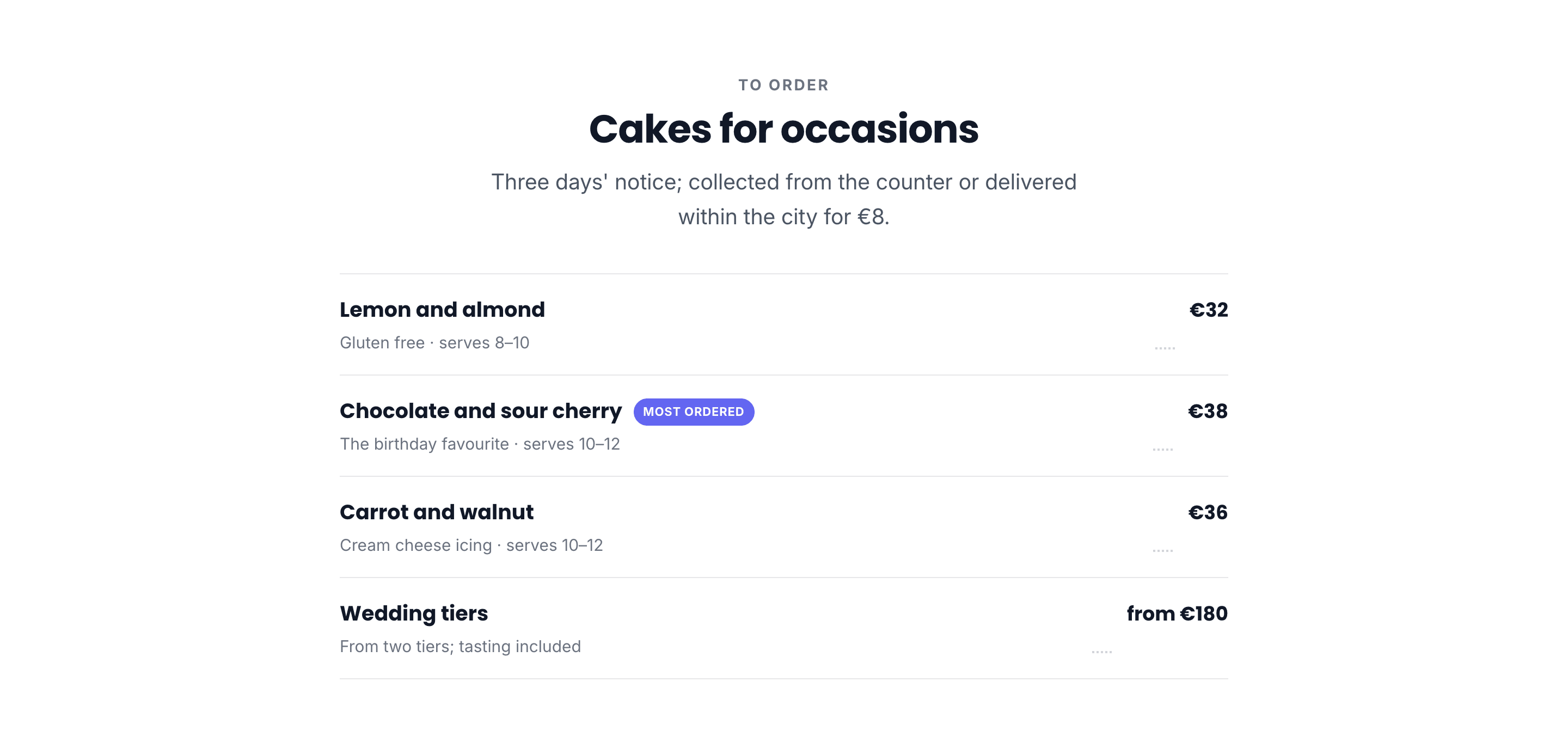
The description is the place for answers to the questions from your messages: "gluten-free", "serves 10-12", "order 3 days ahead". You change a price in seconds, from your phone too.
"What's on today": a notice at the top
A café has news every day: croissants at 7:30, a new seasonal coffee, today we close at 3. That's what the Announcement Bar block is for: a thin strip at the top of the page with a short message and a link. It can rotate several messages, and a visitor can close it.
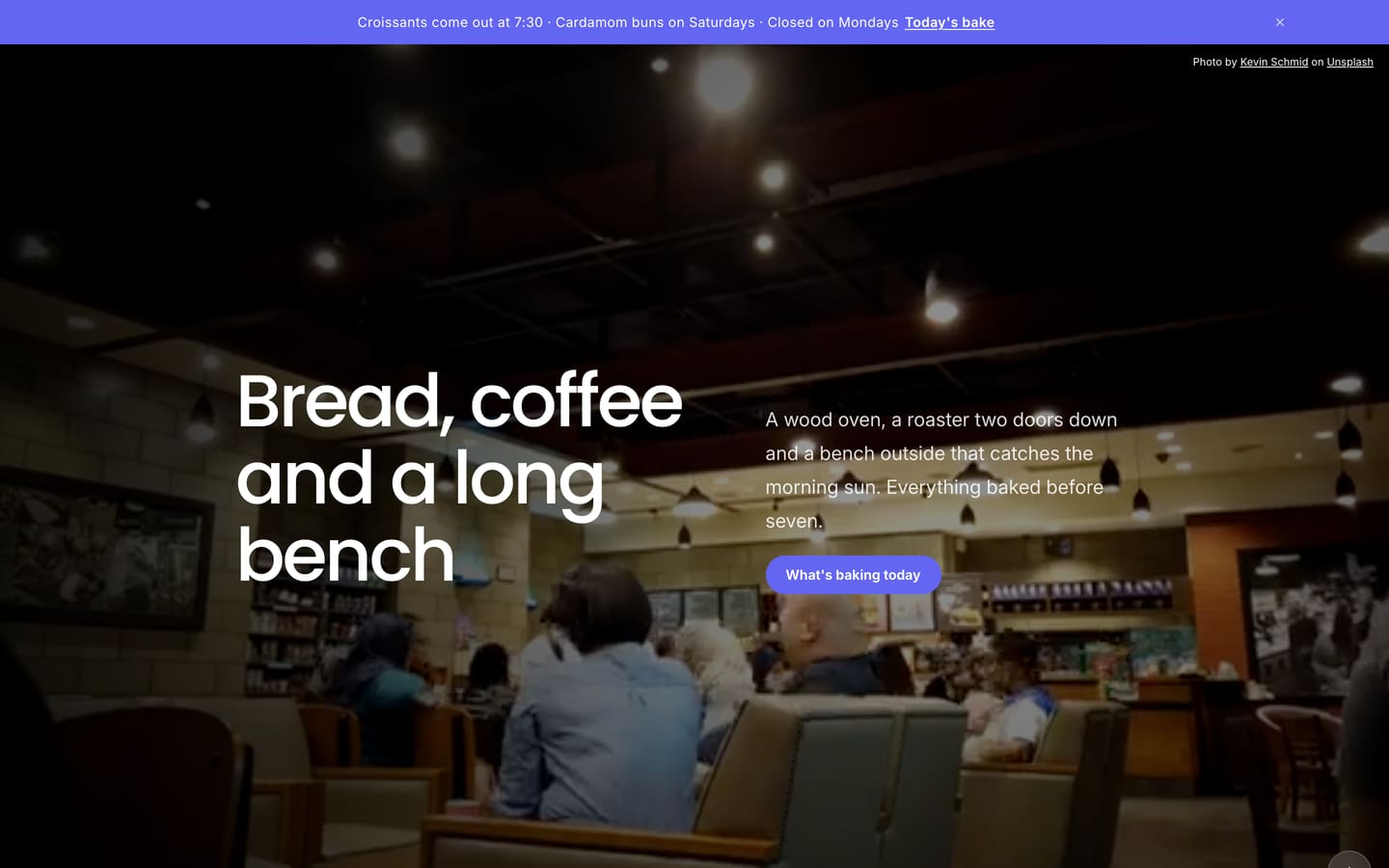
For holidays and closed days, use temporary hours: the notice then appears in the site footer on its own and disappears once the date has passed. Step by step: Holidays and closures.
Cake orders, with every detail at once
A cake order through messages usually goes like this: "How much is a cake?", then "For how many people?", then "For what date?", then "What kind?". Four messages for details you could have had at once.
The Offer + Sign-up Form block puts the offer and a form side by side: the price and what's included on the left, and on the right a form with name, phone, email and one extra field you name yourself, e.g. "Occasion, date and number of people".
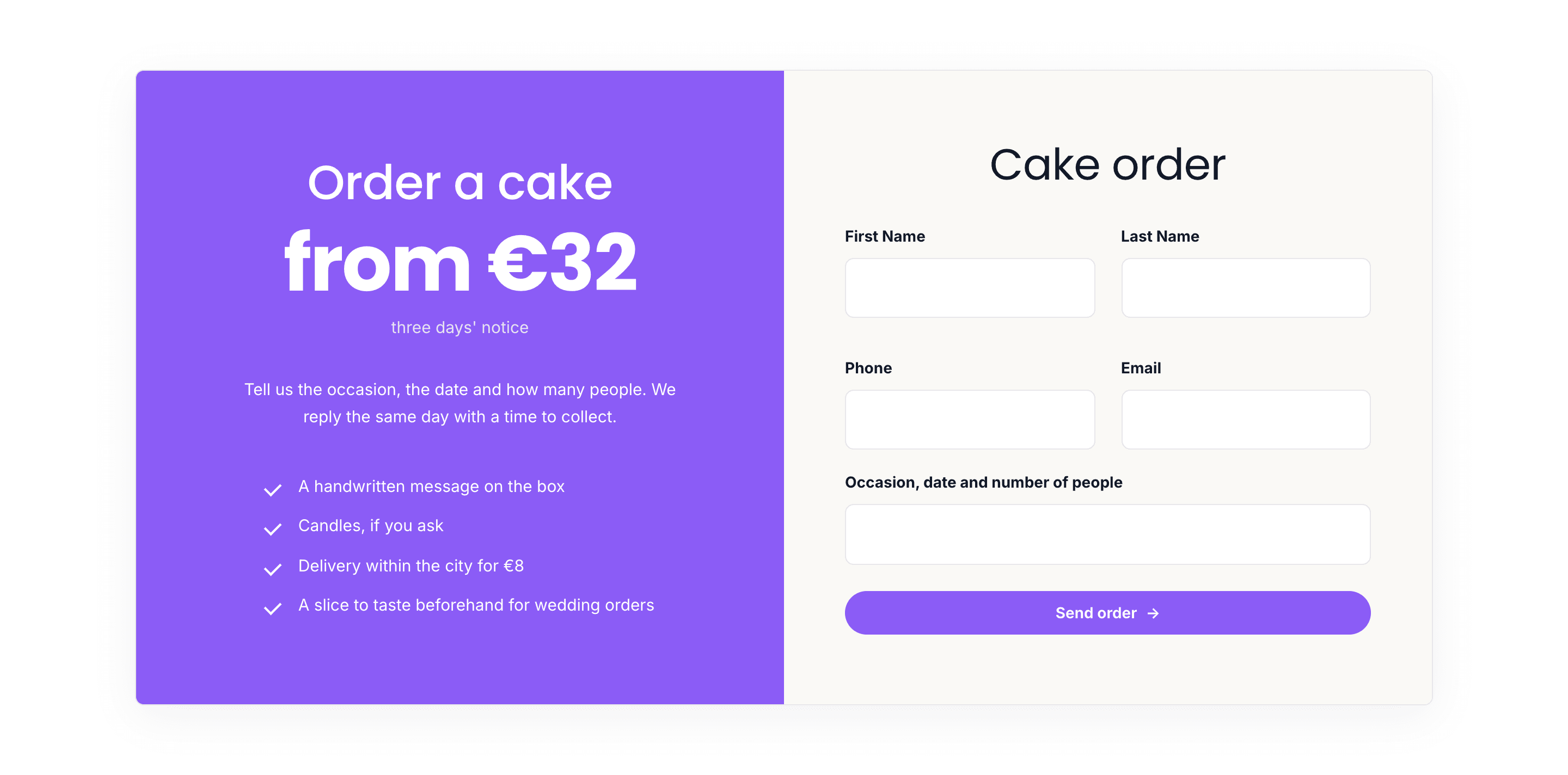
In Send submissions to (email), enter the address of whoever takes the orders, e.g. your pastry chef, not the general inbox. How to set it up: A contact form that reaches the right person.
Seasons and events
Christmas cakes, Easter pastries, live music on Friday, a quiz on Tuesdays. For seasonal orders, the Countdown Timer block works well: a heading, short text, a countdown to a date and a button. Once the date has passed, the block shows text you wrote in advance (e.g. "Orders for this year are closed").
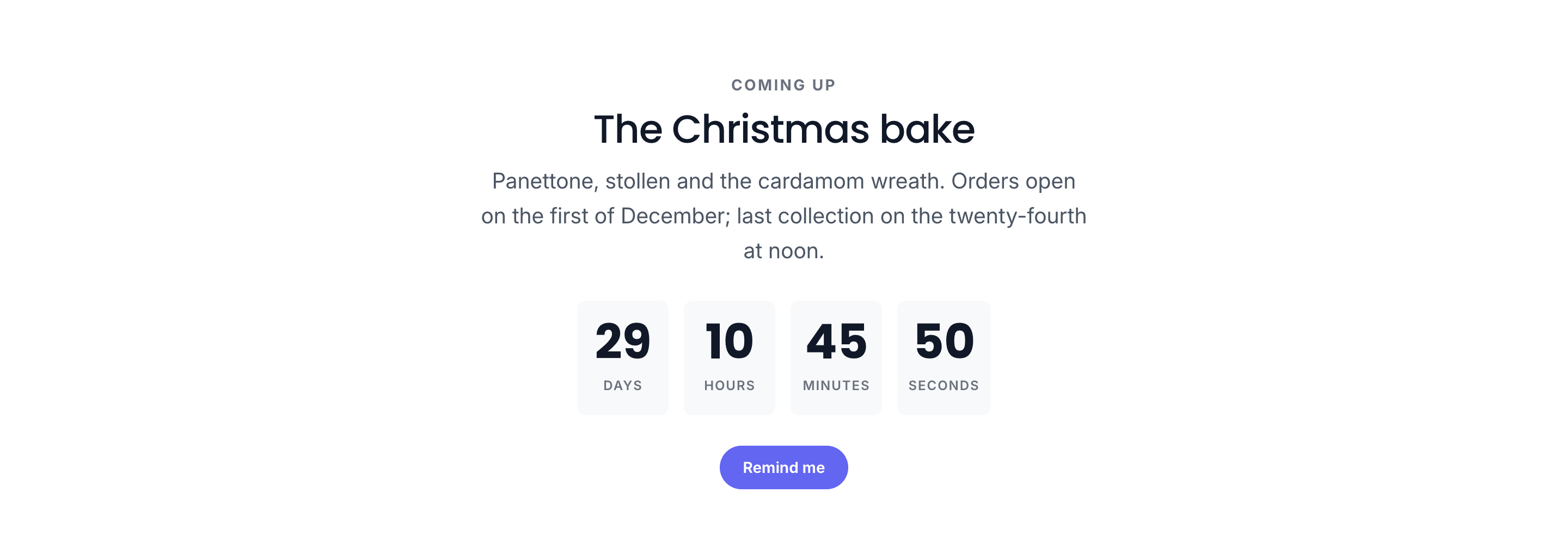
Publish events as blog posts or as a separate "Events" content type (see Blog and content types). Tell regulars what's new with a newsletter: the Newsletter Subscribe block connects to Mailchimp or Brevo (guide).
Parties and bookings
If you take bookings for the garden, birthdays or groups, let people pick a time themselves. Booking on Emit works for cafés too: set up a "Garden booking" or "Kids' birthday" service with a duration, price and capacity, and the customer gets an email confirmation. Steps: Service booking from scratch and, for groups with limited places, Group sessions and capacity.
How to start
You don't start from a blank page. The gallery has two templates for cafés and bakeries:
- Home (preview): an announcement bar, a video or photo of the space, guest reviews, opening hours and a map.
- Menu & orders (preview): a price list, tabs for categories, a cake order form, a countdown and a newsletter sign-up.
- Open the template and click Use this template.
- Log in or create an account, enter a page name and click to create the page.
- Replace the text and photos with your own, then click Publish.
The whole process, with screenshots: Your first website step by step.
In short
- Write down the questions from your messages for one week.
- The menu as text in a Price / Menu List block, with descriptions that answer those questions.
- An Announcement Bar for today's news.
- Temporary hours for holidays, set in advance.
- Cake orders through an Offer + Sign-up Form block, with an extra field for date and number of people, and the right recipient.
- A Countdown Timer for seasonal orders.
- Events as posts, news through a newsletter.
- Party bookings through online booking, with capacity.
- A link to your site in your Instagram bio and on your Google Business Profile.