The blank screen is the hardest part of building a website. You don't know where to start, which pages you need or how they should look. That's why on Emit you don't start from zero: you pick one of three ready-made starts, then change only what's yours.
In this post we go through all three ways and through publishing the site:
- Emit AI writes the first version of the whole site for your trade.
- A template from the gallery: you pick a ready-made page and load it into your site.
- A page from an example site: you copy a whole page from one of our example sites.
If you're still collecting text and photos, first see what to prepare before building a website.
Before you start: where things are
Create an account at emit.rs/en/register or log in at emit.rs/en/login. Your site's dashboard opens: the main menu is on the left, and in the middle is Overview with two things that matter right now:
- the Build your site with AI card,
- the Get your site ready list of steps.

Way 1: Emit AI writes the first version
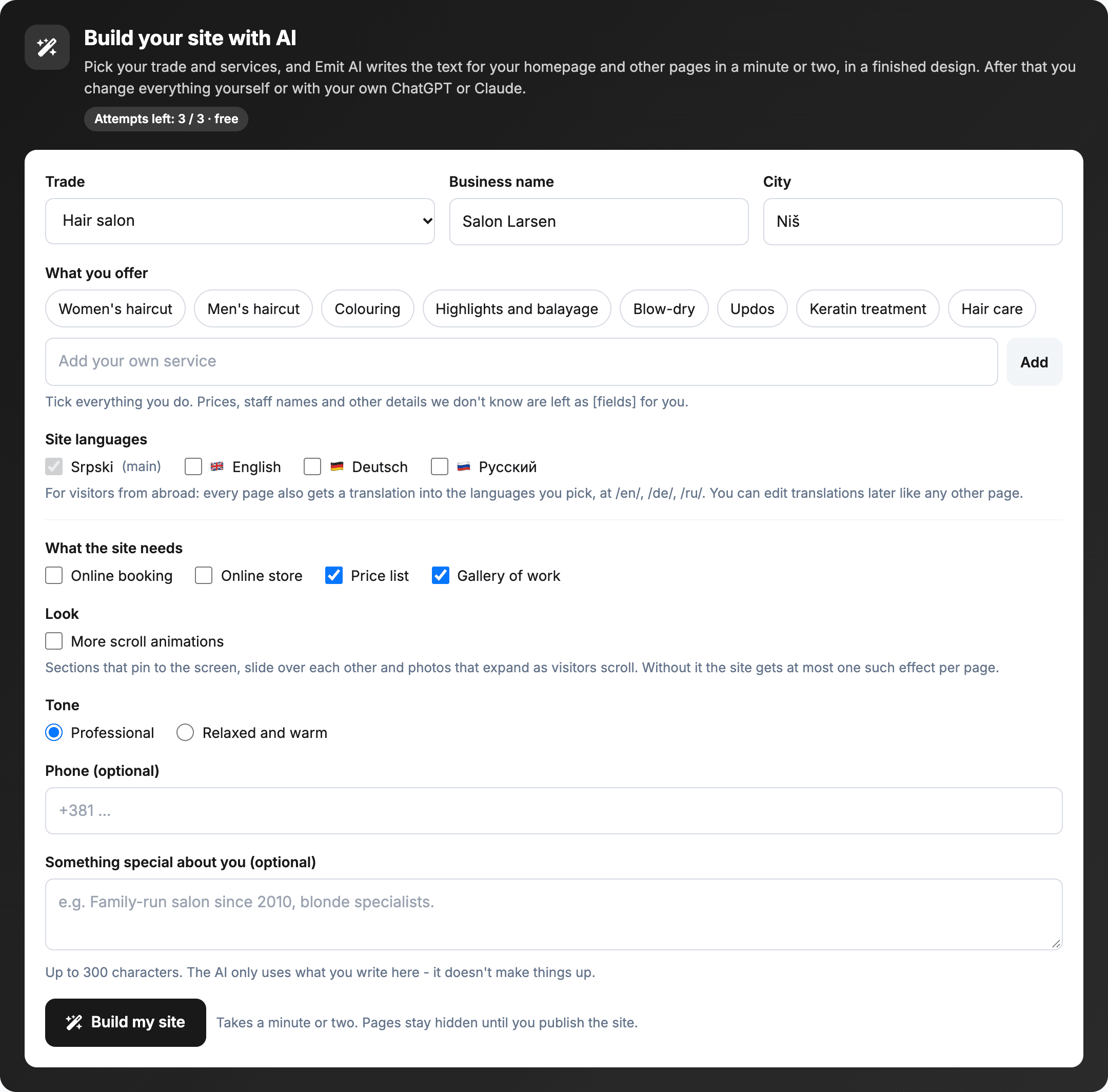
The fastest route. Answer a few questions about your business, and in a minute or two Emit AI writes the text for the home page and the other pages, in a finished design for your trade.
- In the left menu click Overview. The Build your site with AI card is at the top.
- Choose your Trade (e.g. Hair salon) and enter your Business name and City.
- Under What you offer, click the services you provide and add your own in Add your own service.
- Optionally tick Site languages (English, Deutsch, Русский): every page also gets a translation.
- Under What the site needs, tick e.g. Online booking or Online store.
- Choose the Tone and, if you like, fill in Something special about you (optional) (up to 300 characters).
- Click Build my site and wait a minute or two.
Worth knowing:
- Emit pays for the first version. You get three attempts per site. If you don't like the first version, make a new, different one.
- The AI doesn't make things up. Where it doesn't know prices, staff names or figures, it leaves a placeholder in square brackets, e.g.
[price] RSD. Find them on your pages and fill in the real details. - Nothing is published automatically. Until you publish the site (the last step in this post), only you can see the pages.
- Further editing you do yourself in the editor, or with your own ChatGPT or Claude account.
Way 2: a template from the gallery
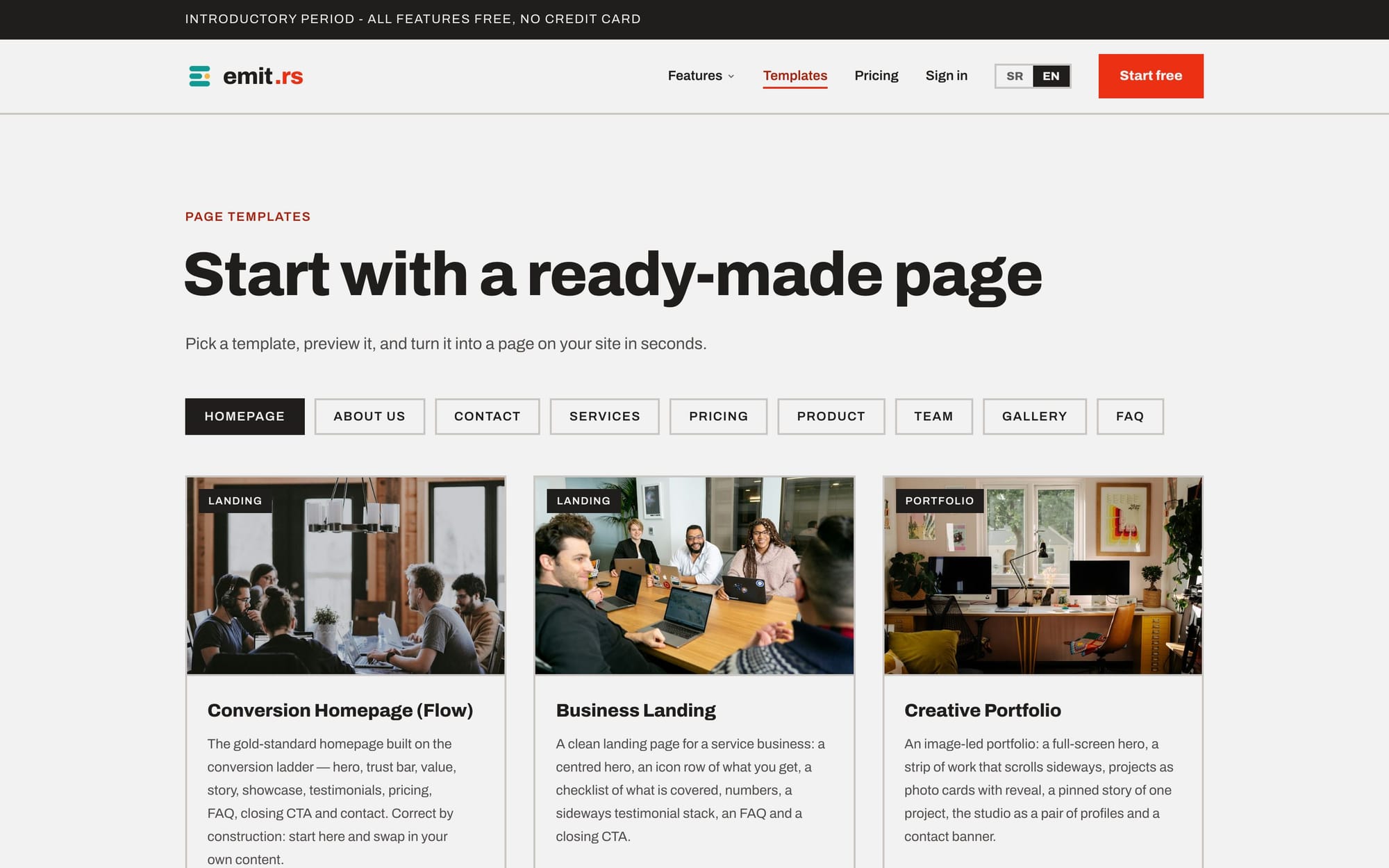
The gallery has over a hundred ready-made pages by trade: home pages, about, services, price lists, galleries, contact. Every template is included; none costs extra.
- At emit.rs/en/templates-list, choose a page type (Homepage, About, Contact...) and click a template you like.
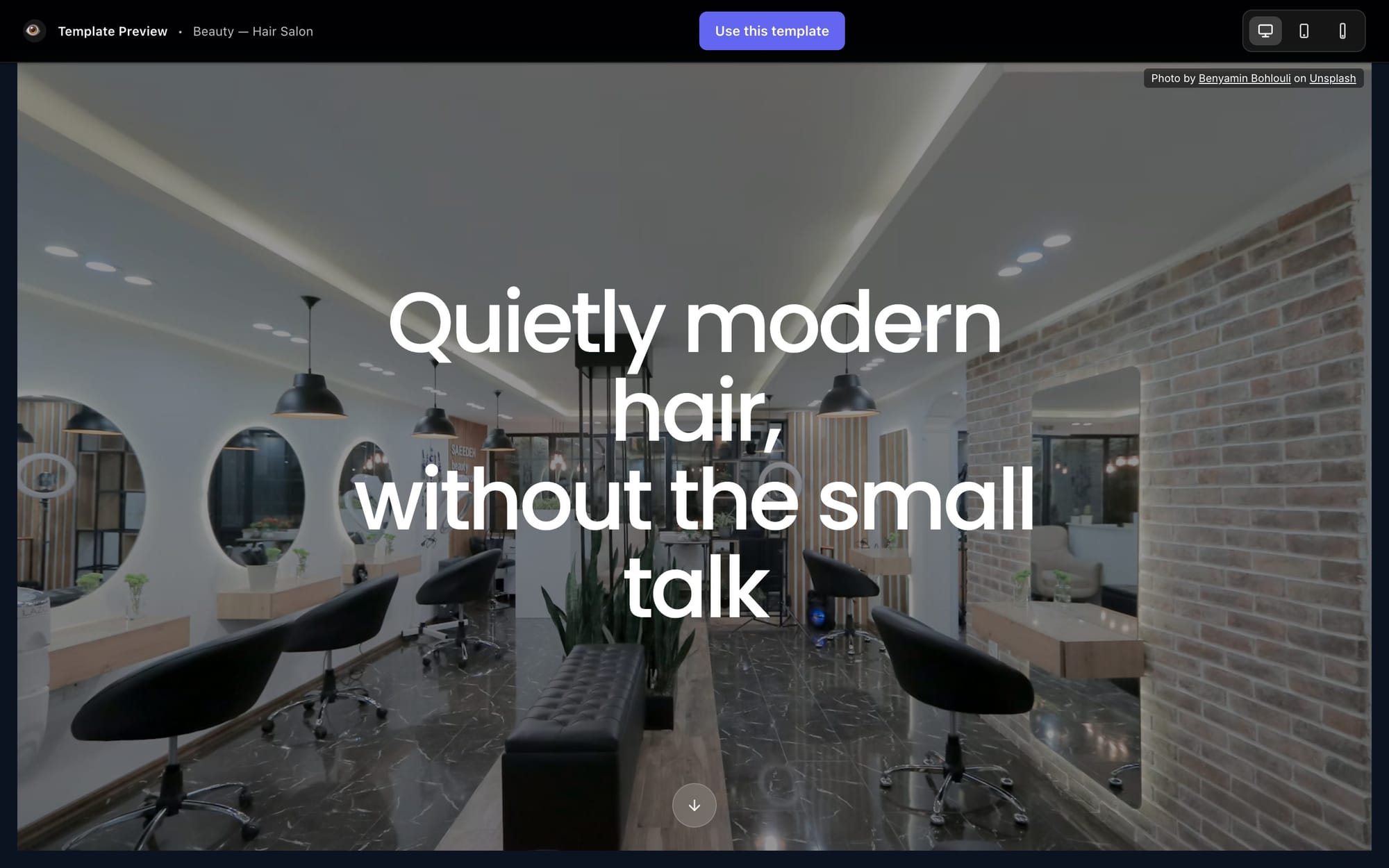
- The template preview opens; the icons in the top right show it on a computer, tablet and phone. Click Use this template.
- If you're not logged in, create an account or log in. The template waits for you.
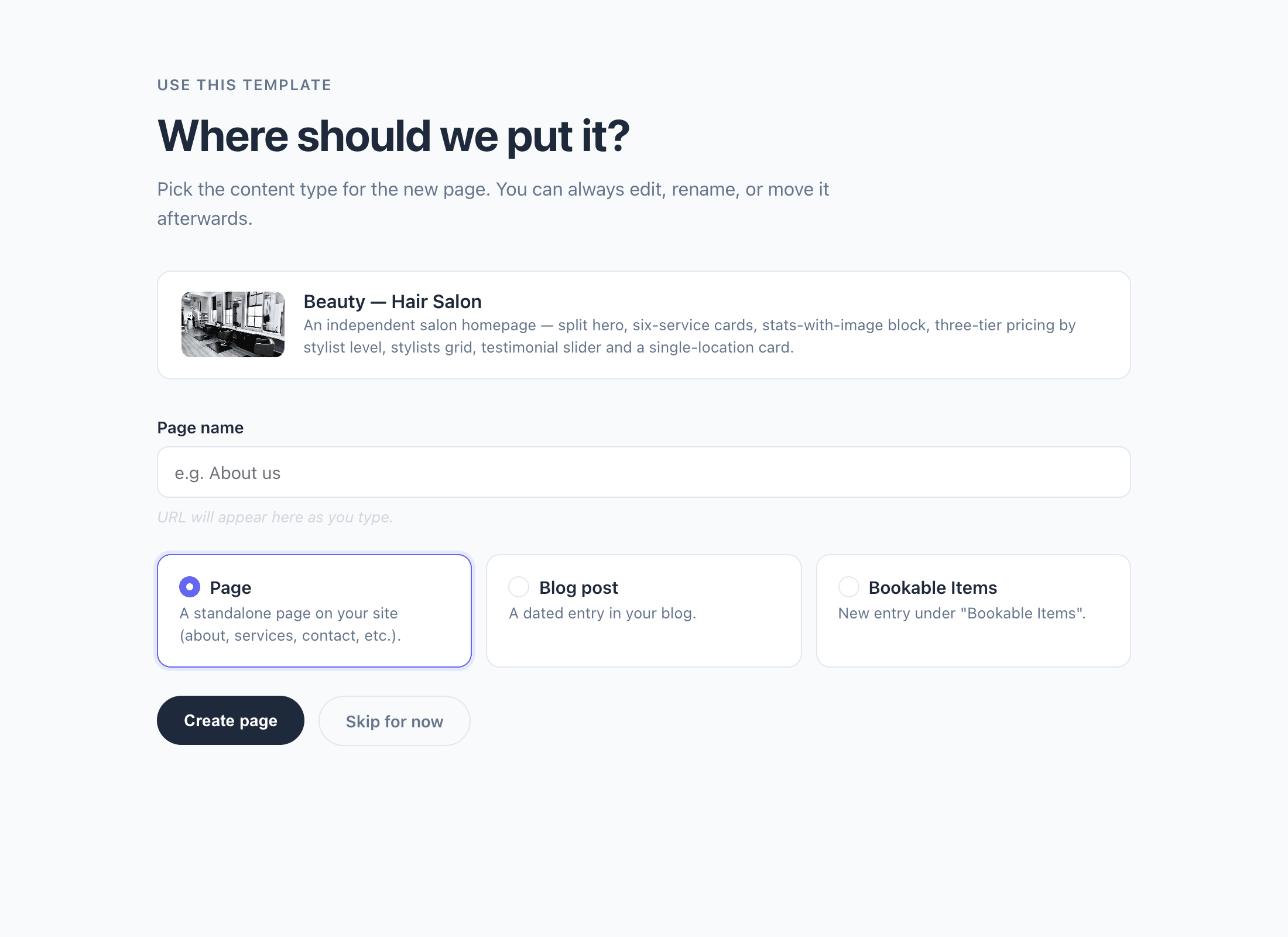
- On the Where should we put it? page, enter a Page name (e.g. "Home"), leave Page selected and click Create page.
- The page is created as a draft and opens in the editor. Replace the text and photos with your own and click Publish in the top right corner.
A template is just the layout and design: the sample text is there so you can see how it looks, and you replace it with yours. How to make the first screen look premium is in A first screen that looks expensive.
Way 3: a page from an example site
Example sites are complete sites built on Emit: a salon, a hotel, apartments, a shop. You can take any of their pages as a starting point, with all its blocks, text and images.
- In the left menu click Pages, then New Page.
- On the left edge of the screen, click the dark tab with the » arrows. A side panel opens.
- Open Template and click Browse example sites.
- Choose a site on the left and a page on the right, and it loads into the editor.
- Type the page title into the Title field at the top, replace the text and images with your own, and click Publish.
What isn't copied: the header and footer (yours apply), the SEO title and description, and list content (the example site's products, rooms and services). Lists on the copied page show your own items.
You choose which page visitors see at your site's address in the left menu under Site Settings, in the Homepage field.
Final steps: the "Get your site ready" list
On Overview, below the AI card, is the list of steps before going live: business details, working hours, the menu, header and footer, social profiles, logo and colours, SEO details, terms and privacy policy. Each step has a Set up button that takes you straight to the right place, and a Read guide link with instructions.
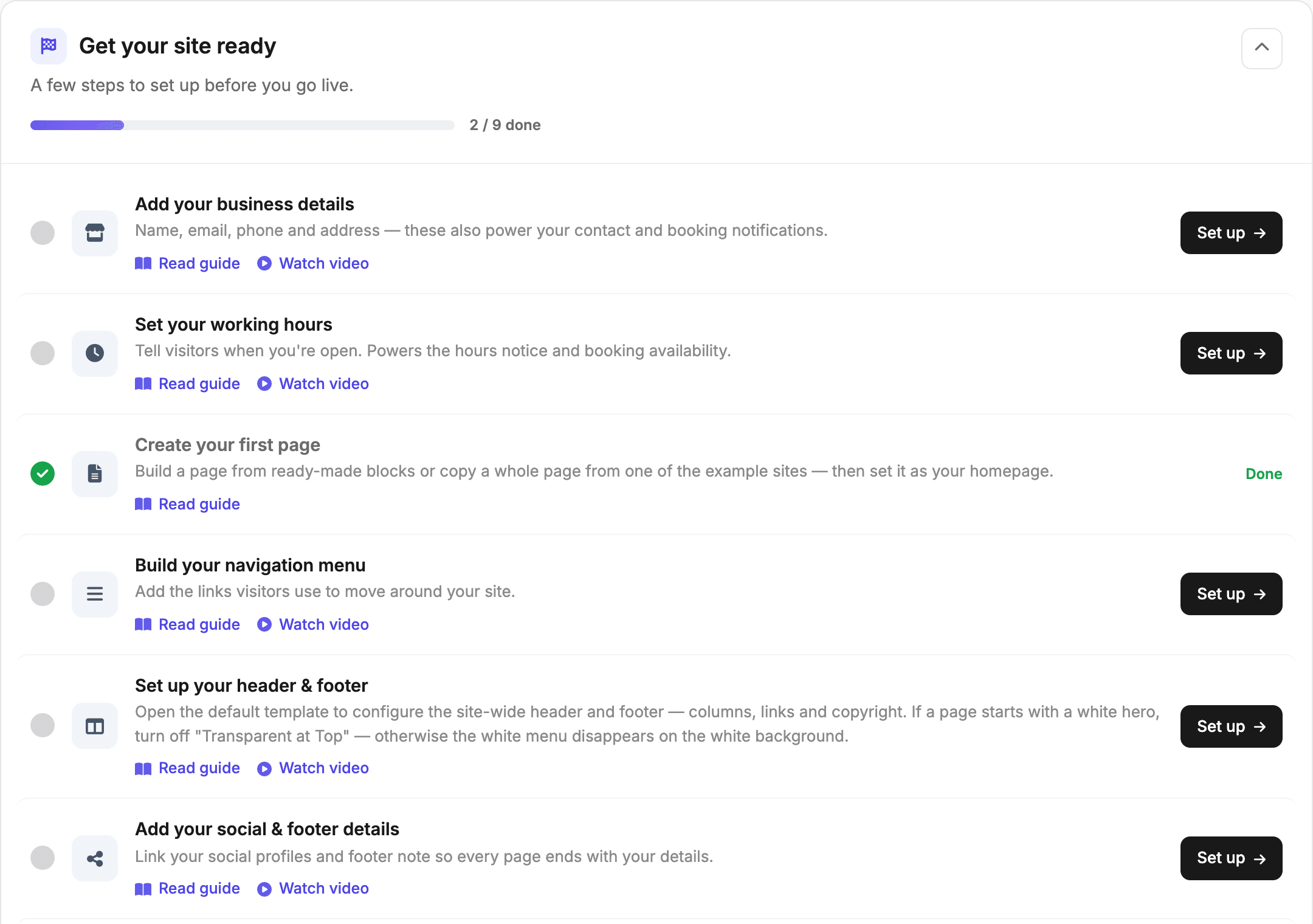
You don't have to do everything at once, but at least your business details, menu and working hours should be done before you publish. How to build the menu is covered in A new page and menu step by step.
Publishing the site
A new site is hidden: visitors and Google can't see it until you publish it. You see it normally in the meantime, because you're logged in.
- In the left menu, under Settings, click Site Status.
- In the Public visibility card, turn on the switch.
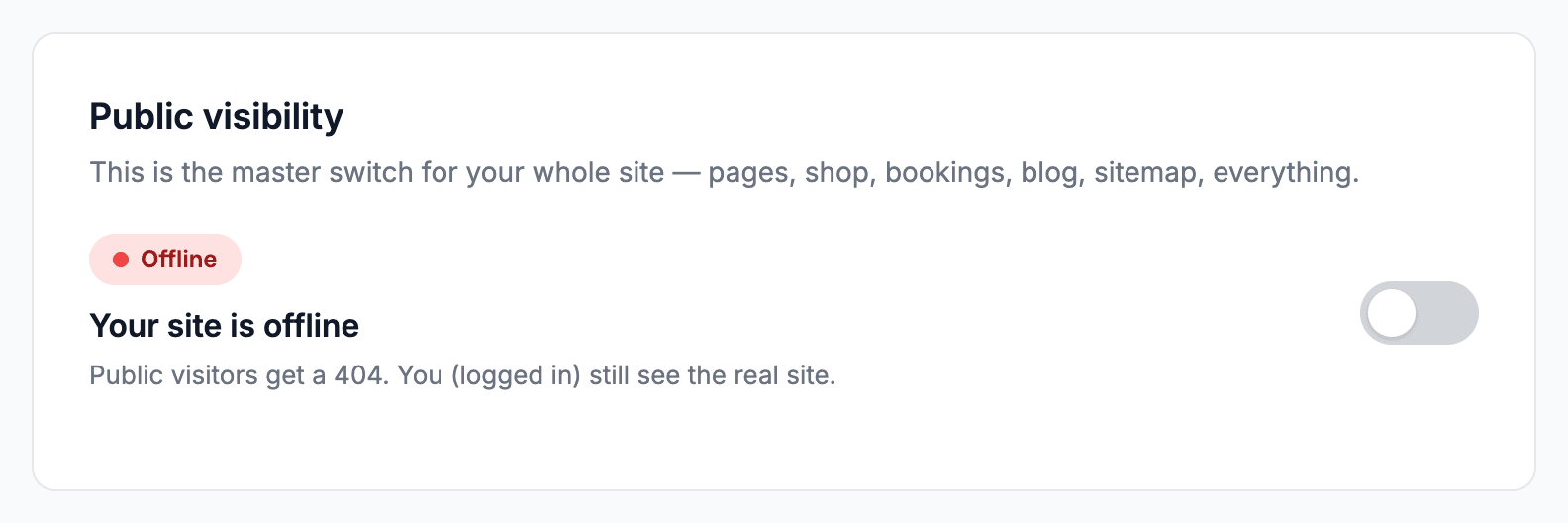
When you publish, Emit automatically checks that the site isn't in a trade we don't host. For almost every site this takes a second. If the check flags something, we review the site by hand, usually the same day, and let you know by email.
Your site lives at name.emit.rs. You can connect your own domain later, in the left menu under Custom Domain.
In short
- Create an account and open Overview.
- Pick a start: the AI first version, a gallery template or an example site page.
- Replace the sample text and
[bracketed]placeholders with your own details. - Choose the Homepage in Site Settings.
- Work through Get your site ready: details, hours, menu, logo.
- Publish with the switch in Site Status.