2 January, 11 am. A client is standing outside a locked salon. The website said "Sat: 09:00 - 16:00", and nobody mentioned it was closed between the holidays. She went home annoyed, and you only found out from a Google review.
Or the other way round: someone booked a colour appointment for 7 January on your website, because the calendar offered free slots. Now you have to call, apologise and reschedule.
Both problems have the same cause: the regular opening hours on your site don't know about holidays, unplanned closures or someone's vacation. In this post we go through three situations and how to set them up:
- the whole business is closed or open shorter hours (holidays, stocktaking),
- one staff member is on vacation while the others work,
- Google and your regular clients need to know too.
Before you start: where things are
Log in at emit.rs/en/login. Your site's dashboard opens, with the main menu on the left. For this post you need two items from the Settings group:
- Account: your business details, including regular and temporary opening hours.
- Site Settings: booking settings, including staff time off.

Situation 1: holidays and days the whole business is closed
For days that differ from your regular schedule, use temporary hours. You enter the dates once and they apply in two places at the same time:
- a highlighted notice with those dates appears on your site,
- the booking calendar closes those days, or only offers slots within the shorter hours.
How to set it up
- In the left menu, under Settings, click Account.
- At the top of the page, choose the Business Info tab.
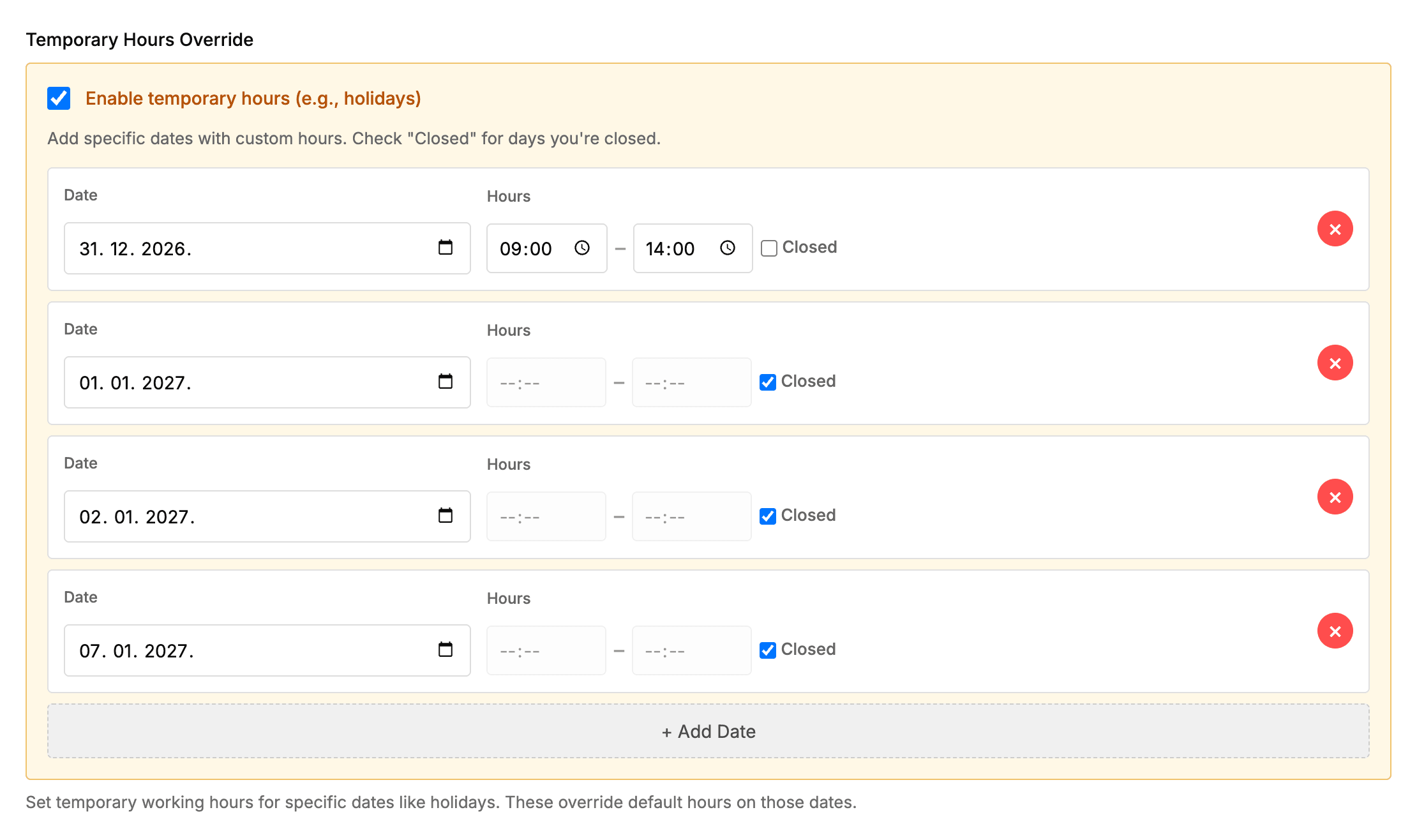
- Scroll to Working Hours and check that your regular hours are right. Below them is Temporary Hours Override.
- Tick Enable temporary hours (e.g., holidays).
- Click + Add Date and pick a date.
- For a day you're closed, leave Closed ticked. For a shorter day, untick it and enter the hours, e.g. 09:00 to 14:00.
- Repeat for each date, then click Save Changes in the bottom right corner.
What clients see
In the footer of every page of your site, above the regular hours, a yellow Special hours notice appears with all the upcoming dates:
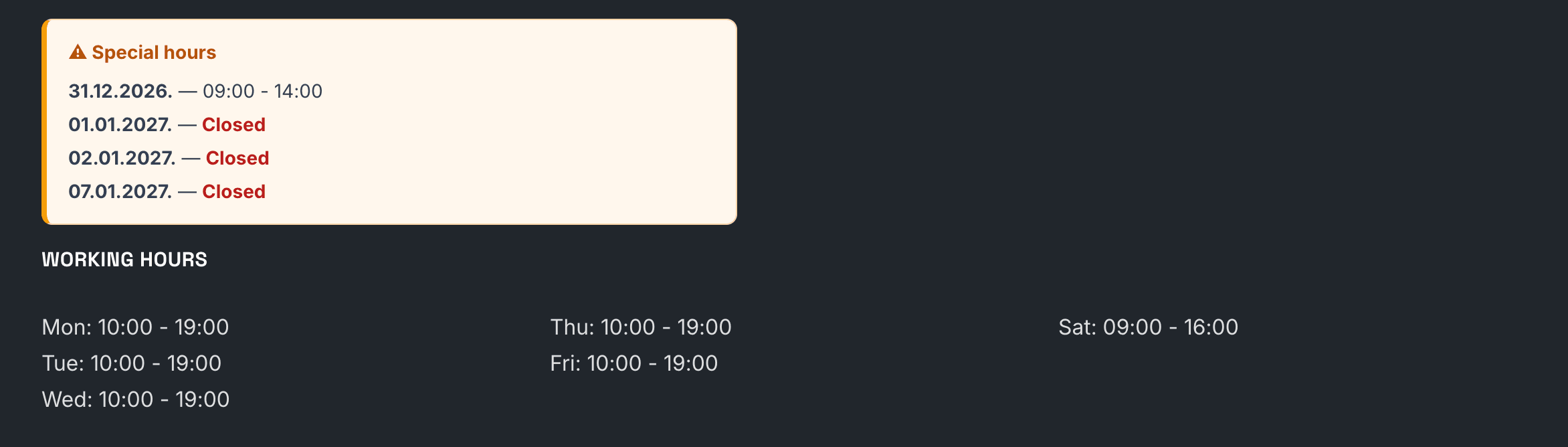
The Company Info + Hours block shows the same notice, if you have it on your Contact page. Once a date has passed, it drops out of the notice by itself, so you don't have to go back and delete it.
In the booking calendar, closed days are greyed out and can't be selected:
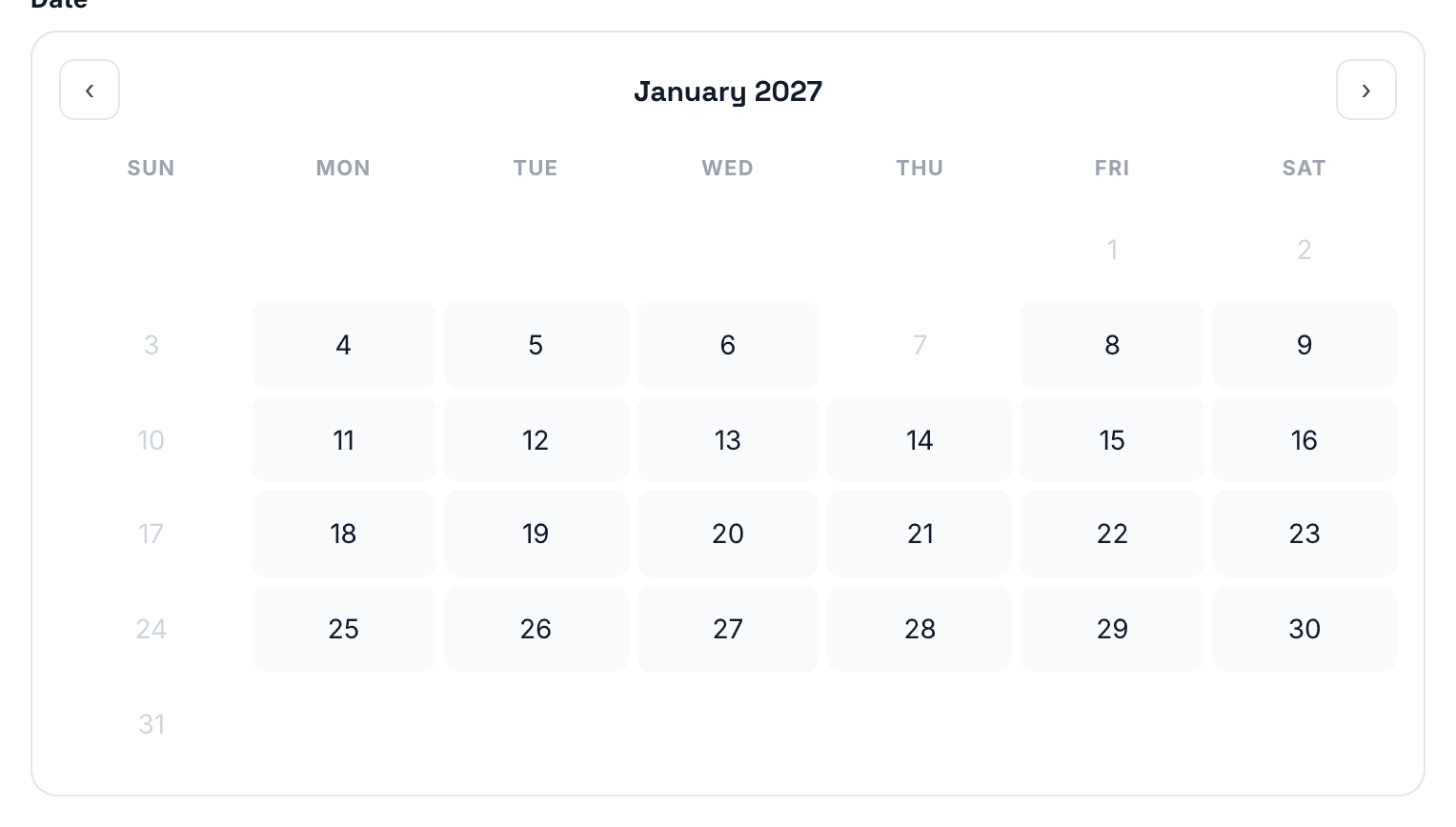
For a shorter day, the calendar only offers slots that fit within those hours.
Situation 2: one staff member is on vacation
When Marija goes on vacation and Jovana is working, you don't want to close the whole salon. Nor do you want the site to say "Marija is on vacation". That's what time off is for: it blocks one person's slots and isn't published anywhere on the site.
How to set it up
- In the left menu, under Settings, click Site Settings.
- In the Sections menu on the left of the page, click Reservations.
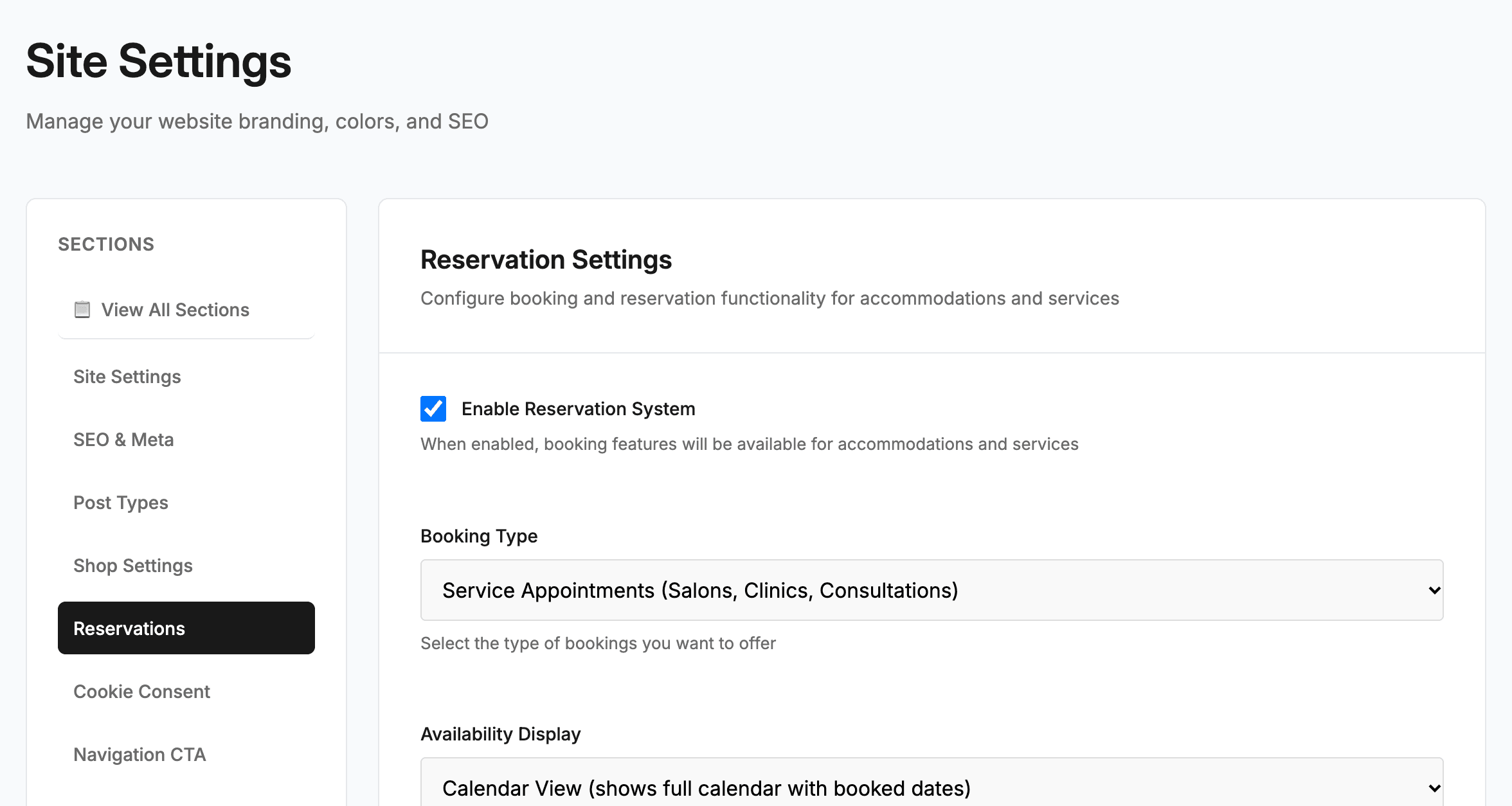
- Scroll to Time off & closures and click + Add time off.
- Enter a Start date and an End date.
- Leave All day ticked (or enter hours if she's only away part of the day).
- Under Applies to, choose the staff member. Choosing Everyone blocks the whole business.
- Optionally add a Reason. Only you see it.
- Click Save Changes.
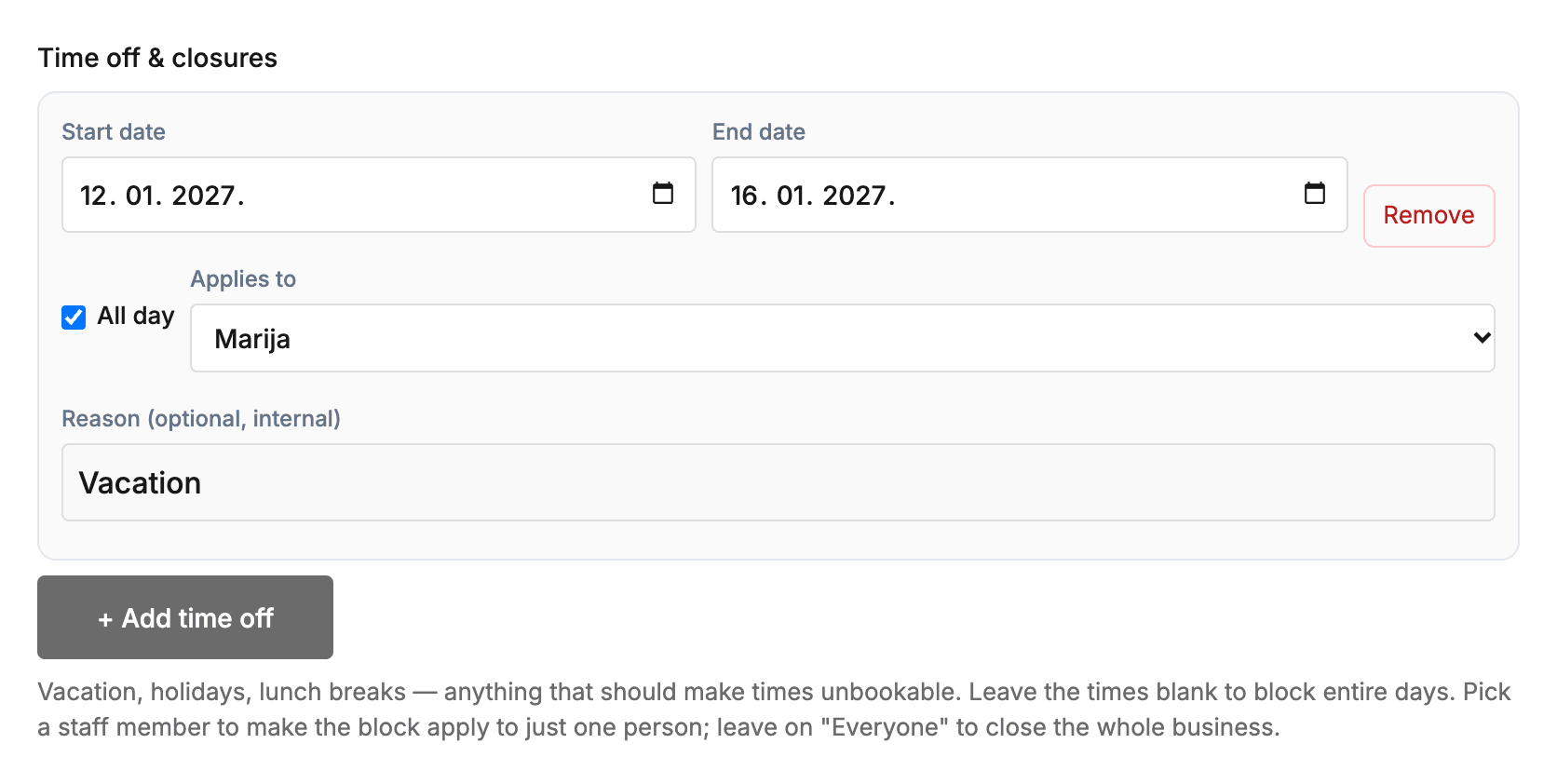
On those days clients can book with the other stylists, but not with Marija. You can also add time off from the staff list on the same page, with the + Time off / vacation for this person button next to their name.
Which one when? Temporary hours are public and let clients see the change. Time off is internal: it blocks slots but doesn't show as a notice. A public holiday when the whole business is closed goes into temporary hours; one person's vacation goes into time off.
Situation 3: let Google and your regular clients know
Your website is one place. People find you in others too:
- Google Business Profile. Google shows opening hours right in search and on the map, and it's often the first thing people see. Enter the same special hours there too. We explain how in Google Business Profile step by step.
- Existing bookings. Before you close a day, in the left menu under Reservations click Bookings and check whether you already have appointments on those dates. Contact those clients and agree a new time.
- Social media. A short post or story a week ahead, with a link to your site.
In short
- Check your regular Working Hours in Account → Business Info.
- For holidays, turn on Temporary Hours Override and add the dates: Closed or shorter hours.
- Add holidays at least two weeks ahead, so the notice is seen in time.
- Put one staff member's vacation in Time off & closures (Site Settings → Reservations), not in temporary hours.
- Check existing bookings on the days you're closing.
- Enter the same special hours on your Google profile.
- Open your site on a phone and check the footer notice and the calendar.
If you take bookings on your site, see also how deposits and reminders cut no-shows.