An association that runs a whole project on volunteer enthusiasm usually has a Facebook page, a folder of reports on somebody's laptop and an email address answered by whoever gets to it first. It all works, until someone who doesn't know you turns up: a donor who wants to see what you did last year before giving, a grant committee asking for your statute, a journalist looking for a contact, or a parent who wants to sign up their child.
They all check the website first. If there isn't one, or it has said "Site under construction" since 2021, many of them don't write at all. This post goes in order: who checks you, what they need to find and how to put it together on Emit.
Who checks you and what they look for
An association's website has four audiences, and each looks for something different:
| Who | What they look for |
|---|---|
| Donors and grant committees | What you did, for whom, who runs the association, reports and documents |
| Future members and volunteers | What you do, how to get involved, what membership costs |
| The people you serve (parents, neighbours) | Where you are, when you're open, who to contact |
| Partners and journalists | Contact people, a short description, photos, news |
A good association website doesn't have to be big. It has to answer these questions in a couple of minutes.
1. Results in numbers
"We help children" is nice, but it says nothing. "Forty children every weekday in three rooms" says something. On the home page, show a few numbers that describe your work: how many people, how many activities, how many years.
The Impact Numbers (Stats Counter) block shows numbers with a short description, and the numbers count up when a visitor scrolls to them.
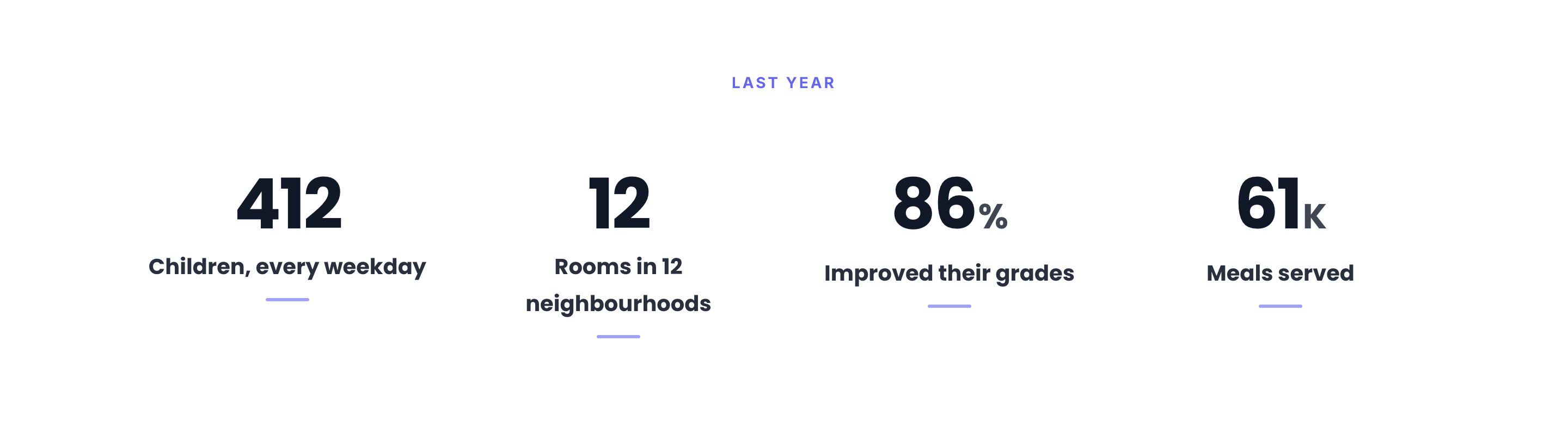
Only use numbers you can show in a report. A grant committee will compare them.
2. Who runs the association
People give money and time to people, not logos. An "About us" page with the names, photos and roles of the people who run the association builds trust faster than any text. That's what the Team Grid block is for.
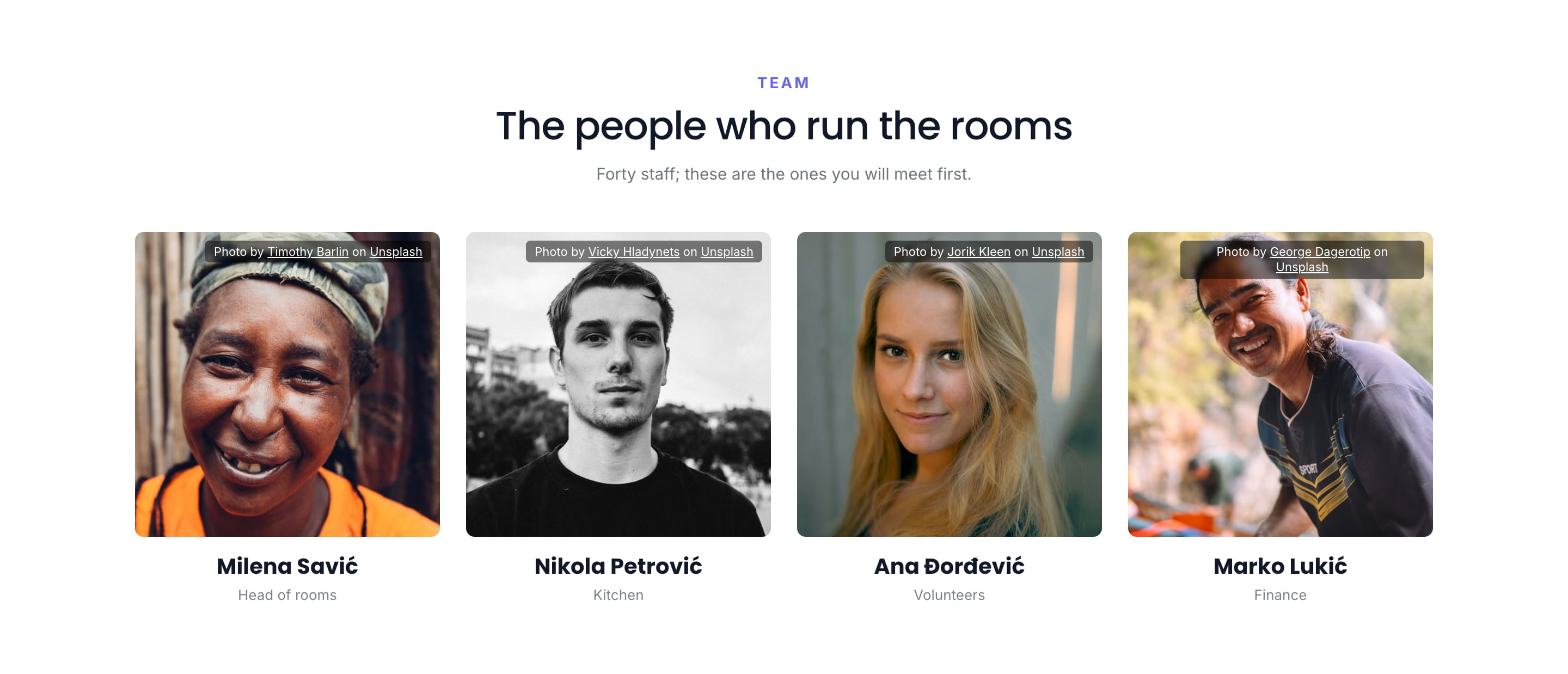
On the same page, a Timeline with key years (founding, first project, first premises) works well, as does a Logo Bar with partners and donors, with their permission.
3. Reports and documents in one click
Statute, registration certificate, annual reports, financial statements. If you email them out on every request, put them on the site.
- In the left menu, under Design, click Media Library and upload the PDF. The library takes images, PDFs and documents (see Media library and Unsplash).
- Add a Download / Lead Magnet block to the page: a heading, a short description and a button that links to the file.

Add the new report every year and keep the old ones. A run of years shows continuity, and that's what committees look for.
4. Joining and supporting in one step
"Get in touch if you'd like to get involved" doesn't work. People want to know exactly what you offer and what's asked of them. The Offer + Sign-up Form block puts both side by side: the membership fee or monthly support with a list of what it covers on the left, and a form on the right.
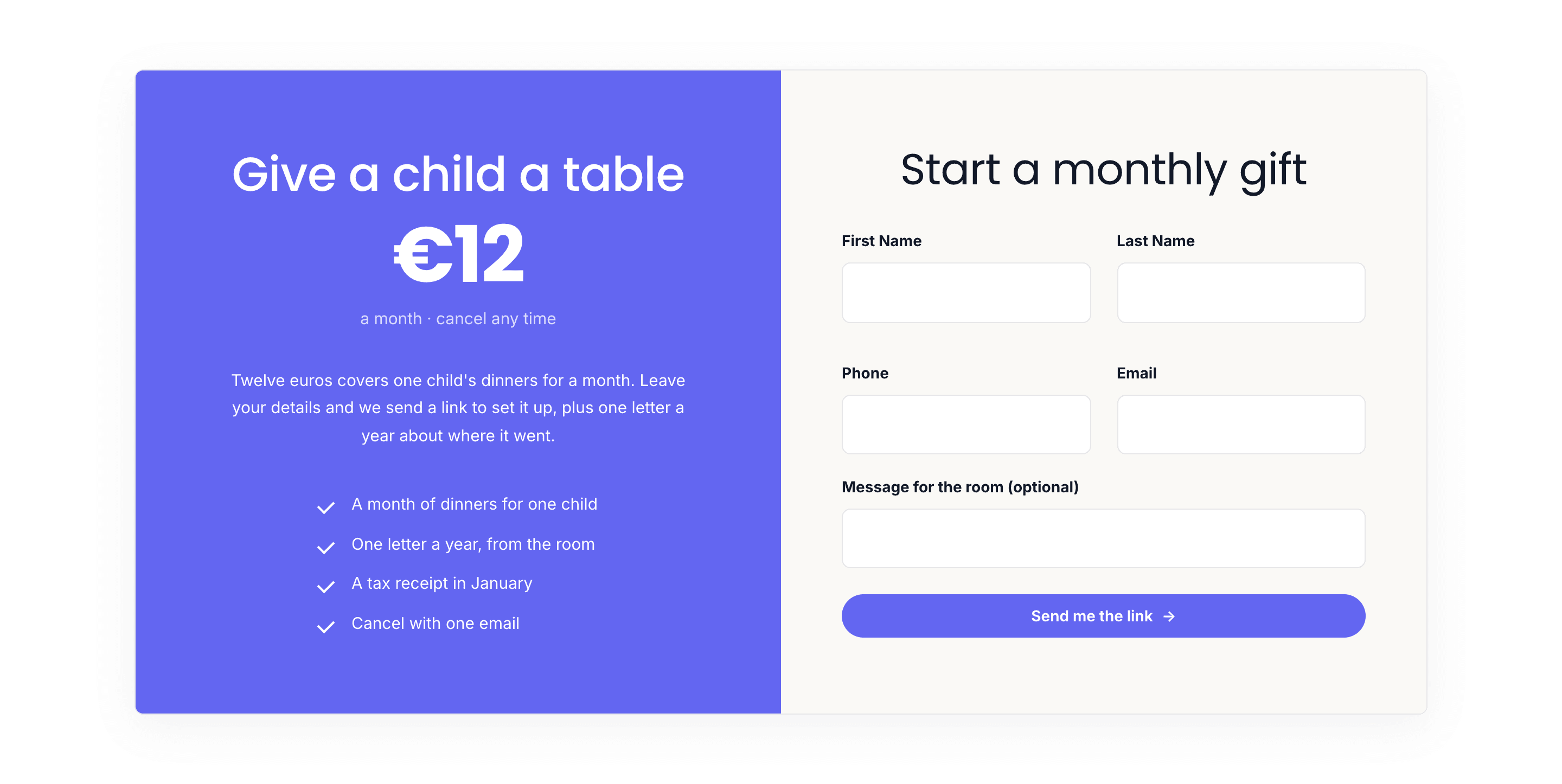
- Name the extra field as you need: "How would you like to help", "Child's year of birth", "Experience".
- In Send submissions to (email), enter the address of whoever runs membership or volunteers. Steps: A contact form that reaches the right person.
Members pay the fee into the association's bank account. Write the account number and payment purpose clearly on the same page. If you want members to pay by scanning an IPS QR code, you can create a "Membership" product paid by bank transfer: after ordering, the member gets the account number, payment reference and QR code, and you confirm the payment under orders (see Shipping and payment).
5. News, events and a newsletter
A site whose latest news is two years old looks like a defunct association. You don't have to write often: one post a month about what you've done is enough.
- Publish news and activities as blog posts, with categories (Projects, Activities, Announcements). See Blog and content types.
- Keep members and donors informed with a newsletter through the Newsletter Subscribe block, connected to Mailchimp or Brevo (guide).
6. An English version for partners
If you work with international donors or partners, you don't need every page in English. The home page, "About us", reports and contact are enough. How to add a language and translate only what you need: A two-language website.
7. Privacy
A sign-up form collects personal data, sometimes about children. When you sign up, Emit creates draft privacy policy and terms of use pages: adapt them, publish them and add them to the footer. If you work with children or sensitive data, have a lawyer review the text. How to check everything before launch: Before you publish your website: a checklist.
How to start
The gallery has two templates for associations and non-profits:
- Home (preview): photos with your mission, impact numbers, programmes, a story, testimonials and a support form.
- About & transparency (preview): a timeline, the people who run the association, the team, partners and a report download.

- Open the template and click Use this template.
- Log in or create an account, enter a page name and click to create the page.
- Replace the text, numbers and photos with your own, then click Publish.
The whole process, with screenshots: Your first website step by step.
In short
- A few verifiable numbers about your work on the home page.
- Names, roles and photos of the people who run the association.
- Statute, reports and documents to download, each year separately.
- A clear offer for membership or support, with a form and the right recipient.
- The account number and payment purpose for fees or donations.
- At least one news post a month, and a newsletter for members.
- An English version of the key pages, if you have international partners.
- The privacy policy published and in the footer.