A guest from Germany opens your site, sees only Serbian and closes it. For apartments, restaurants in tourist towns and anyone working with visitors from abroad, a second language isn't decoration: it's the difference between a booking and an empty room. Why it matters for accommodation in particular is covered in Vacation rental website in several languages. This post is the setup itself, step by step.
How Emit tells languages apart
The language is set by the page address:
| Address | Language |
|---|---|
yoursite.rs/o-nama | primary (Serbian) |
yoursite.rs/en/o-nama | English |
There's no hidden "remembered" language. A link you send always opens the same language, Google sees both versions as separate pages, and visitors switch language with the switcher in the header.
Before you start: where things are
Log in at emit.rs/en/login. Your site's dashboard opens, with the main menu on the left. The Settings group has two items for this post:
- Languages: which languages your site has.
- Translations: platform text (buttons, forms, messages) in each language.

Step 1: turn on languages
- In the left menu, under Settings, click Languages.
- Turn on the Multilingual website switch.
- Under Primary Language, keep the language most of your visitors use (e.g. Serbian). Pages in the primary language have no prefix in their address.
- Under Available Languages, tick the languages you're adding, e.g. English.
- Click Save Language Settings.
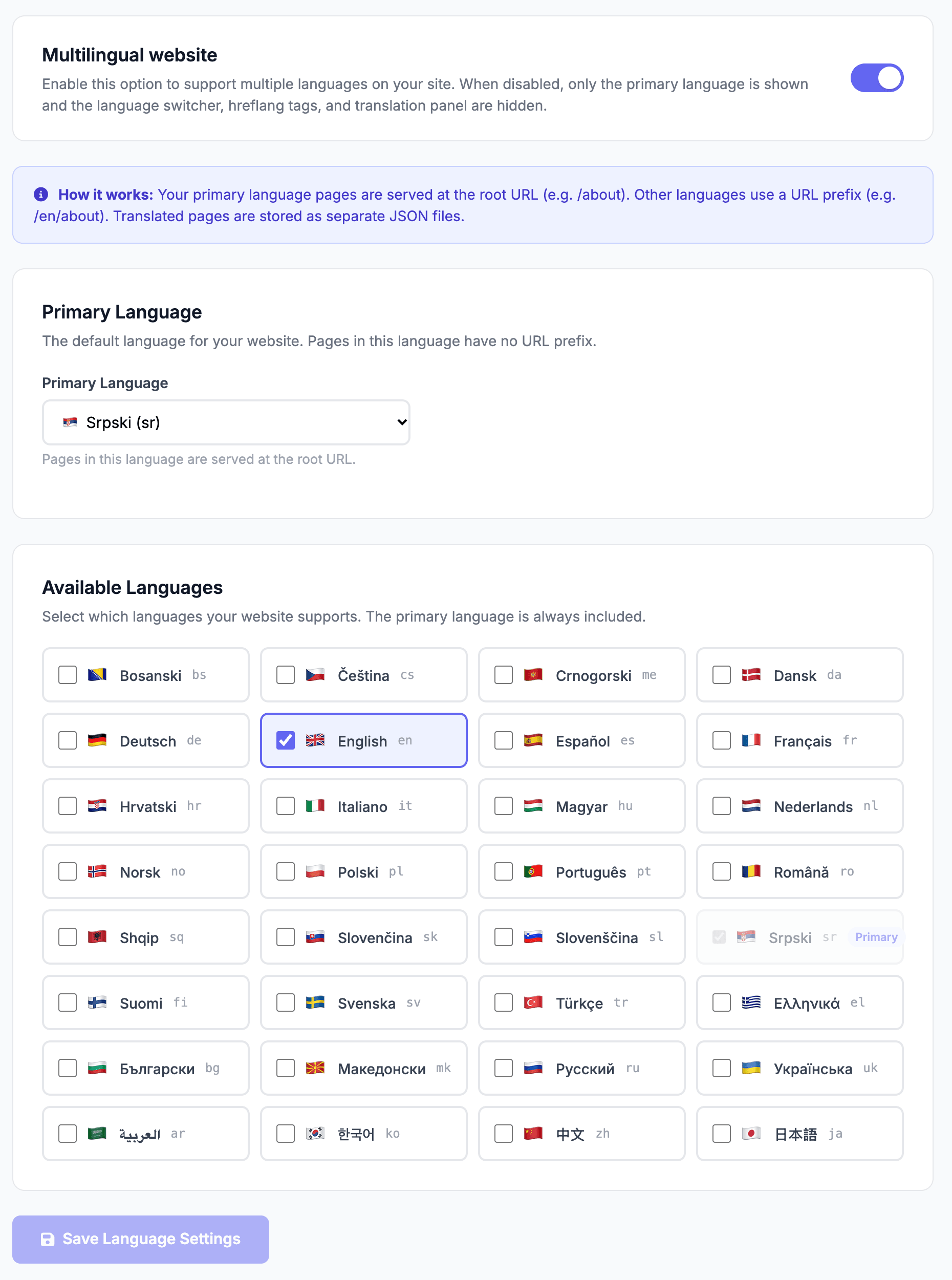
Two tips before you click Save:
- Don't change the primary language later. It changes the address of every page, which means broken links and lost Google rankings.
- Don't add more languages than you can maintain. A site in two well-translated languages makes a better impression than one in four half-translated ones.
Step 2: translate your pages
Each language has its own copy of a page, which you (or your AI) translate.
- In the left menu click Pages, then All Pages. Each page now shows language badges: SR exists, EN + has no translation yet.
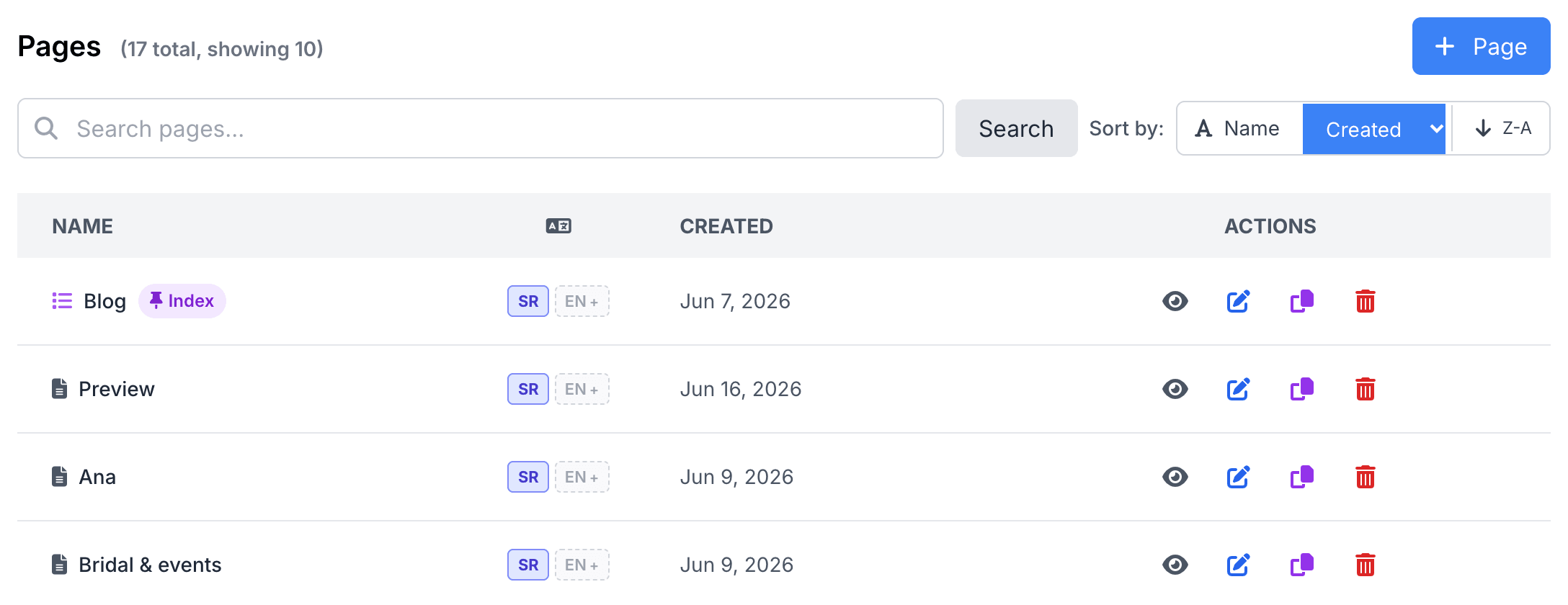
- Click EN + next to a page. Or open the page (blue pencil), click the gear icon in the top right, open Translations and click + EN.
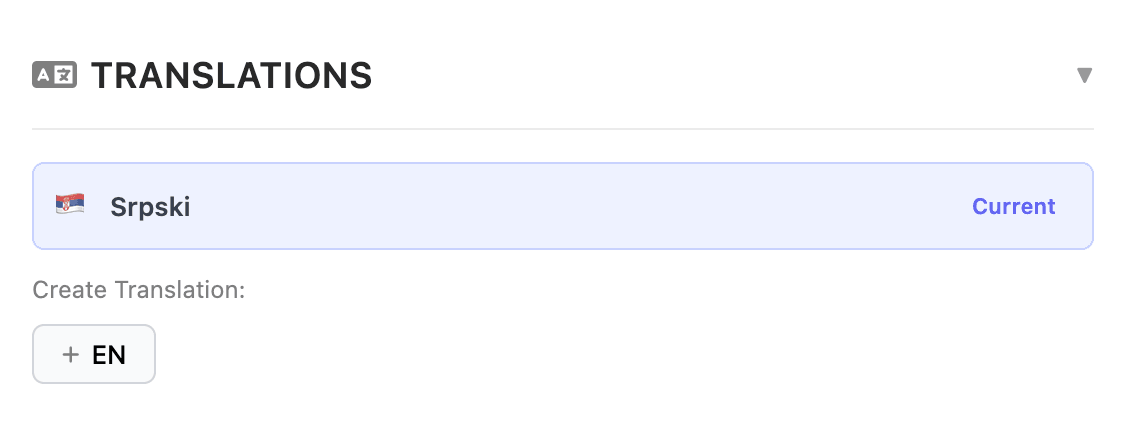
- Emit creates a copy of the page at
/en/..., with the same blocks and text. Open it and translate the text in every block.
Important: the new copy is saved as a draft. Until you publish it, visitors at the /en/ address see the Serbian page, and Google isn't given an English version for it. Translate the text, then click Publish.
What to translate on every page:
- headings, text and buttons in the blocks,
- the SEO title and description (gear icon → SEO settings), otherwise Google shows foreign visitors a Serbian description,
- image alt text if you have it.
Blog posts, products and accommodation have the same Translations part.
Step 3: translate the menu
Menu items take the translated page name automatically. When you want a different English name:
- In the left menu click Menus, then All Menus, and the pencil next to Main navigation.
- Click the globe icon on the right of the item.
- In Label for English, type the English name, e.g. "About".
- Click Save Menu.

Step 4: platform text
Besides your own content, your site has text written by the platform: "Send", "Book", form messages, day names in the opening hours. It's already translated into every language on offer. If you want a different word:
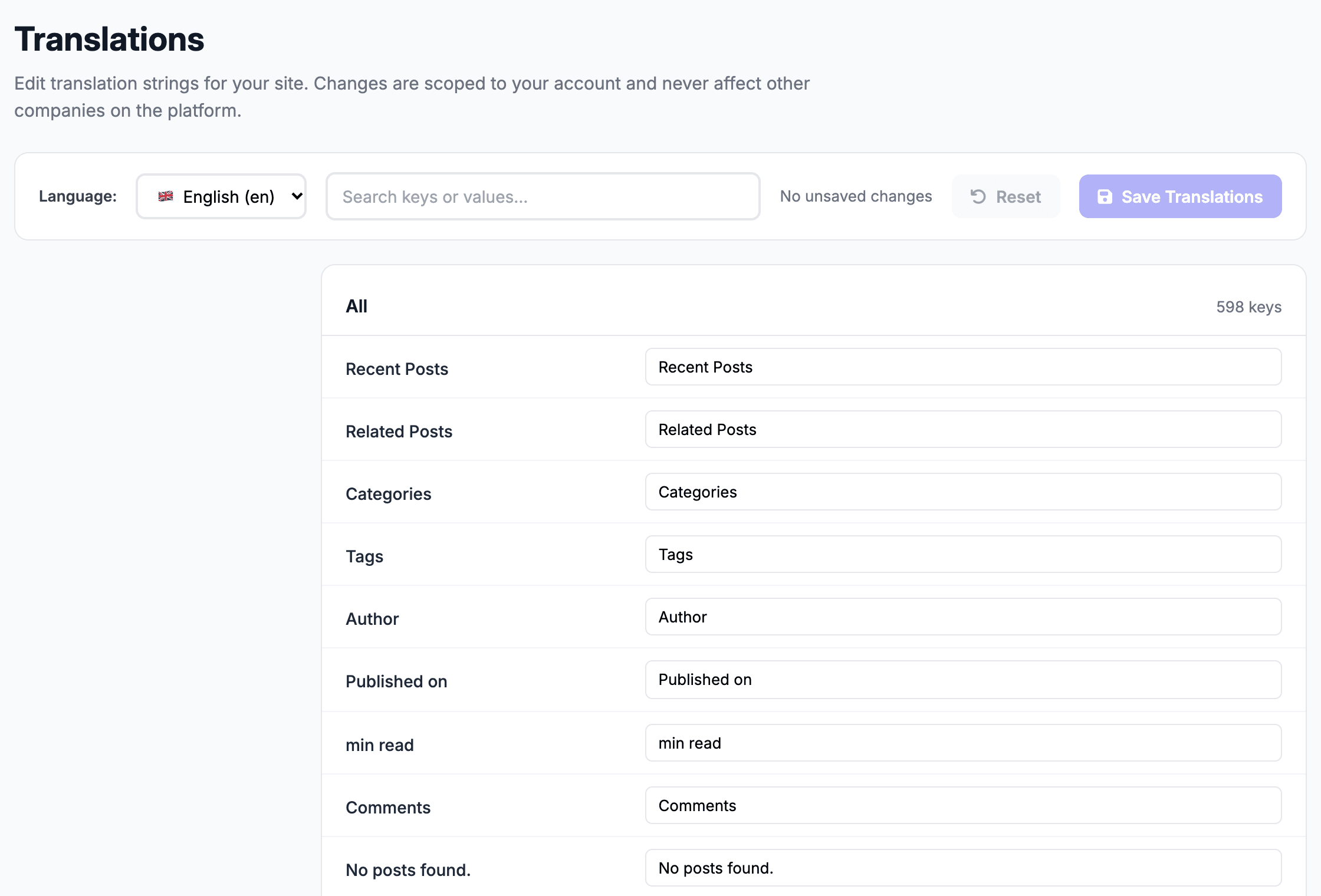
- In the left menu click Translations.
- At the top choose the language, e.g. English, and search for the text.
- Change the translation in the right-hand column and click Save Translations.
Step 5: check the language switcher
Once the multilingual site is on, a switcher with a flag appears in the header. Visitors click it and land on the same page in the other language.
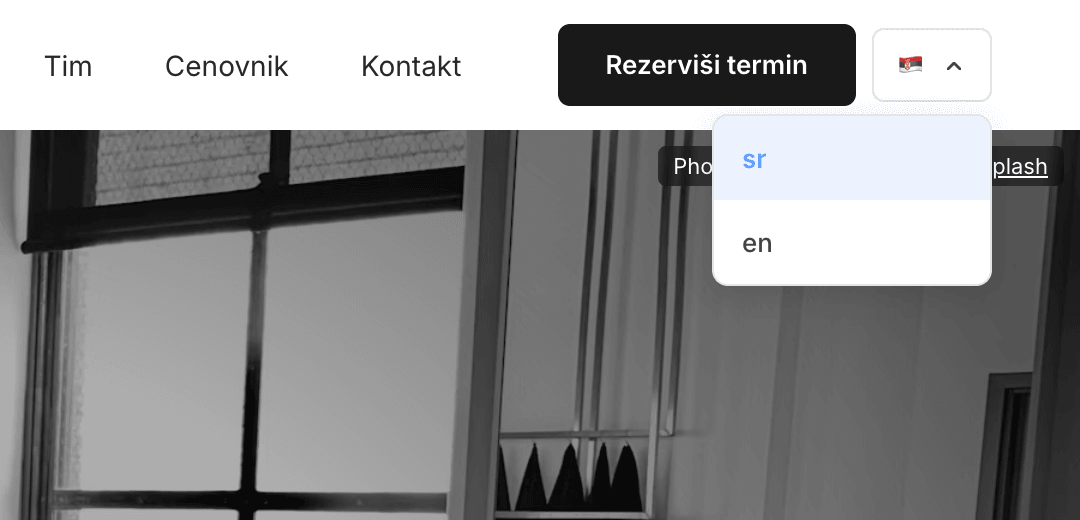
Open your site on a phone, switch to English and go through the menu: every item should lead to an English page. A page with no translation shows the Serbian text at its /en/ address, so translate at least every page in the menu.
In short
- Languages: turn on Multilingual website, keep the primary language, add English, Save Language Settings.
- Pages → All Pages: click EN + next to every page in the menu and translate it right away.
- Translate each page's SEO title and description too.
- Menus: English labels via the globe icon, then Save Menu.
- Translations: adjust any platform text you want worded differently.
- Language switcher: go through the whole site in English on a phone.