"And how much is shipping?" is the question that stops a purchase. If buyers only find out when you call them, or when the courier charges more than they expected, they don't order again.
In this post we set up two things a buyer must see before sending an order: what shipping costs and how they pay. On Emit the buyer pays cash on delivery (to the courier on collection) or by bank transfer to your account with an IPS QR code. Online card payment isn't supported at the moment.
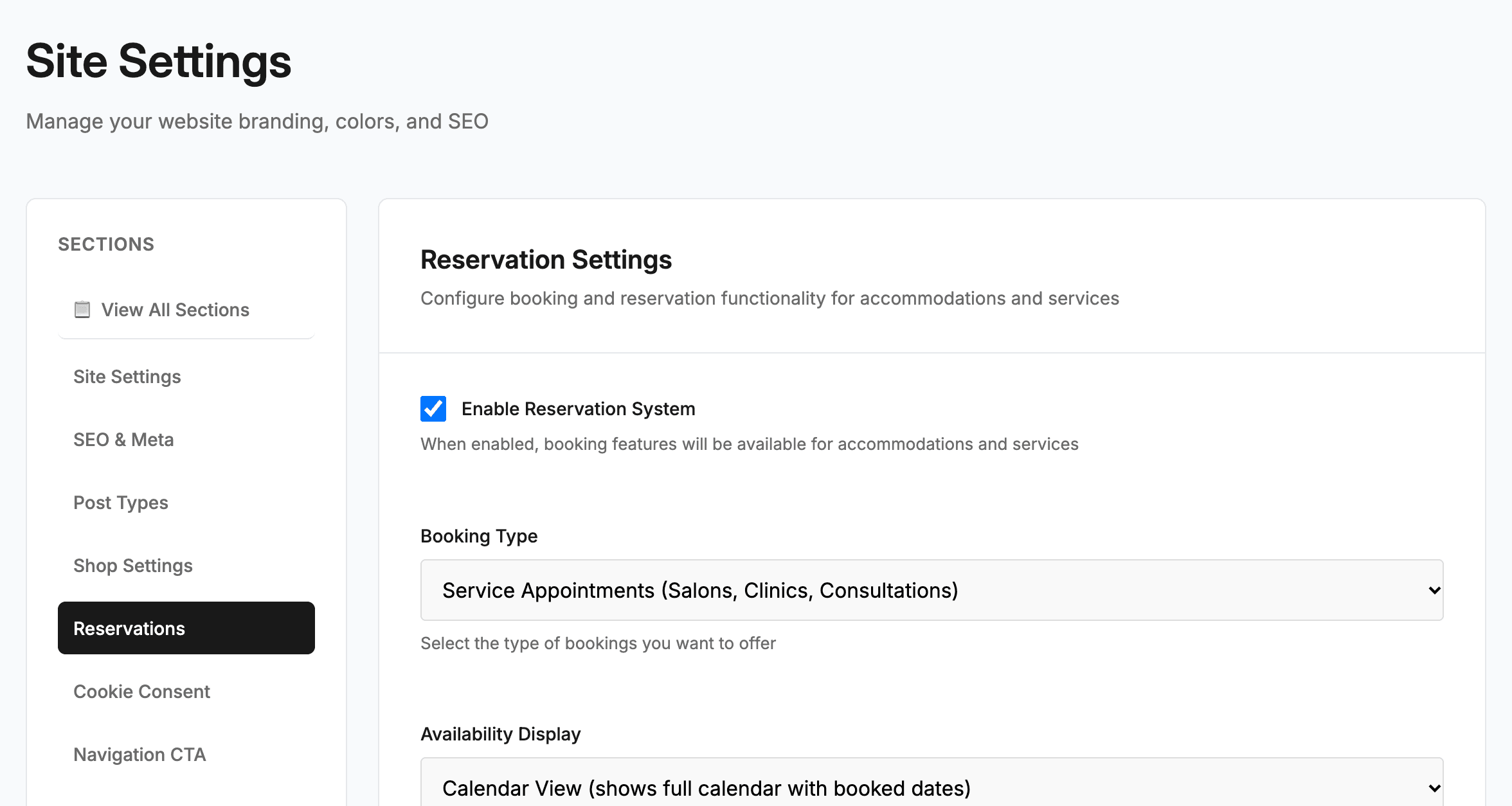
Before you start: where things are
Log in at emit.rs/en/login. In the main menu on the left, in the Settings group:
- Account: the Business Info tab, with your bank account field.
- Site Settings: the Shop Settings section, with payment methods and shipping prices.
Step 1: Enter your bank account
Without an account number bank transfer isn't available, so buyers only see cash on delivery.
- In the left menu click Account, then the Business Info tab at the top of the page.
- In Bank account (for payments), enter your company's or sole trader's account.
- Click Save Changes. A mistyped number is marked red and isn't saved.

Step 2: Payment methods and shipping price
- In the left menu click Site Settings, then in the Sections menu click Shop Settings.
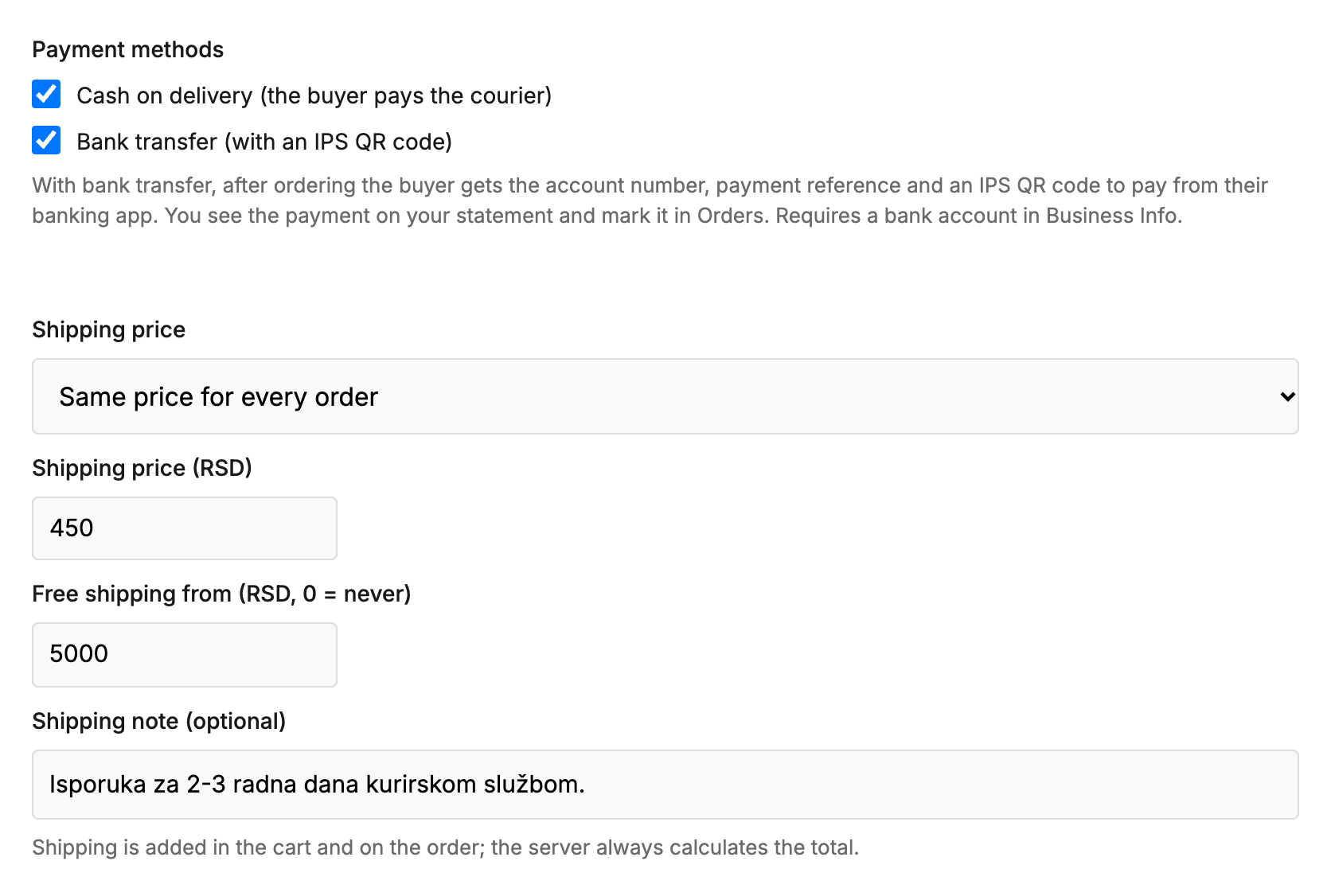
- Under Payment methods, tick Cash on delivery and/or Bank transfer (with an IPS QR code). If both are on, the buyer chooses in the cart.
- Under Shipping price, choose one option:
- No shipping price in the cart (included or arranged): shipping is in the product price or agreed with the buyer.
- Same price for every order: e.g. 450 dinars.
- By order weight: a "up to X kg → Y dinars" table (see below).
- In Free shipping from, enter the amount from which shipping is free (e.g. 5,000 dinars). 0 means never.
- In Shipping note, enter the delivery time, e.g. "Delivered in 2-3 working days by courier". Buyers see it in the cart.
- Click Save Changes.
Price by weight
If you ship both light and heavy things (a soap and a rug), one shipping price isn't fair to the buyer or to you. Choose By order weight, then + Add row for each range:
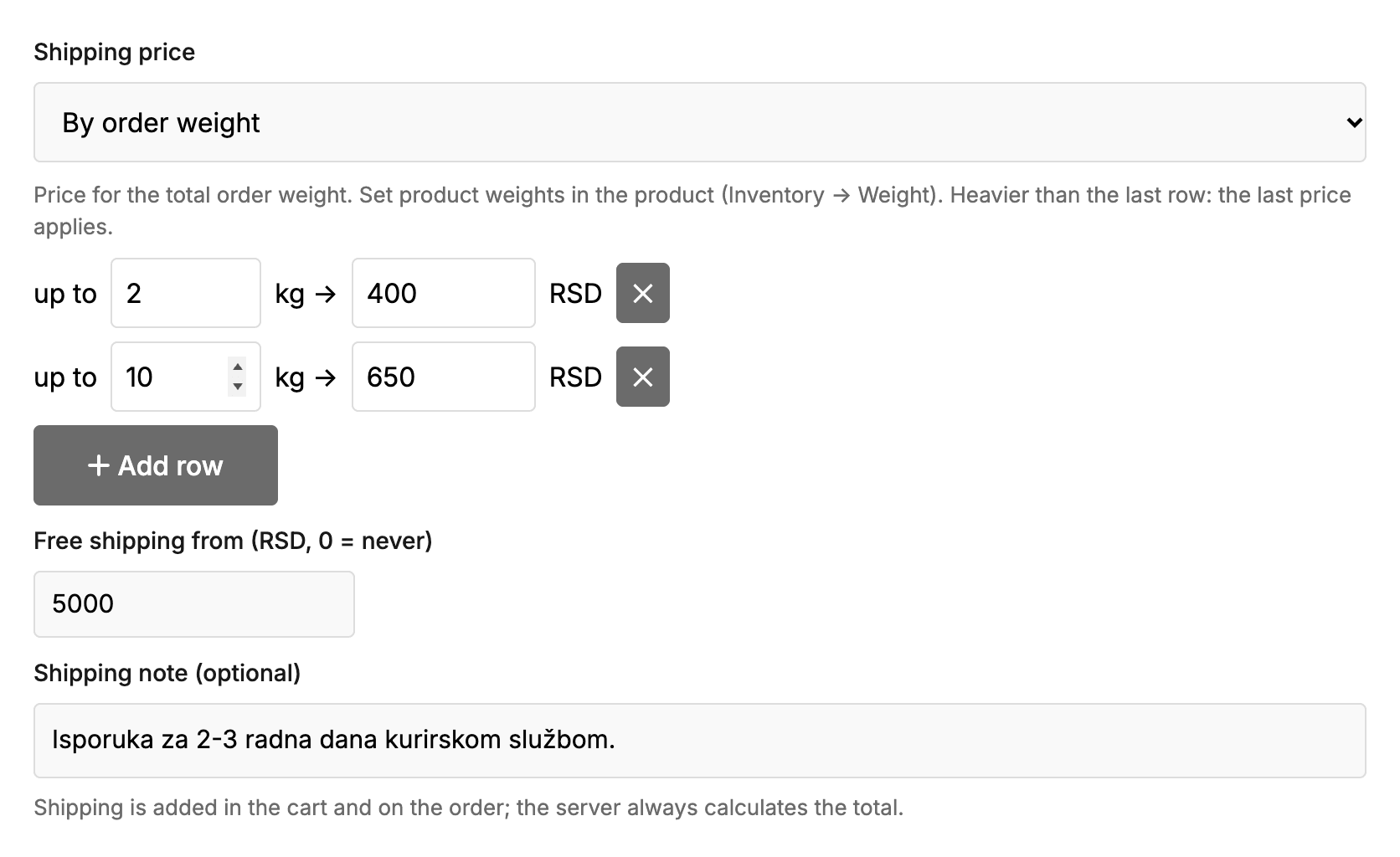
An order heavier than the last row pays the last row's price. Enter each product's weight in the product, under Inventory → Weight (kg). A product with no weight counts as 0 kg.
What the buyer sees
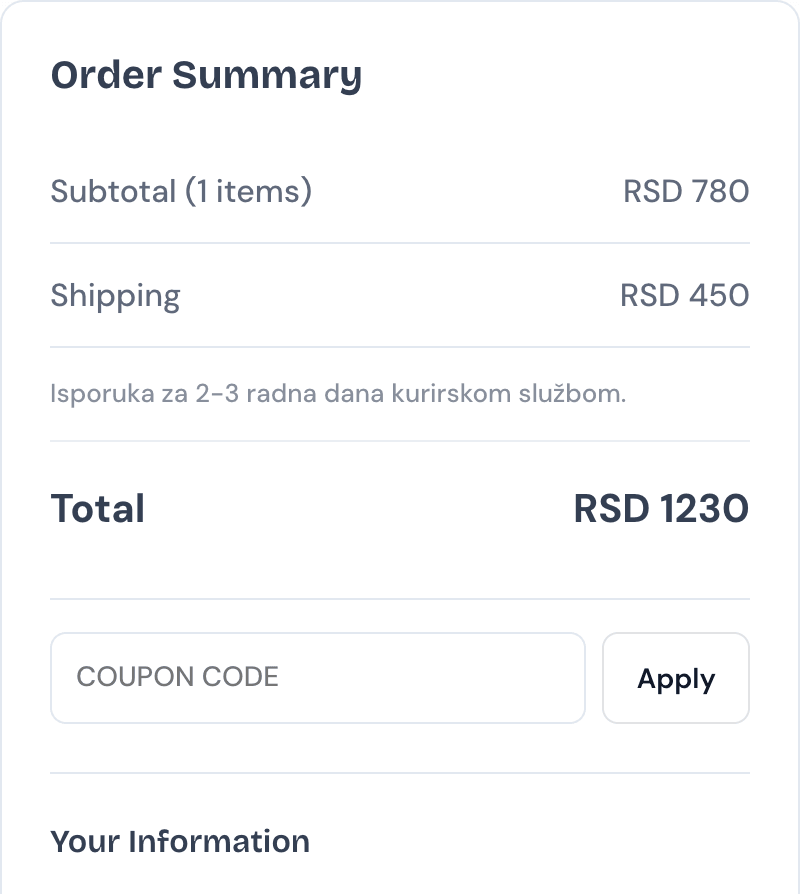
In the cart the buyer sees the shipping price and note before sending the order. Once they pass the free-shipping amount, the line changes to free shipping:
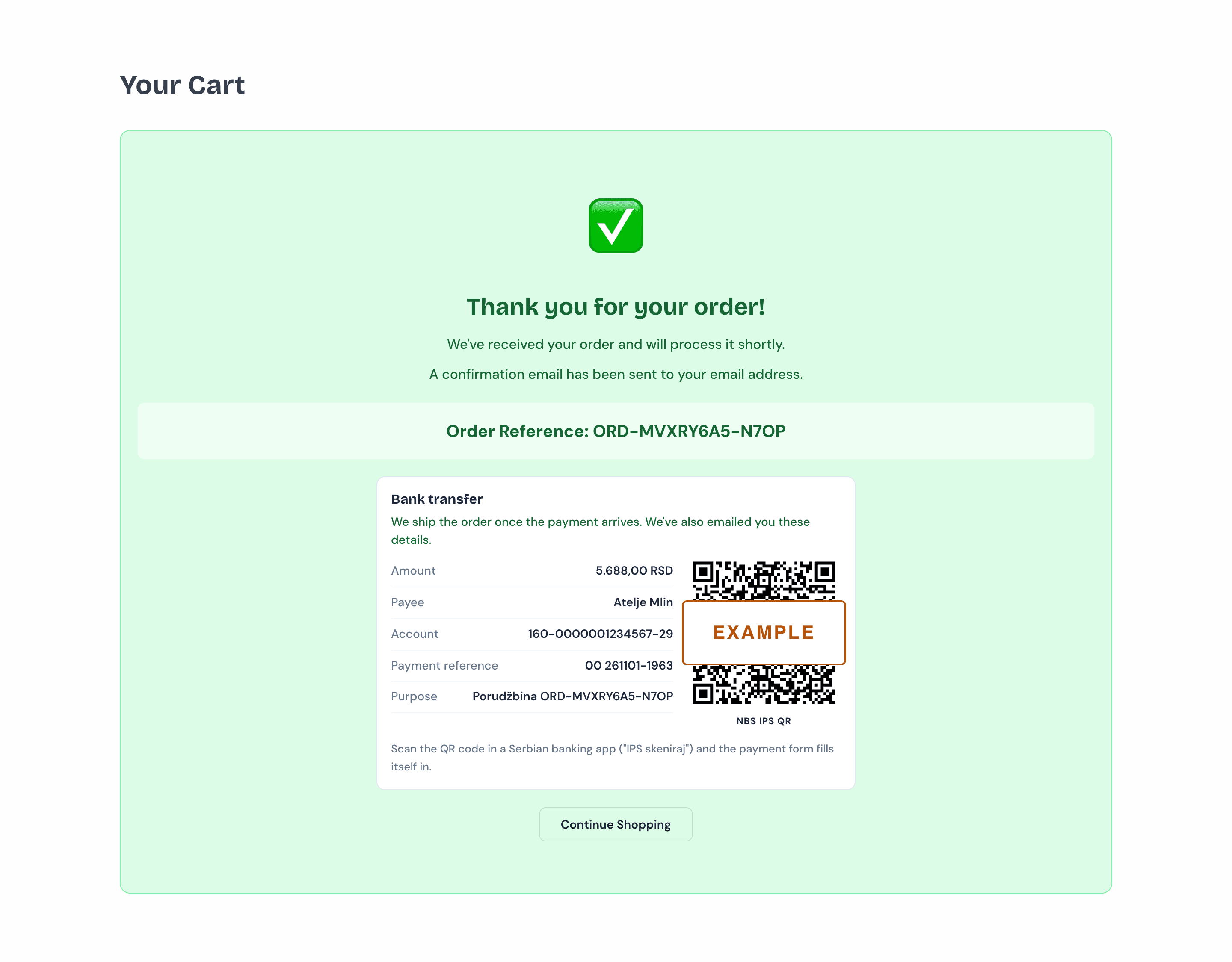
If they choose bank transfer, after sending the order they get the amount, your account, the payment reference and an NBS IPS QR code, on screen and by email. They scan it in their banking app and the payment form fills itself in:
Step 3: Mark the payment when it arrives
Emit isn't connected to your bank, so you confirm payments yourself:
- In the left menu click Orders.
- On the order, click View.
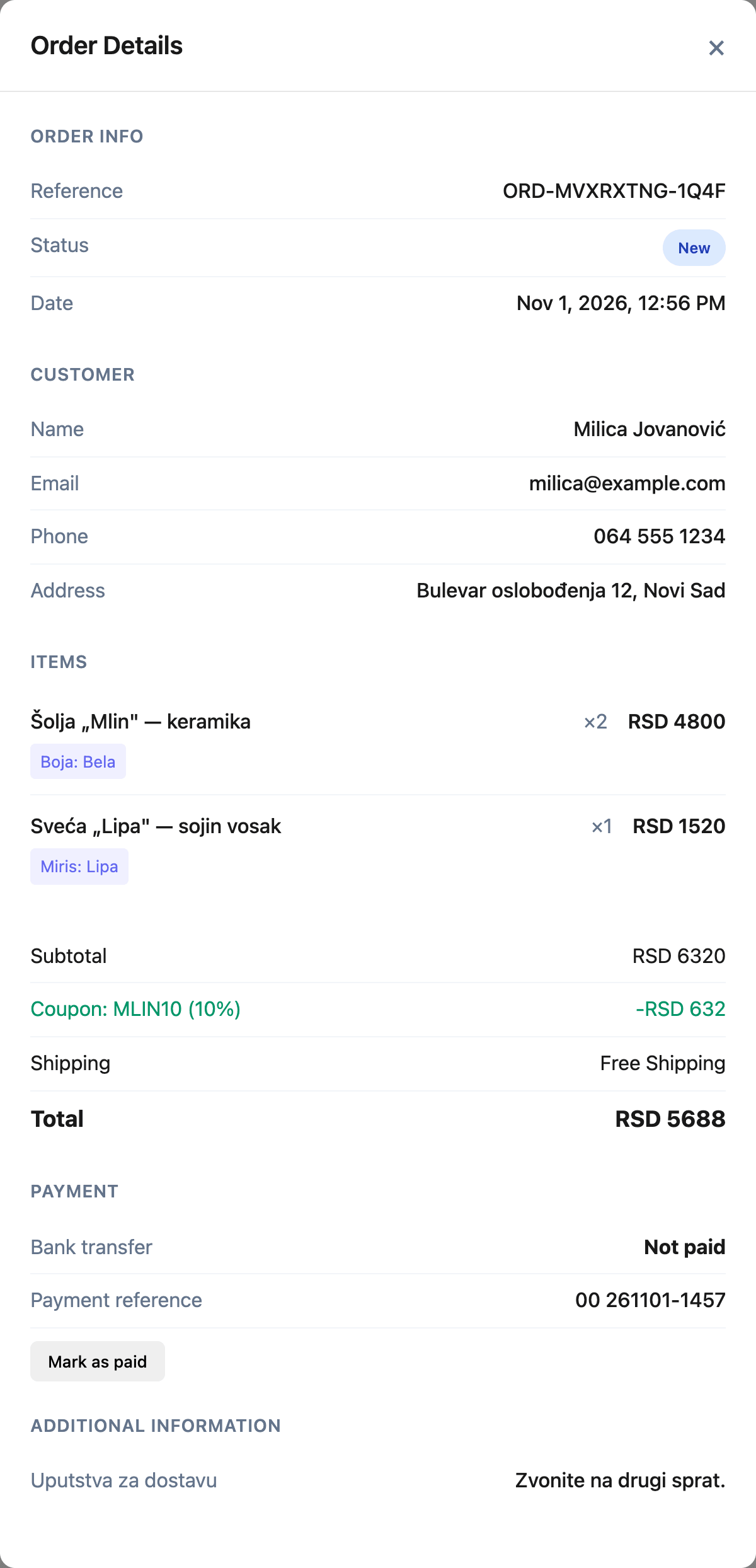
- Under Payment you see the method, the status (Not paid) and the Payment reference. Use the reference to find the payment on your statement.
- Click Mark as paid. If you made a mistake, click Mark as unpaid.
Then pack and ship, and change the order status to Sent (more in Orders and courier export).
The money goes straight to you: with cash on delivery through the courier, with bank transfer into your account. Emit takes no commission on sales.
In short
- Bank account in Account → Business Info.
- Cash on delivery and/or Bank transfer in Shop Settings.
- Shipping price: flat or by weight, plus Free shipping from.
- With price by weight, a weight on every product.
- A delivery time note.
- Check payments on your statement by reference and mark them with Mark as paid.