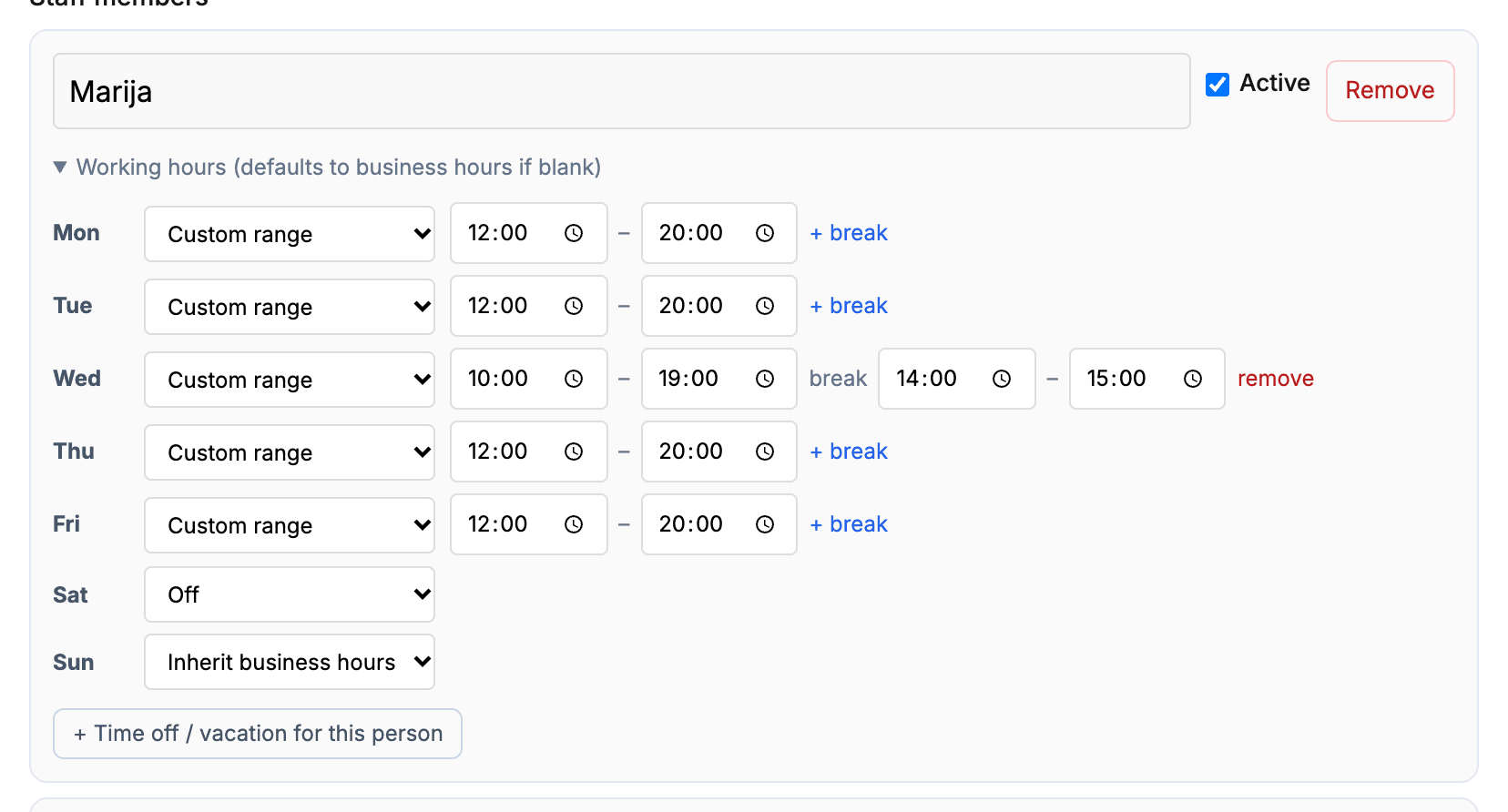
The salon is open 10 to 7, but not everyone works those hours. Marija starts at noon, has a break from 2 to 3 on Wednesdays and doesn't work Saturdays. Jovana works the salon's hours, but on 12 November she's at the doctor's after 2 pm.
If the booking calendar doesn't know this, a client books Marija at 10 am while Marija isn't in yet. In this post we set up:
- each person's own working hours for each day of the week,
- one person's break and day off,
- different hours for one specific date only.
This continues from booking with multiple staff: staff scheduling must be on and your staff added.
Before you start: where things are
Log in at emit.rs/en/login. We use two places in the main menu on the left, both under Settings:
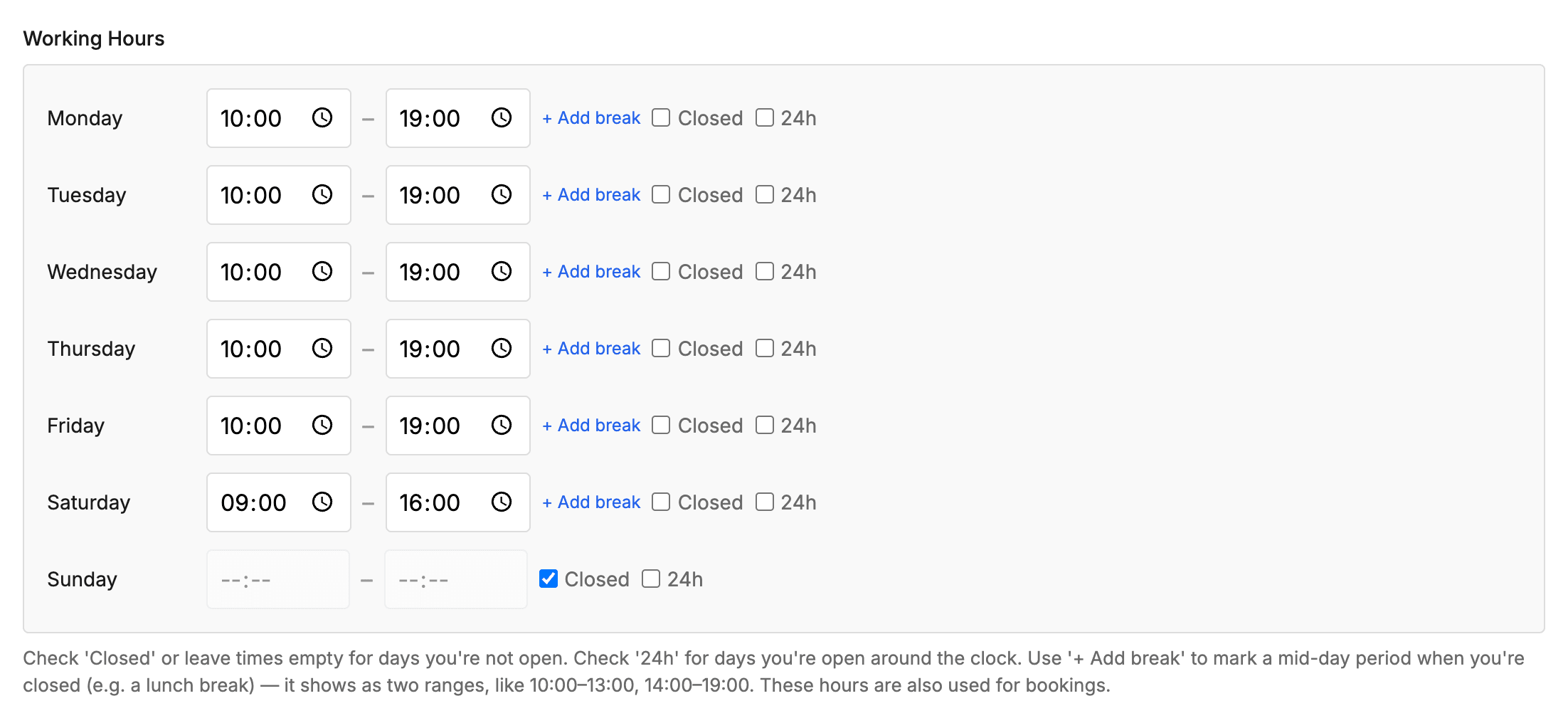
- Account → Business Info → Working Hours: the whole salon's hours.
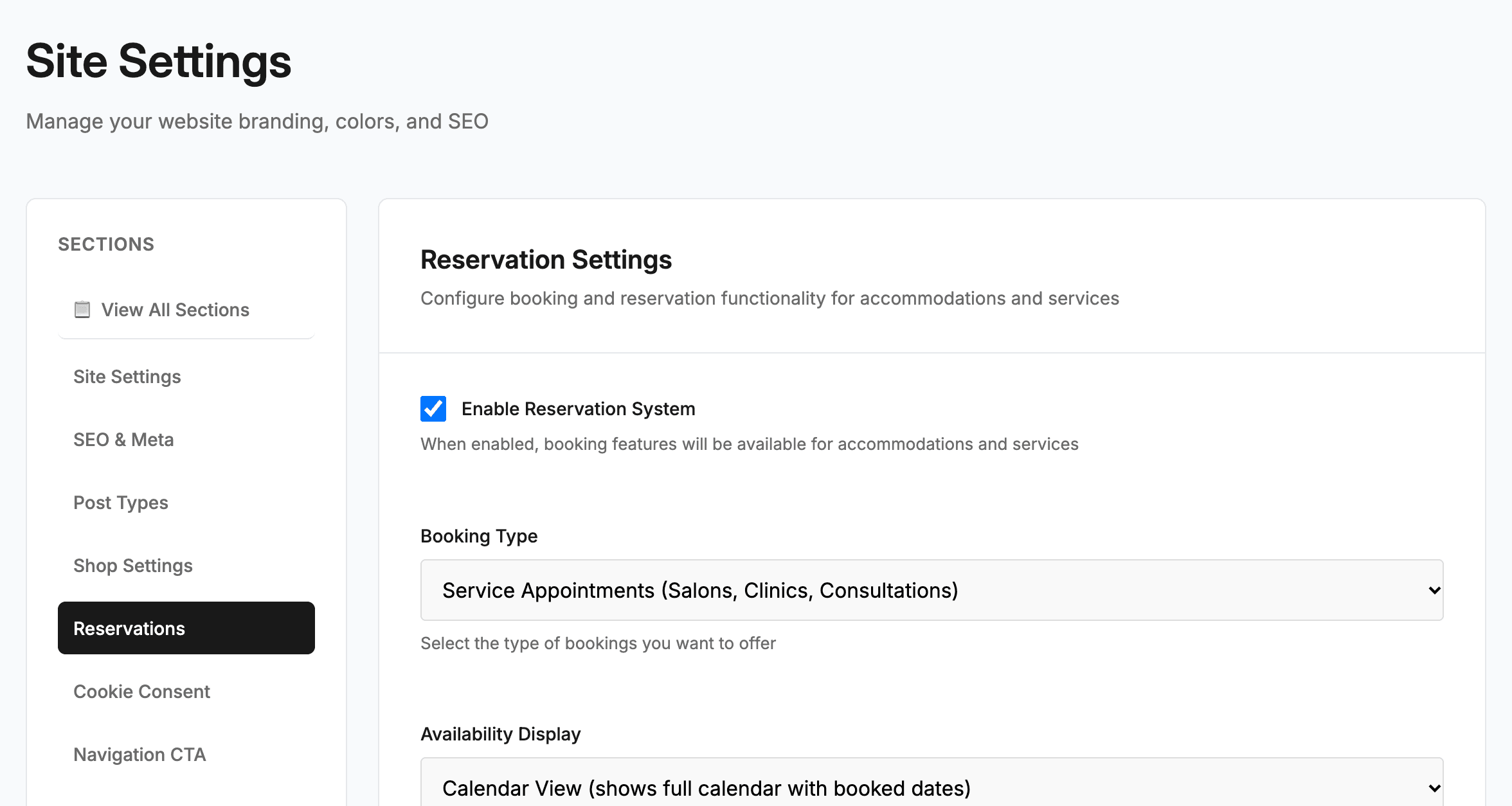
- Site Settings → Sections → Reservations: each staff member's hours and time off.
How the calendar works out who is free
For each day the calendar looks at three things:
salon hours ∩ that person's hours − their time off
A person is never available outside the salon's hours. If Marija enters 12 to 8 pm and the salon closes at 7, clients can book her from 12 to 7. So check the salon's hours first (in the left menu, Account, Business Info tab, Working Hours), and only then your staff's personal hours.
Step 1: Personal hours for each day
- In the left menu, under Settings, click Site Settings, then in the Sections menu click Reservations.
- Scroll to Staff members and, for the person, click Working hours (defaults to business hours if blank). The weekly schedule opens.
- For each day, choose one of three options:
- Inherit business hours: the person works when the salon is open. This is the default, so for full-time staff nothing needs changing.
- Custom range: enter when the person works that day, e.g. 12:00 to 20:00.
- Off: the person doesn't work that day, even though the salon is open.
- For a break during the day (the day must be on Custom range), click + break and enter when the person is not working, e.g. 14:00 to 15:00.
- Click Save Changes in the bottom right corner.
What the client sees when choosing Marija on a Wednesday: slots that would run into her break are struck through, and Saturdays are greyed out because she doesn't work then.
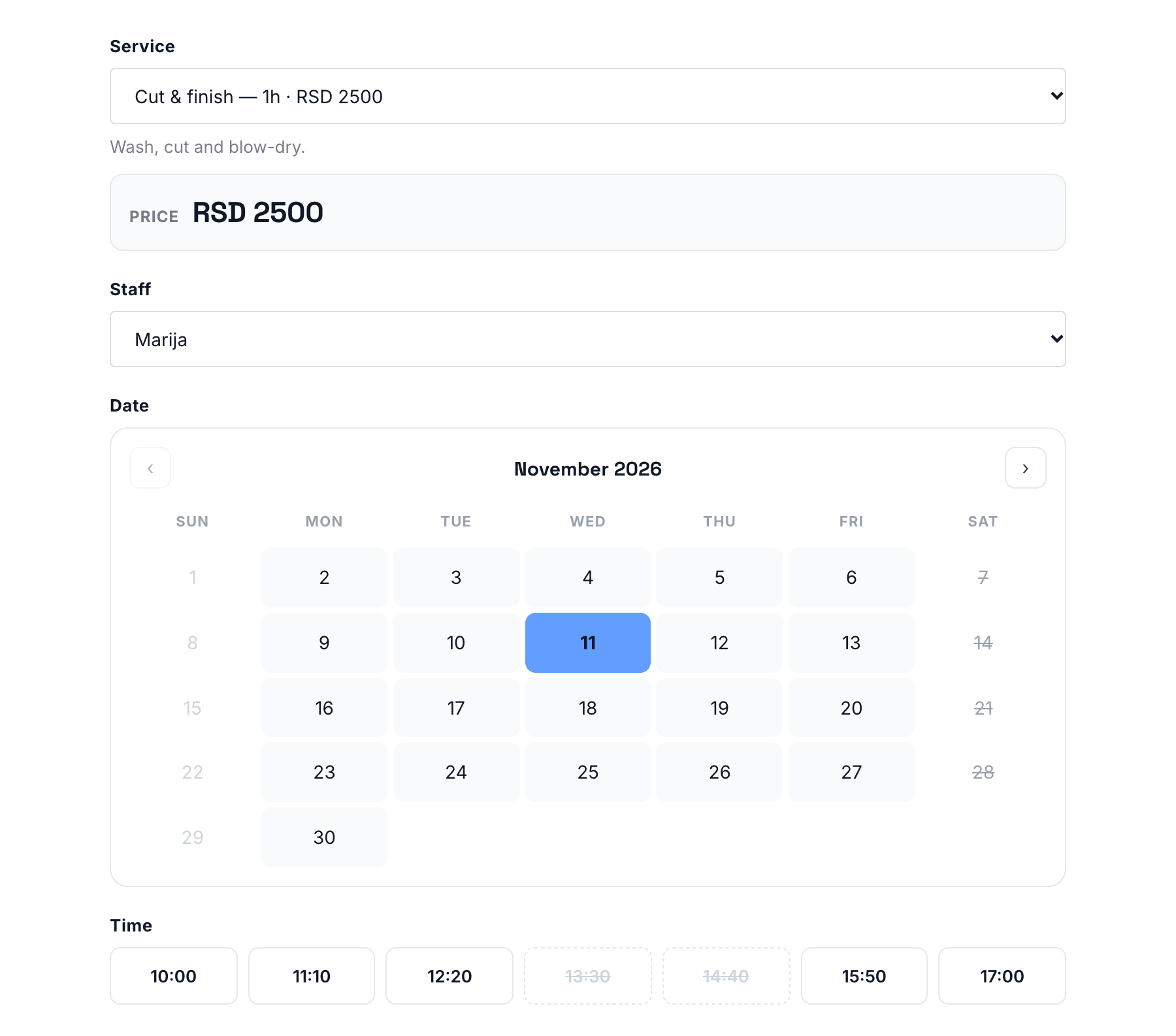
The 13:30 slot is struck through even though it starts before the break: the service takes an hour, so it would end at 14:30, inside the break. The calendar checks that the whole appointment fits.
Step 2: Different hours for one date only
Personal hours repeat every week. When something changes for just one day (a doctor's appointment, a school event), use time off for part of a day:
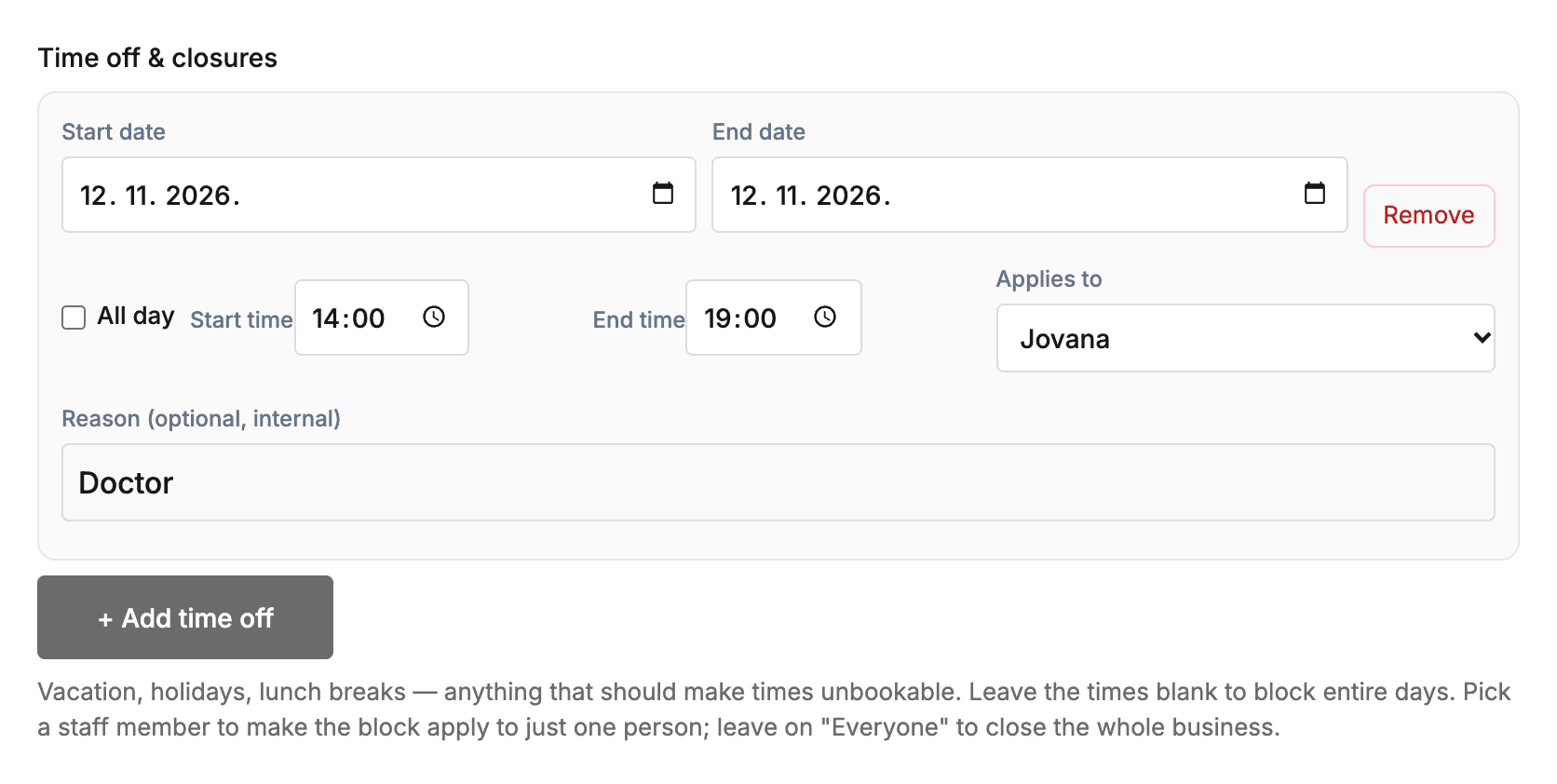
- On the same page, scroll to Time off & closures and click + Add time off. (The + Time off / vacation for this person button on that person's card does the same, with the row already set to them.)
- Enter the Start date and End date: the same date, e.g. 12 November.
- Untick All day and enter the Start time and End time: 14:00 to 19:00.
- Under Applies to, choose the person: Jovana.
- Optionally add a Reason ("Doctor"). Only you see it.
- Click Save Changes.
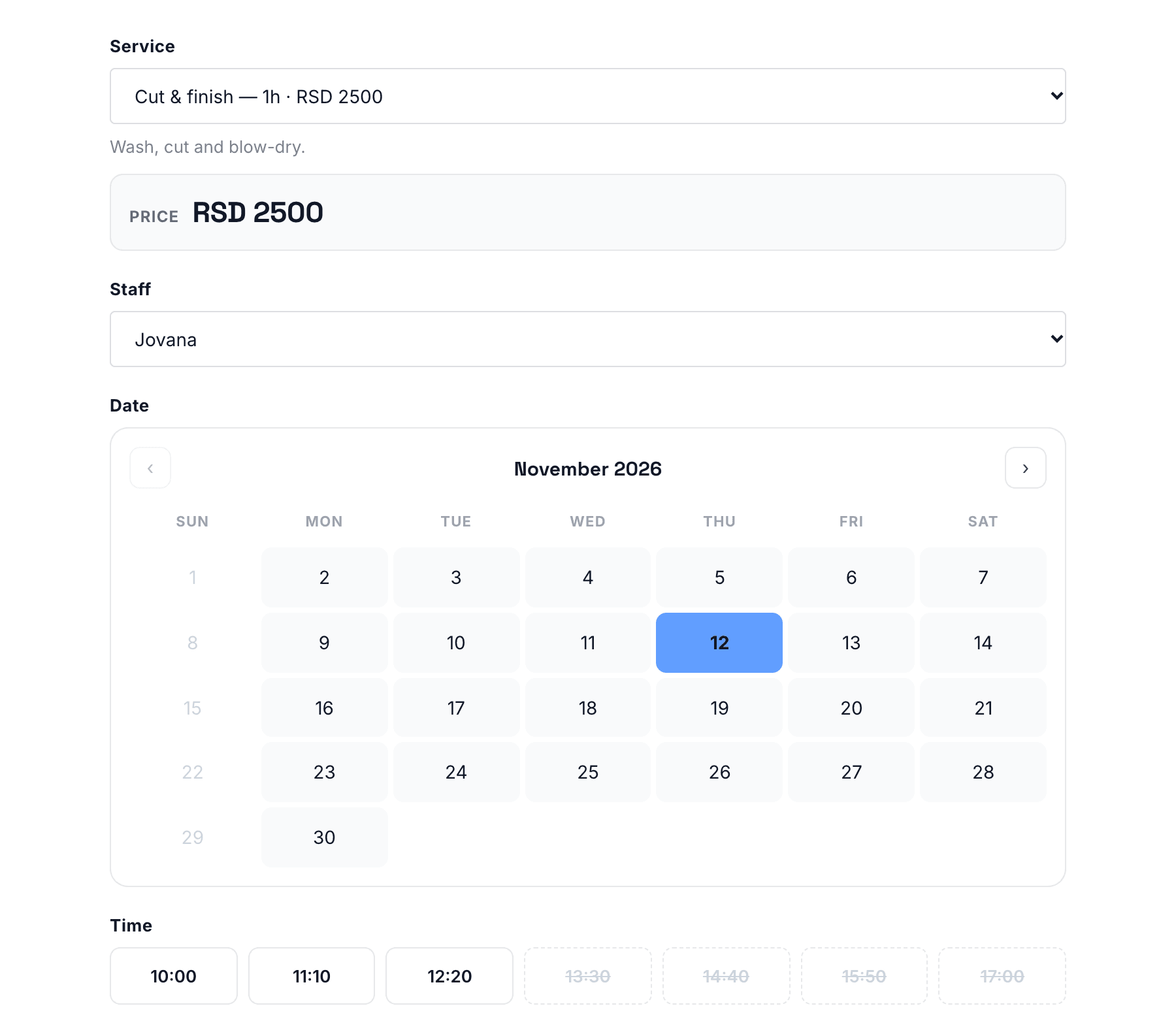
That day Jovana is only offered until 2 pm. On other days she works as usual, and everyone else works normally:
Which one when:
| Situation | Where |
|---|---|
| Someone always starts later or has a regular break | Personal hours (Step 1) |
| Someone has a regular day off | Personal hours: Off |
| One day is different (doctor, an errand) | Time off & closures, part of a day |
| One person's vacation | Time off & closures, All day, a date range |
| The whole salon is closed or open shorter (a holiday) | Temporary hours, covered in holidays and vacations |
Time off isn't shown anywhere on your site: clients only see that a slot is taken, not why.
In short
- Salon hours right (Account → Business Info).
- Everyone who doesn't work the salon's hours has a Custom range per day.
- Regular breaks with + break, regular days off with Off.
- One-off changes as time off for part of a day, tied to the person.
- Check the calendar with that person selected on a day with a break and a day with time off.