One client has been coming to Marija for three years and won't see anyone else. Another just wants "any slot on Thursday after 5 pm". A third wants colour, and only Marija and Ana do colour.
When you book by phone, you keep all of that in your head. On a website, the calendar has to know it: who does which service and who is free when. In this post we set up booking for multiple staff, so that:
- each person has their own calendar and never has two clients at once,
- the client picks a specific person or Any available,
- services not everyone does are only offered with the people who do them.
If booking isn't turned on yet, start with online booking from scratch.
Before you start: where things are
Log in at emit.rs/en/login. Staff and services are set up in the same place: in the left menu, under Settings, click Site Settings, then in the Sections menu on the left of the page click Reservations.
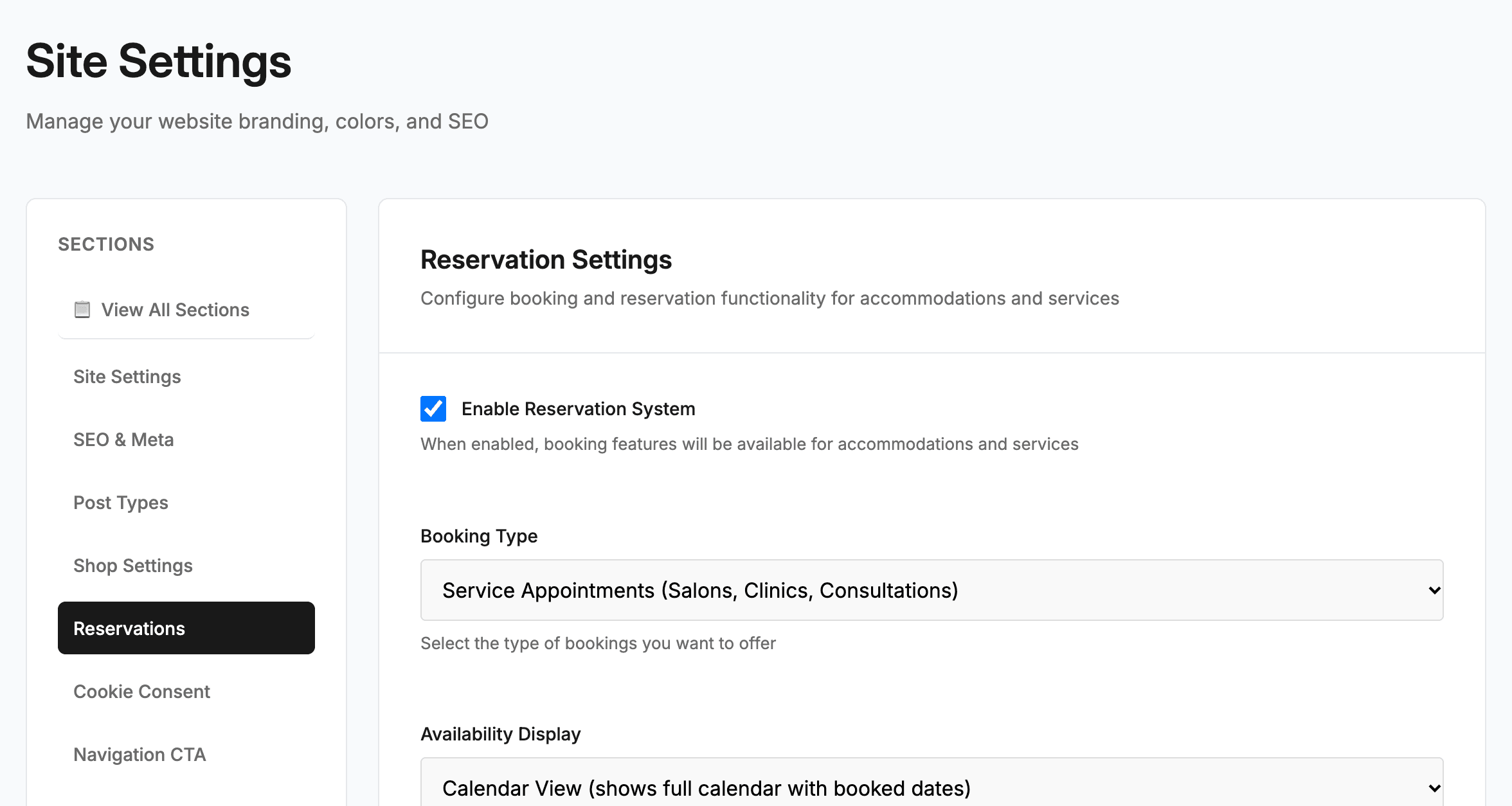
Step 1: Turn on staff scheduling
- Tick Use staff scheduling.
- Staff members appears below. Click + Add staff member and enter the name clients will see: "Marija".
- Repeat for each person, then click Save Changes in the bottom right corner.
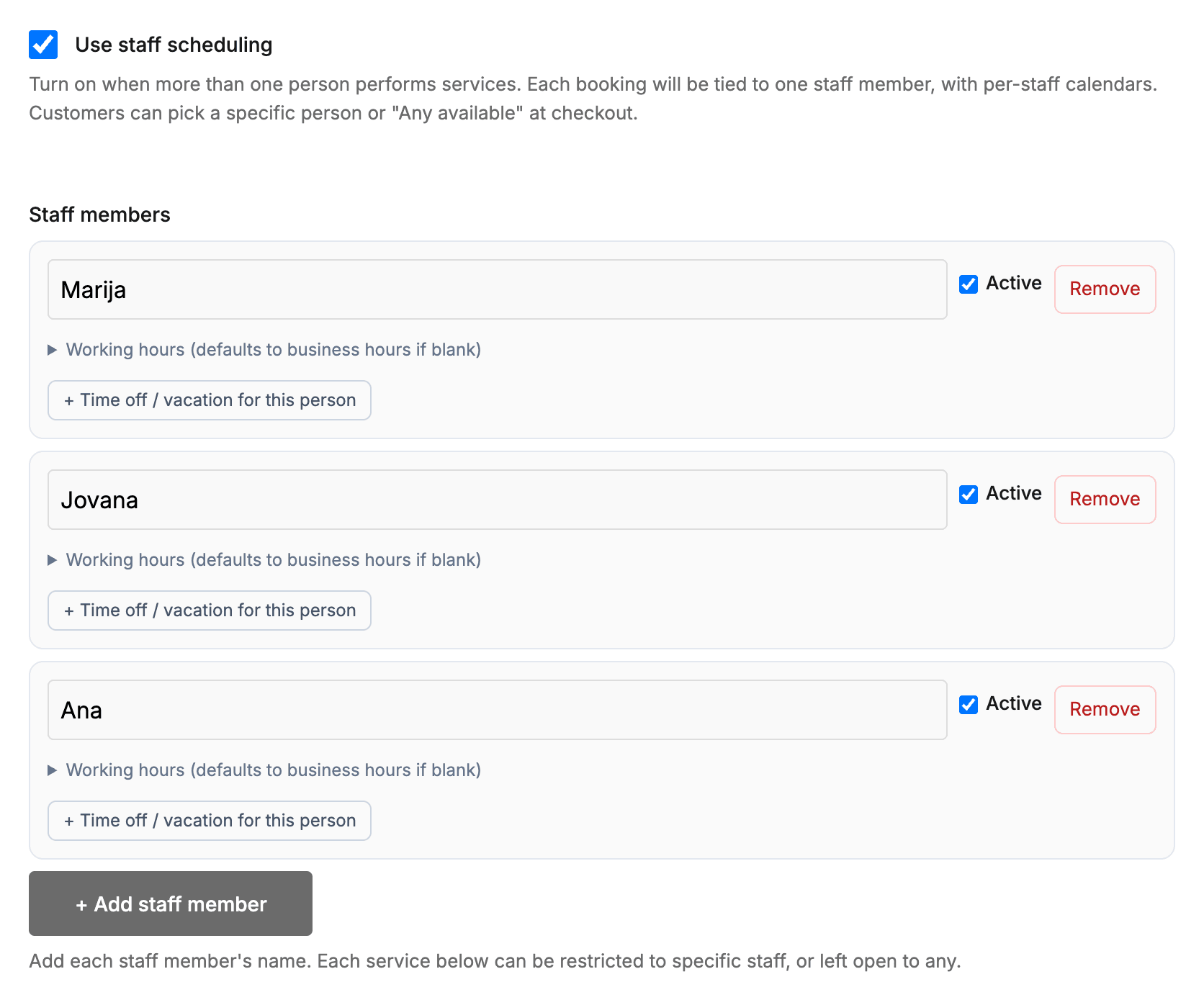
Each person has an Active tick box. When someone is away for a longer stretch, untick it: the person stays in the system but isn't offered to clients. Remove deletes the person.
With staff scheduling on, each person takes one client at a time. You don't need to touch Maximum Concurrent Bookings: three stylists means at most three clients at the same time, one with each.
Step 2: Who does which service
Under Services offered, each service row has Performed by with your staff's names:
- If everyone does the service, tick nobody. That's the simplest.
- If only some people do it, tick them. For colour, that's Marija and Ana.
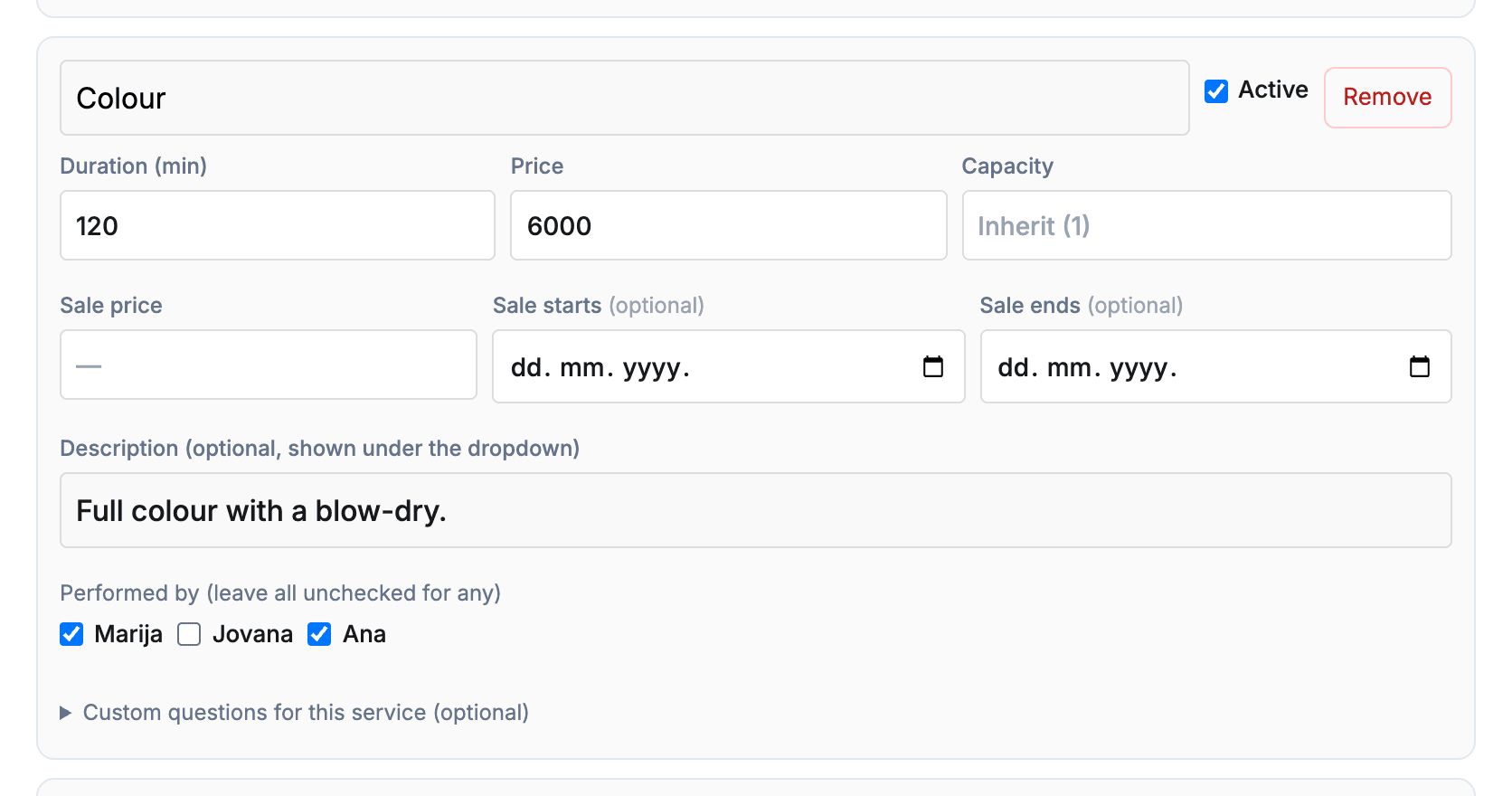
Click Save Changes.
What the client sees
A new Staff field appears in the calendar. The client chooses:
- Any available: the calendar offers a slot if at least one person who does that service is free. The system assigns the first free person and records them on the booking.
- A specific person: the calendar only offers that person's free slots.
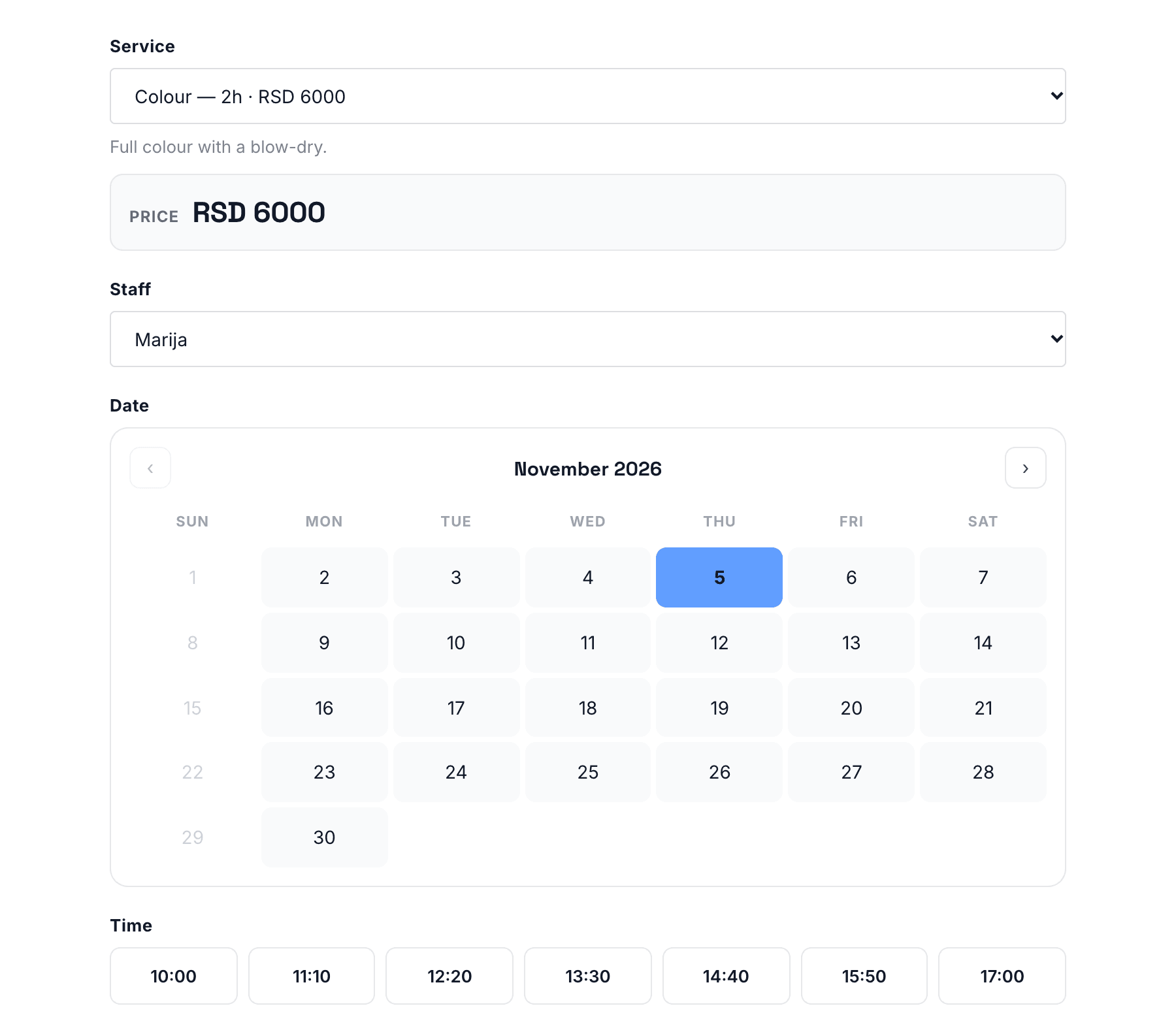
The dropdown only lists people who do the chosen service: for colour, Marija and Ana, not Jovana.
In the admin you always see who an appointment is with: in the left menu under Reservations, click Bookings, then Details on a booking. The Staff row shows the person.
A personal booking page for each person (optional)
Many regulars don't look for a service, they look for a person. For them, create a page for each staff member, e.g. "Marija", with her photo, her work and a calendar that only offers her slots:
- In the left menu click Pages, then All Pages, and open (or create with + Page) that person's page.
- Add the Booking Widget — Services block (side panel » → Content Blocks → + Browse blocks → Pricing & Offer → Insert).
- Below the block's preview, under Lock to a specific staff member, choose the person.
- Click Publish.
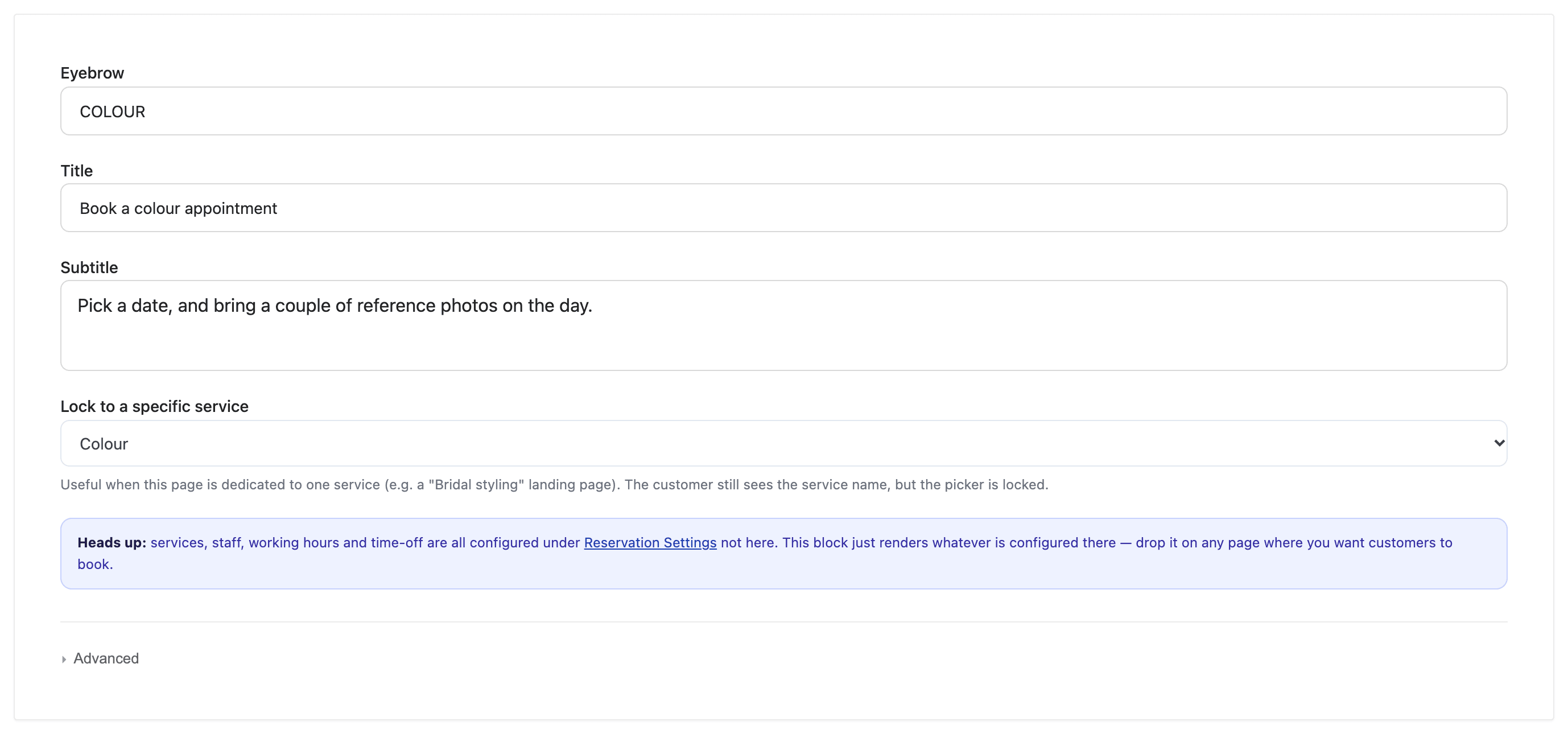
The person can put a link to that page in their Instagram bio: clients book with them directly, and everything lands in the salon's one calendar.
In short
- Use staff scheduling on, all staff added and active.
- Services not everyone does have only the right people ticked (Performed by).
- A test booking with Any available and with a specific person.
- Optionally, personal pages with Lock to a specific staff member.
Staff don't all work the same hours? Next part: each staff member's working hours and a one-day exception.