With one service, everything is simple. The trouble starts when you have several: a men's haircut takes 30 minutes, colour takes two hours. If the calendar splits everything into the same one-hour slots, you either waste time on short services or a client books colour into a slot it doesn't fit.
On Emit every service has its own duration and price, and the calendar only offers slots the chosen service really fits into. In this post we add several services, a sale price and a dedicated page for one service.
If you haven't turned on booking yet, start with online booking from scratch. We pick up from there.
Before you start: where things are
Log in at emit.rs/en/login. All services are entered in one place: in the left menu, under Settings, click Site Settings, then in the Sections menu on the left of the page click Reservations.
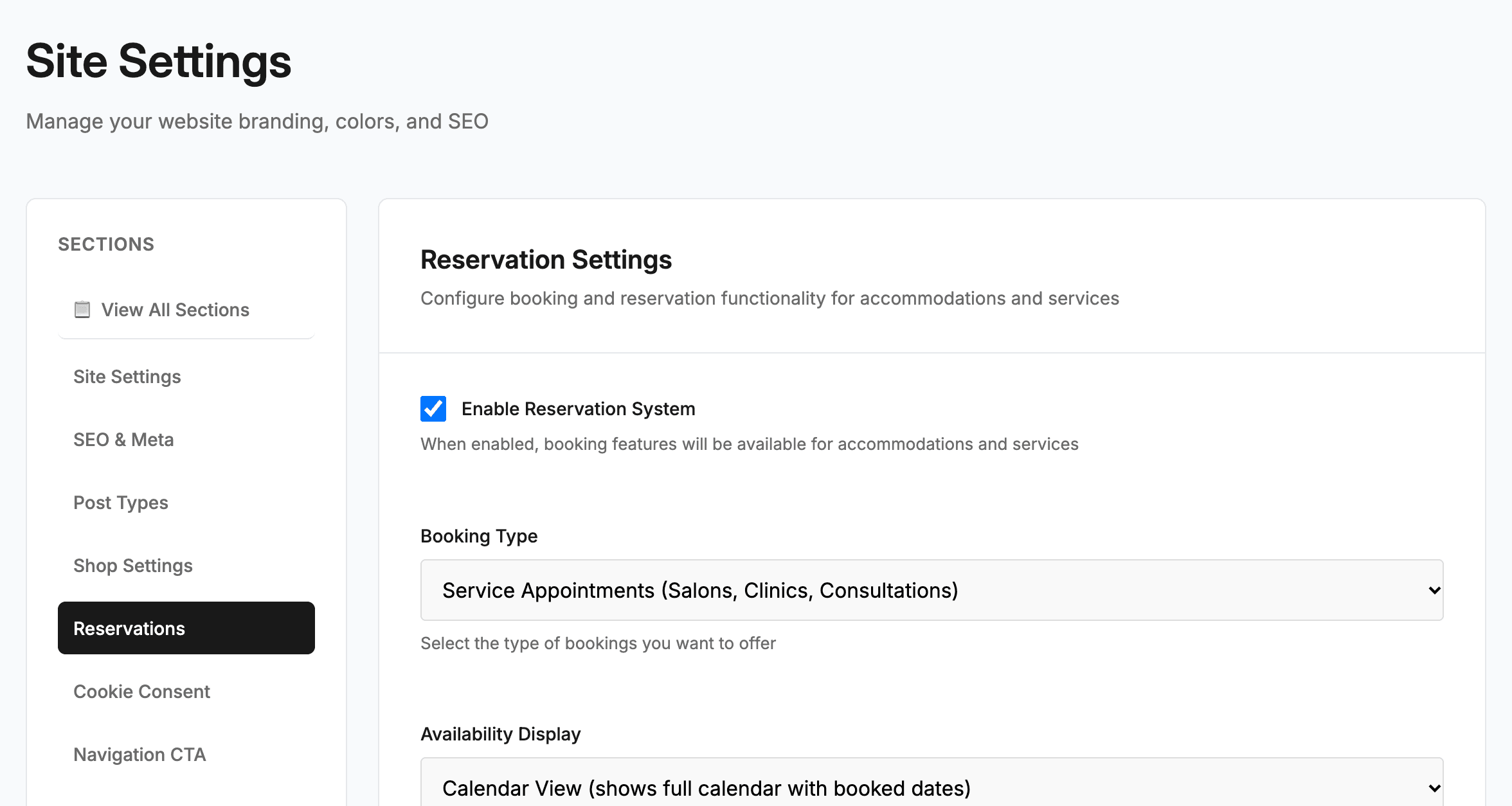
Step 1: Give each service its own duration
Under Default Time Slot Duration, choose Custom per item. The calendar then works out slots for each service from its own duration, not one shared length.
Step 2: Add the services
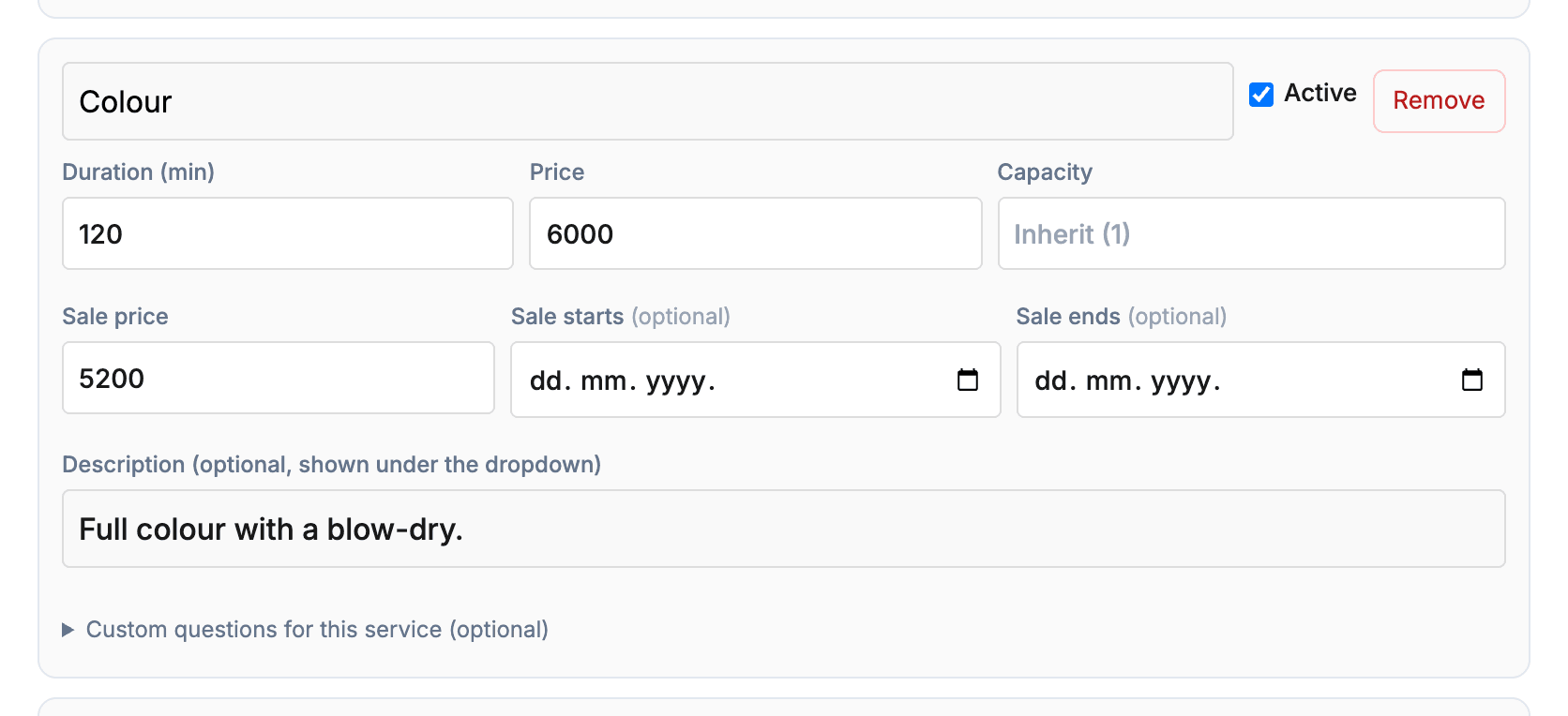
Scroll to Services offered. For each service, click + Add service and fill in the name, Duration (min) and Price. An example for a salon:
| Service | Duration | Price |
|---|---|---|
| Cut & finish | 60 min | 2,500 RSD |
| Colour | 120 min | 6,000 RSD |
| Men's haircut | 30 min | 1,200 RSD |
| Hair treatment | 45 min | 1,800 RSD |
The order in the list is the order clients see them in the dropdown. Click Save Changes in the bottom right corner.
Step 3: A sale price (optional)
Want to fill quieter days or promote a new service? Every service has a Sale price field:
- In the service row, enter the Sale price, e.g. 5200 for colour that normally costs 6000.
- Optionally set Sale starts and Sale ends. If both stay empty, the sale runs until you remove it.
- Save.
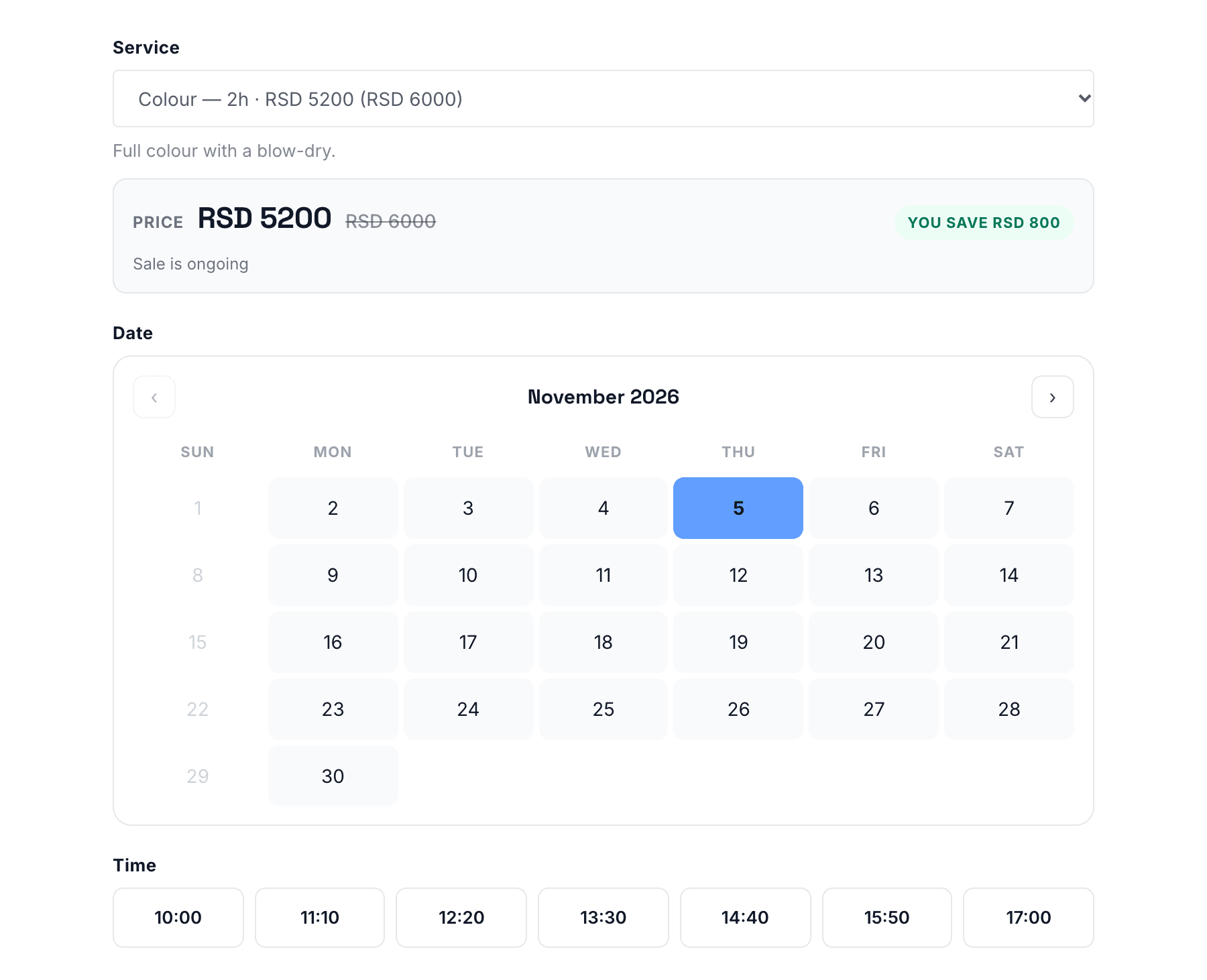
In the calendar, the client sees the sale price, the regular price struck through and how much they save:
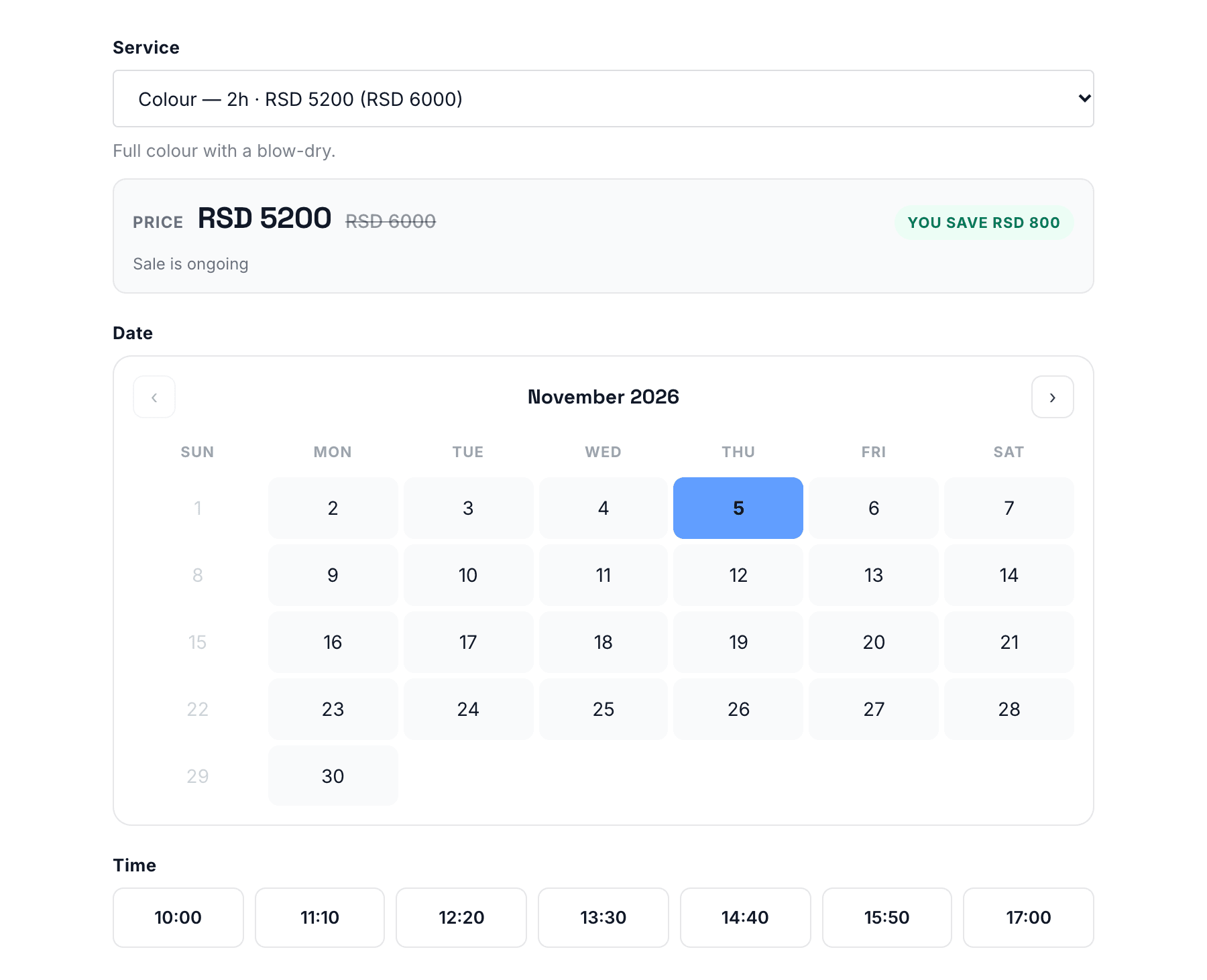
When the sale has an end date, the calendar also shows how long it still runs.
Step 4: Questions for one service only (optional)
For colour you need to know when the client last coloured her hair; for a haircut you don't. In the service row, click Custom questions for this service and + Add a question. Enter the question, choose a type (text, number, date, a choice from a list...) and whether it's required. The question only appears when a client picks that service.
Step 5: One page for everything, or a page per service
You have two options, and both can exist at the same time:
One "Book" page with the Booking Widget — Services block, where the client picks a service from the dropdown. We covered adding the block in part one of this series.
A separate page for each service (e.g. "Colour", with photos of your work and prices), with a calendar already set to that service. The client doesn't pick anything but a day and a time:
- In the left menu click Pages, then All Pages, and open the service's page with the blue pencil icon (or create one with + Page).
- Add the Booking Widget — Services block (side panel » → Content Blocks → + Browse blocks → Pricing & Offer category → Insert).
- Below the block's preview, under Lock to a specific service, choose the service, e.g. Colour.
- Change the Eyebrow and Title to match the service, then click Publish.
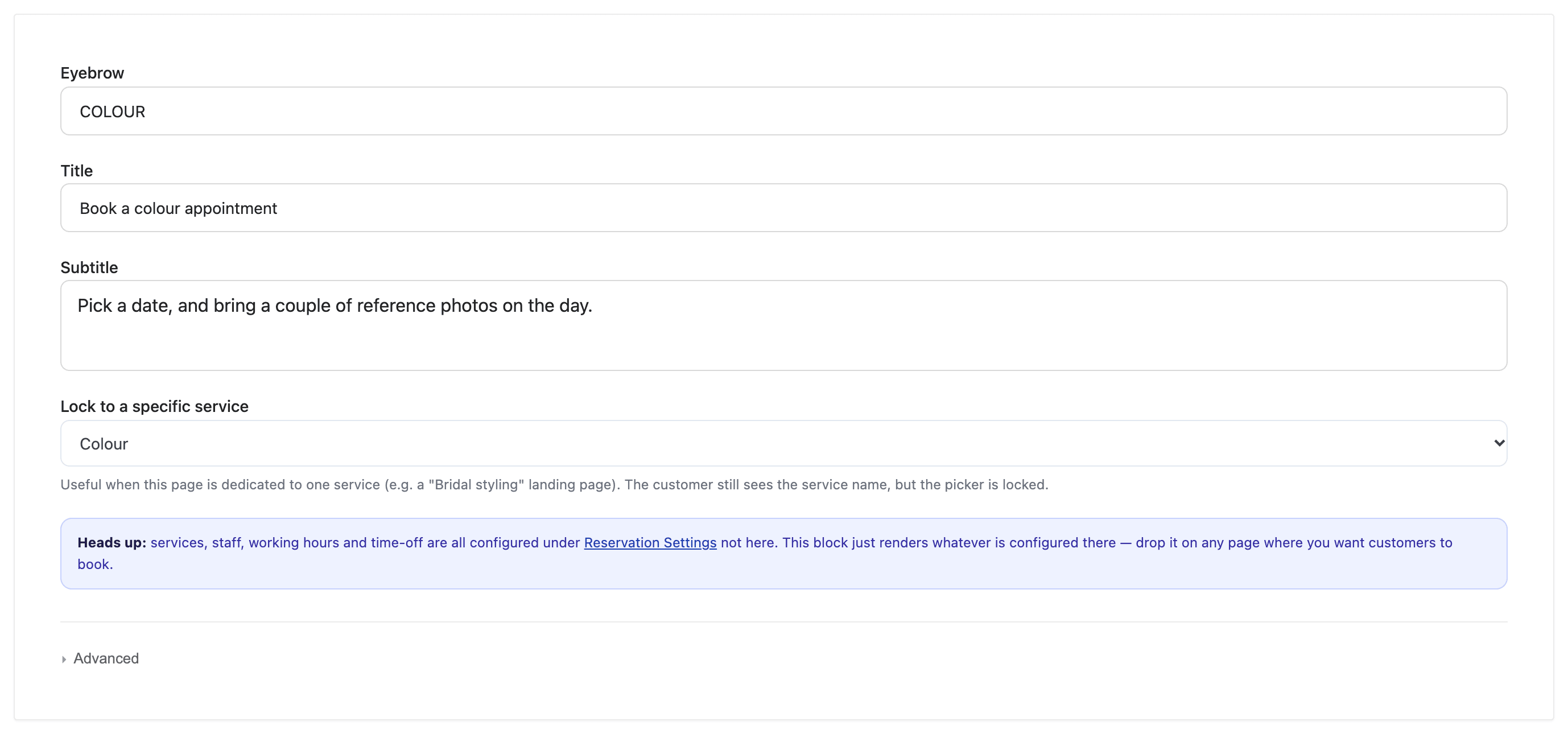
On the page the service is already selected, and the free slots are the ones two hours of colour fit into:
Service pages are good for Google too: someone searching "hair colour Novi Sad" is more likely to find a page about colour than a general "Book" page.
What about a price list?
The calendar already shows the price of the chosen service. If you also want every price in one place (e.g. on the home page or a "Prices" page), the Pricing & Offer category has a Price / Menu List block. You enter its prices separately, so when you change a service price, change it there too.
In short
- Default Time Slot Duration: Custom per item.
- Every service with its own duration and price.
- A sale price, with or without dates.
- Questions only for the services that need them.
- A general booking page and/or a page per service with Lock to a specific service.
- A test booking for a short and a long service: are the offered slots right?
Working with colleagues? Next part: booking with multiple staff.