Thursday, 5 pm. You've blocked two hours for a colour and blow-dry, turned another client away because the slot was taken, and you're waiting. At 5:20 you realise nobody is coming. The phone is off, the message goes unanswered. Two hours of work, around 6,000 dinars, gone without a word.
Every salon, clinic, workshop and studio knows this. No-shows can't be eliminated, but they can be cut down a lot. In this post we go through three things that genuinely help and how to set them up step by step:
- a reminder before the appointment,
- a deposit at booking,
- clear, easy cancellation.
Why people don't show up
Before jumping to solutions, it's worth understanding the reasons. It's rarely bad intent. Most often:
- They forgot. The appointment was made two weeks ago, verbally, over the phone.
- They changed their mind and felt awkward telling you. Not showing up is easier than calling and explaining.
- They didn't know how to cancel. You have to call during opening hours, and they work the same hours you do.
- It costs them nothing. Not showing up has no consequence, so it's an easy decision.
Each of these four reasons has its own fix. A reminder fixes forgetting, easy cancellation fixes awkwardness, and a deposit fixes "it costs me nothing".
What no-shows actually cost you
Work it out for your business. An example:
- 3 no-shows a week,
- average appointment value of 3,000 dinars,
- that's 9,000 dinars a week, or around 36,000 dinars a month.
And that's not all. Every empty slot also comes with a client you turned away because that slot was "taken". If the maths seems exaggerated, write down your no-shows for just two weeks. The number usually surprises people.
Before you start: where things are
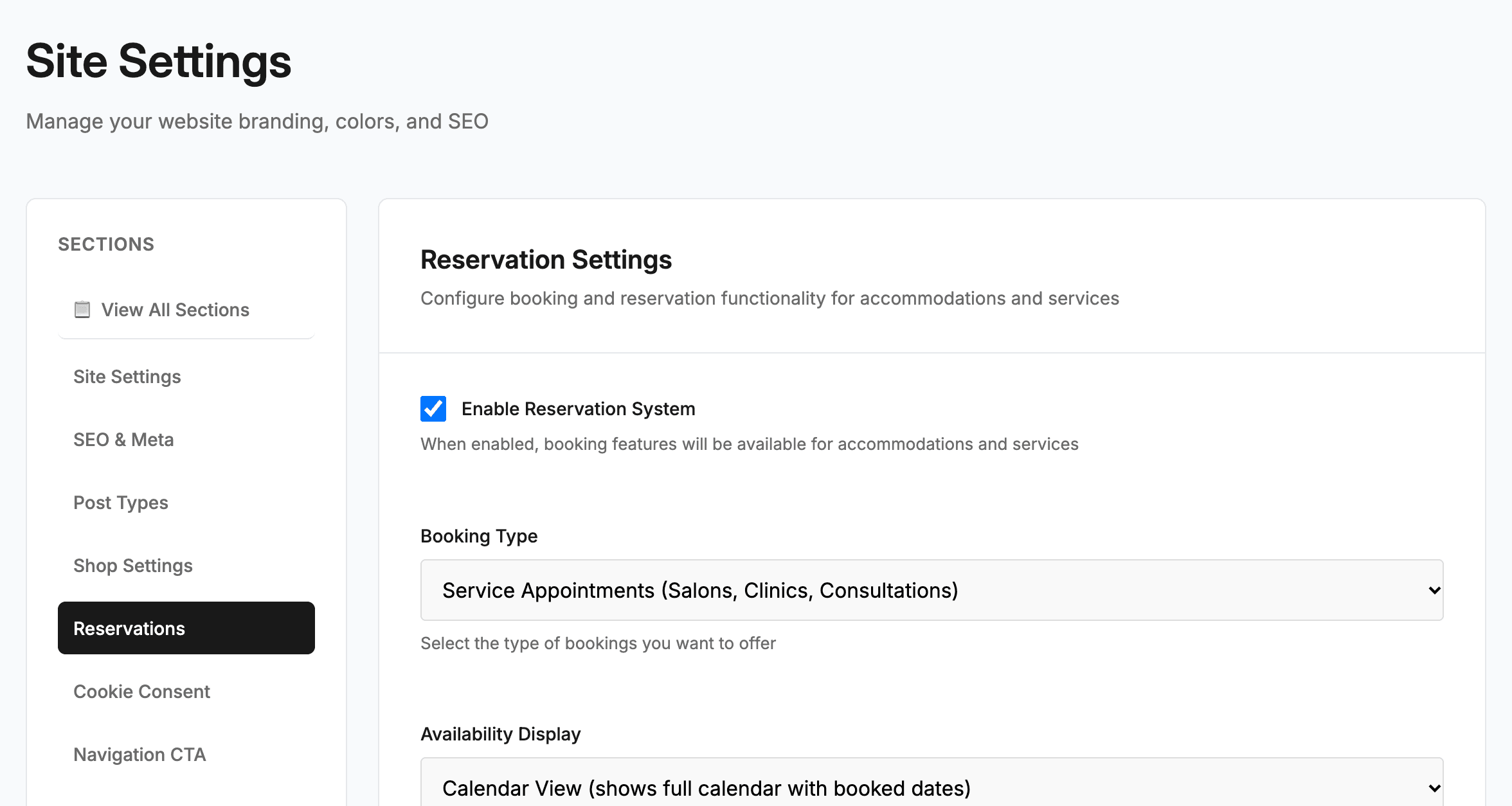
Log in at emit.rs/en/login. Your site's dashboard opens, with the main menu on the left. This post uses three places in that menu:
- Site Settings (Settings group): reminders, deposits and cancellation rules live here.
- Account (Settings group): your business details, including your bank account.
- Bookings (Reservations group): the list of all booked appointments.

When you click Site Settings, there's a Sections menu on the left of the page. Click Reservations and all the booking settings appear. Whenever this post says "booking settings", it means this place.
Step 1: A reminder before the appointment
The cheapest measure, and the one that tackles the most common reason: forgetting.
A good reminder has four things: what (the service), when (date and time), where (the address) and how to cancel or reschedule. That last one is key. A reminder without a cancellation link just reminds someone they can't make it and then leaves them to figure it out.
When should it go out?
- 24 hours before suits most services. The client has time to cancel, and you have time to fill the slot.
- 48 hours before for longer, pricier appointments, when you need more time to find a replacement.
- 2 hours before for services people book for the same or next day, where the main risk is simply forgetting.
How to set it up on Emit
- In the left menu click Site Settings, then in the Sections menu click Reservations.
- Turn on Send the guest a reminder before the appointment (it's on by default).
- Under How long before, choose 2 hours, 24 hours or 48 hours.
- Optionally, in Extra message in the reminder, add what every client should know, for example: "Parking is in the yard, entrance at the back."
- Click Save Changes in the bottom right corner.
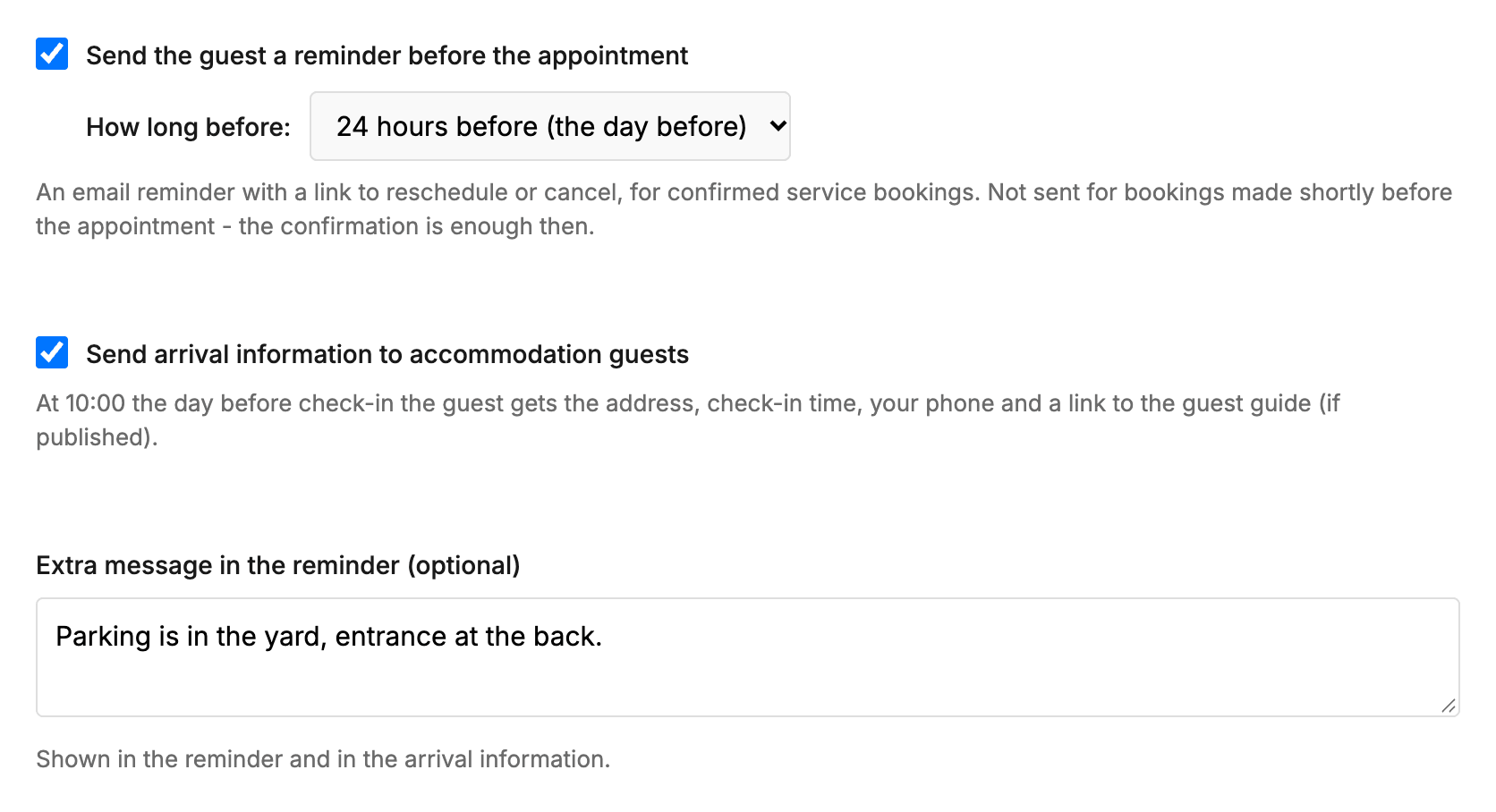
From then on, every client with a confirmed appointment gets an email reminder with the service, date, time, address and a link to reschedule or cancel.
Two things worth knowing:
- If someone booked shortly before the appointment (say, this afternoon for tomorrow morning), no reminder is sent, because the email confirmation is enough.
- Reminders are email only for now, not SMS.
Step 2: A deposit at booking
Reminders help people who forget. A deposit helps with people who don't much care. Once someone has paid 1,000 dinars for an appointment, they take that Thursday at 5 pm a lot more seriously.
When a deposit makes sense:
- long, expensive services (colour, treatments, tattoos, photo shoots),
- accommodation, where an empty night can't be recovered,
- slots that are hard to fill at the last minute.
When it probably doesn't: quick, cheap services with regular clients. A deposit on a 20-minute men's haircut may put off more people than it protects you from.
How much to ask? Enough that losing it stings, not so much that it scares people off at booking. For services that's often 20 to 30% of the price or a round fixed amount (1,000 or 2,000 dinars). For accommodation, 30% or the first night is common.
How to set it up on Emit
Emit isn't connected to your bank and doesn't take card payments. The deposit is paid by a regular bank transfer to your account, fastest by scanning an IPS QR code in a banking app. The steps:
Enter your account number. In the left menu click Account, choose the Business Info tab at the top of the page, and fill in Bank account (for payments). Save with Save Changes. Without an account number no deposit is requested, because it couldn't be paid.

Turn on the deposit. In the booking settings (Site Settings → Reservations), tick Ask for a deposit with each booking.
Choose the amount. Percentage of the total (for example 30%) or a fixed amount in dinars. A fixed amount never exceeds the price of the service itself, and free services never ask for a deposit.
Choose a deadline. Under Cancel the booking if the deposit isn't paid within, pick 12, 24, 48 or 72 hours, or Don't cancel automatically.
Click Save Changes in the bottom right corner.
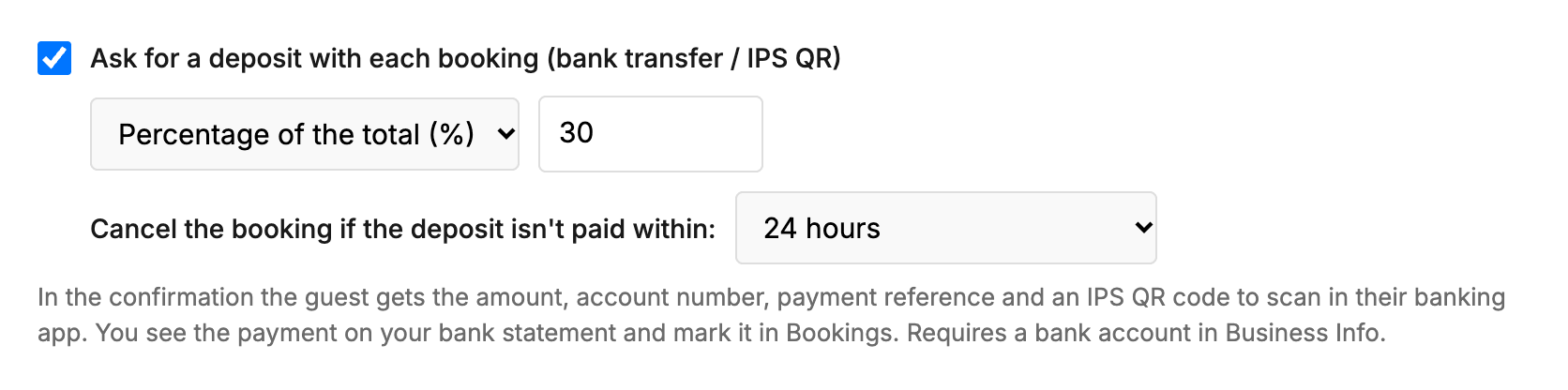
The deposit applies to all bookings on your site, so choose an amount that makes sense for most of your services.
What the client sees
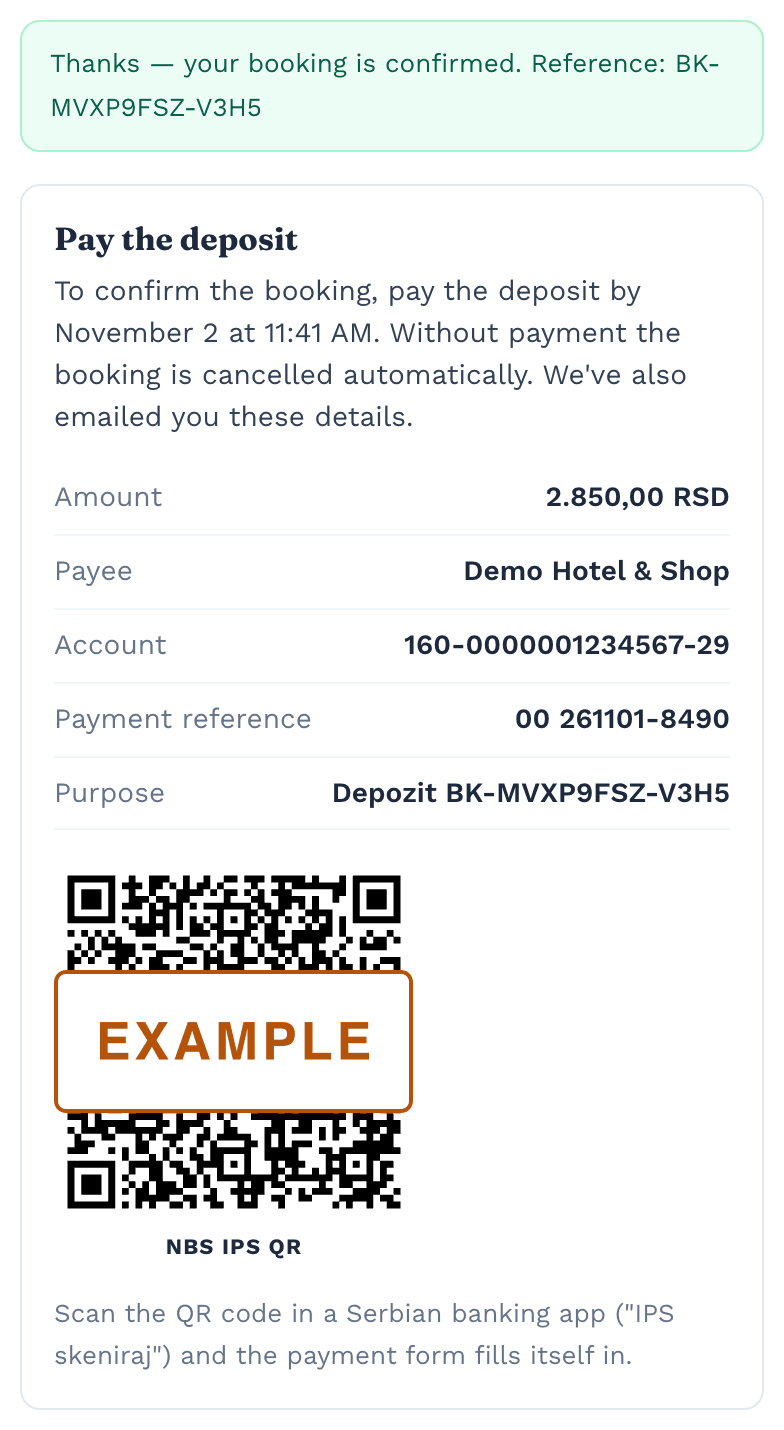
Right after booking, on screen and in the confirmation email, the client gets:
- the deposit amount,
- your account number and payment reference,
- an NBS IPS QR code they scan in their banking app to pay in seconds, without copying numbers.
What you do
When you see the payment on your bank statement (you recognise it by the payment reference), in the left menu, under Reservations, click Bookings. Find the booking by the client's name or reference, click Details, and in the window that opens click Mark as paid. That also stops the automatic cancellation.
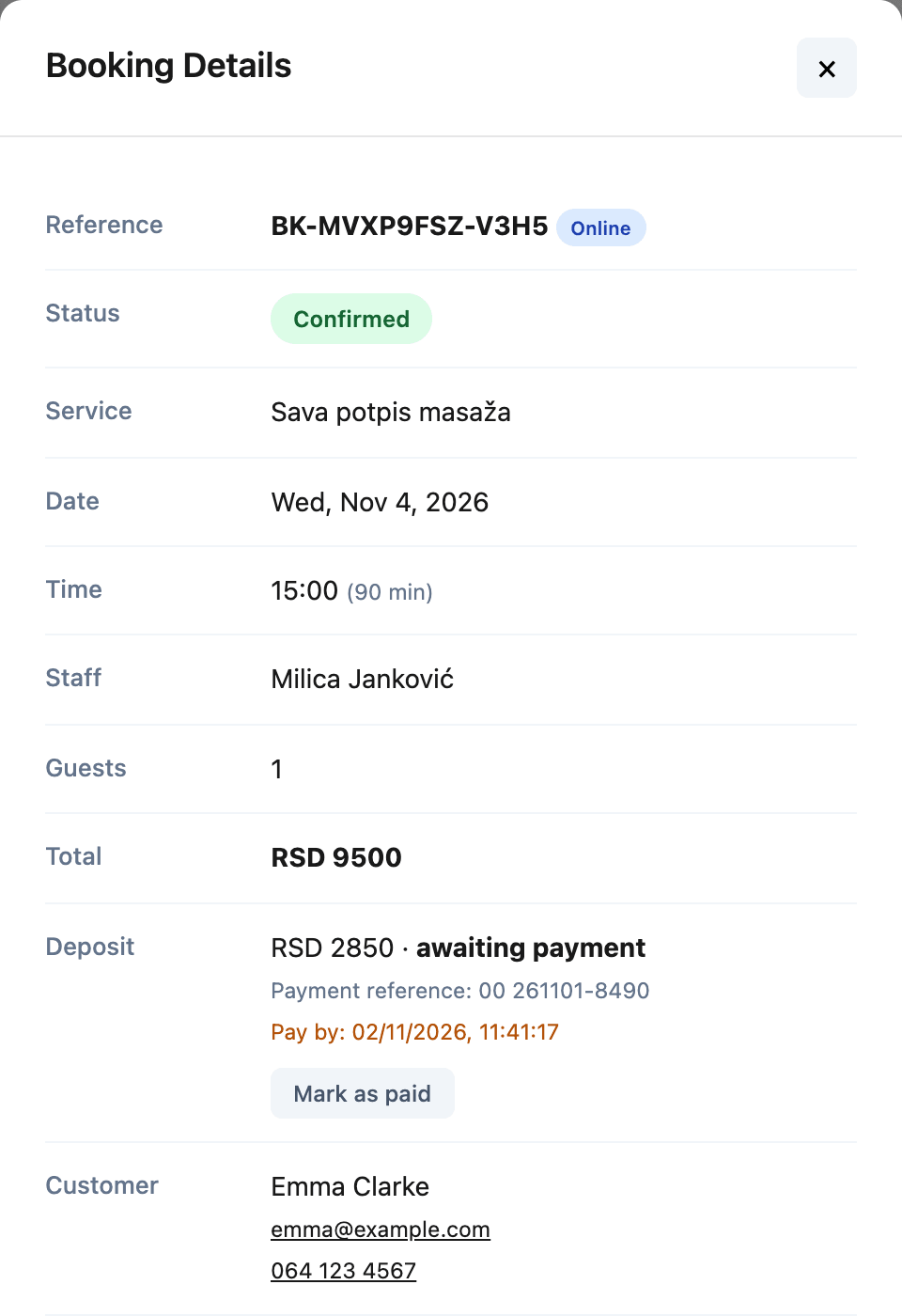
If you chose a deadline and the deposit hasn't been marked as paid by then, the booking cancels itself, the slot opens up for someone else, and both you and the client get an email.
Why you have to mark the payment yourself
This is the most important part of the whole deposit story, so here it is in detail.
Emit isn't connected to your bank. It can't see your account and doesn't know when money arrives. As far as Emit is concerned, a deposit is unpaid until you click Mark as paid, even if the client paid five minutes ago.
That matters because of the automatic cancellation deadline. The clock starts the moment the booking is made. When it runs out, Emit checks one thing only: have you marked the deposit as paid? If not, the booking is cancelled, the slot opens up, and the client gets an email saying their booking was cancelled. Even if the money is already in your account.
An example of how this goes wrong:
- A client books on Tuesday at 8 pm. Your payment deadline is 12 hours.
- She scans the IPS QR code and pays right away. The money is in your account within seconds.
- You check your statement on Wednesday at 10 am.
- But the deadline ran out on Wednesday at 8 am. The booking is cancelled, and the client got a cancellation email even though she paid.
Now you have to call her, apologise and sort out a new slot or a refund. Exactly what the deposit was supposed to save you from.
How to keep it from happening:
- Match the deadline to your routine, not your hopes. If you look at your statement once a day, choose 24 or 48 hours. Pick 12 hours only if you check your bank several times a day.
- Build a two-minute habit. For example every morning with your coffee: open your banking app, then Bookings on your site, and click Mark as paid for each payment (you recognise it by the payment reference). IPS payments arrive instantly, so everything paid by morning is already on your statement.
- Start with automatic cancellation off. For the first few weeks, leave Don't cancel automatically. Deposits are still requested and clients still pay them, but nothing is cancelled without you. Cancel unpaid bookings by hand, and switch the deadline on once you've got into a rhythm.
- Once you mark the payment, the booking is safe. Automatic cancellation stops, and the deadline no longer applies to that booking.
If a booking does get cancelled even though the client paid, get in touch right away and create a new booking in Bookings if the slot is still free. A quick "our mistake, the slot is still yours" is usually all it takes.
Step 3: Cancelling should be easier than not showing up
It sounds backwards, but it may be the most important point: people will cancel if cancelling is easier than staying silent. When it's one click from an email, most will click. You get a free slot someone else can book, instead of an empty chair.
How to set it up on Emit
In the left menu click Site Settings, then in the Sections menu click Reservations and find the Cancellation Policy field.
Choose a rule: cancel anytime, up to 24, 48 or 72 hours before, up to 1 week before, or no cancellations allowed.

Write the same rule in one sentence on your services page, for example: "You can cancel up to 24 hours before, using the link in your confirmation email."
The cancellation link arrives in the confirmation and in the reminder. If a client tries to cancel later than your rule allows, they're told to contact you directly.
What about the deposit when someone cancels? That's up to you and your terms. Emit doesn't move money, so refunds aren't automatic either. The most common rule: cancelled in time, the deposit is refunded or moved to a new appointment; cancelled too late, you keep it. Put that on the page so there are no surprises.
What this looks like in practice
Back to Thursday at 5 pm, but now with all three steps:
- On Tuesday evening, a client books a colour appointment on your website.
- On screen and by email she gets an IPS QR code for a 1,500-dinar deposit and pays it from her banking app.
- On Wednesday morning you see the payment on your statement and click Mark as paid.
- On Wednesday at 5 pm she gets a reminder with the address and the parking note.
- If something comes up, she cancels with one click from the reminder, and you have a full day to fill the slot.
None of these steps requires you to answer the phone.
In short
- Write down no-shows for two weeks and work out what they cost you.
- Turn on the email reminder and choose 24 hours (or 48 for long appointments).
- Add an extra message: parking, entrance, what to bring.
- Enter your bank account in Business Info.
- Turn on deposits if your appointments are long or expensive: 20 to 30% or a fixed amount.
- Choose a payment deadline that matches how often you check your statement.
- Set your cancellation policy and write it on the page, together with your deposit rule.
- Book yourself an appointment from your phone and go through the whole flow: confirmation, QR code, reminder, cancellation.
Full instructions with every option are in the knowledge base: Reminders, arrival info and deposits. If you're only now setting up booking, start with Salon online booking.