A client books an appointment at 11 pm. She gets a confirmation with the date, the address and a cancellation link. The day before, a reminder arrives telling her where to park. You were asleep the whole time, and in the morning a notification about the new booking is waiting in your inbox.
Neither of you wrote any of those emails. The website sent them.
In this post we go through every email Emit sends automatically: when it goes out, who gets it, what it says, what language it's in and what you can change.
Before you start: where things are
Log in at emit.rs/en/login. Your site's dashboard opens, with the main menu on the left. Every setting in this post is in the Settings group:
- Site Settings → Sections menu → Reservations: confirmation, reminders, deposit, arrival information and the booking notification email.
- Site Settings → Sections menu → Shop Settings: the order notification email.
- Account → Business Info tab: the business email, address and phone shown in the emails.

Who gets which email
| Situation | The client gets | You get |
|---|---|---|
| New booking | a confirmation (or "received", if you confirm manually) | a new booking notification |
| You confirm or cancel a booking | an email about the confirmation or cancellation | - |
| The client cancels with the link | a cancellation confirmation | a notice that the slot is free again |
| The client changes the time with the link | the new time | a notice about the change |
| You change the time in the dashboard | the new time (if you leave "notify the client" ticked) | - |
| The appointment is coming up (services) | a reminder | - |
| The day before arrival (accommodation) | arrival information | - |
| The deposit isn't paid in time | an email that the booking was cancelled | the same email |
| New order | an order confirmation | an order notification |
| Someone sends a form | - | the form message |
Every email to a client has a Contact block with your name, email, phone, address and website. When the client clicks Reply, the reply reaches you, not Emit.
Bookings
Booking confirmation
Sent right after booking. It contains the reference, service, date, time, number of guests and total price, plus Change the time and Cancel the booking buttons when your cancellation rules allow it.
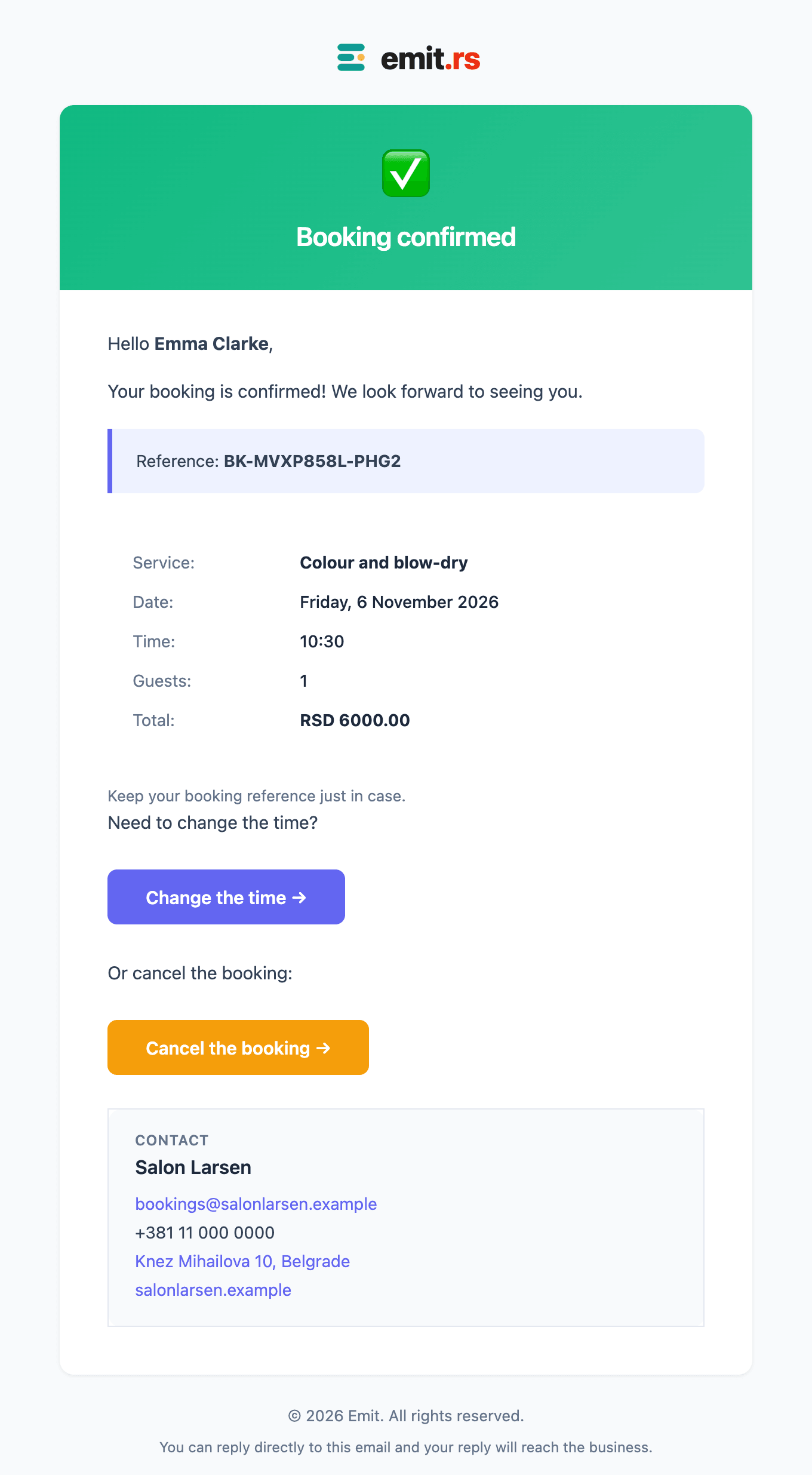
What you set:
- Booking Confirmation (Site Settings → Reservations): Auto-confirm bookings sends the confirmation right away. Require manual confirmation sends "Booking received" first, and the confirmation only when you confirm the booking.
- Cancellation Policy: decides until when the cancellation link works.
- Send guest guide link in booking confirmation: for accommodation, if you have a published guest guide.
Deposit
If you ask for a deposit, the confirmation also gets a Deposit section: the amount, your account, the payment reference, the payment deadline and an NBS IPS QR code the client scans in a banking app.
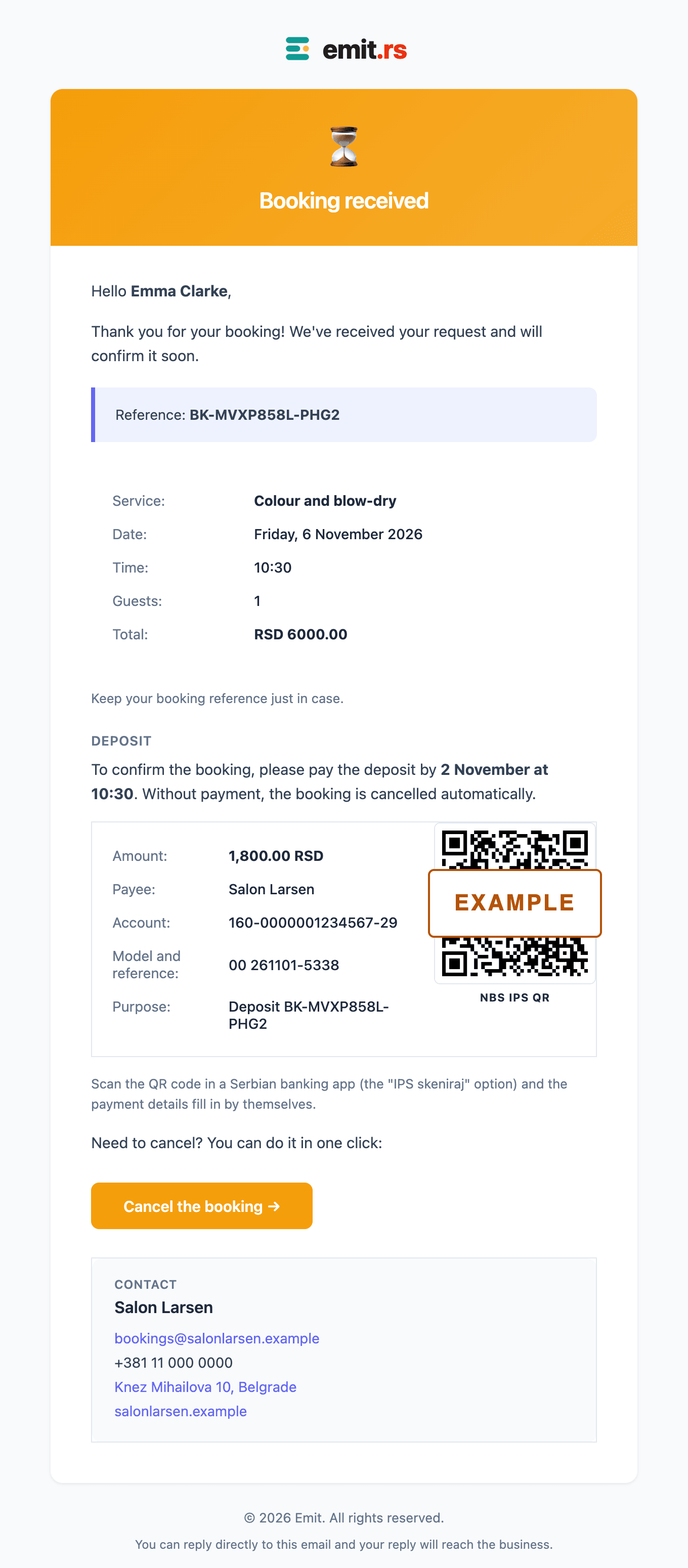
If you don't mark the payment as received by the deadline, the booking is cancelled and both the client and you get an email about it. How to set up the deposit, and why you mark payments yourself, is in how deposits and reminders cut no-shows.
Reminder before the appointment
For confirmed service bookings, the client gets a reminder 2, 24 or 48 hours before the appointment, with the address, your extra message and links to change or cancel.
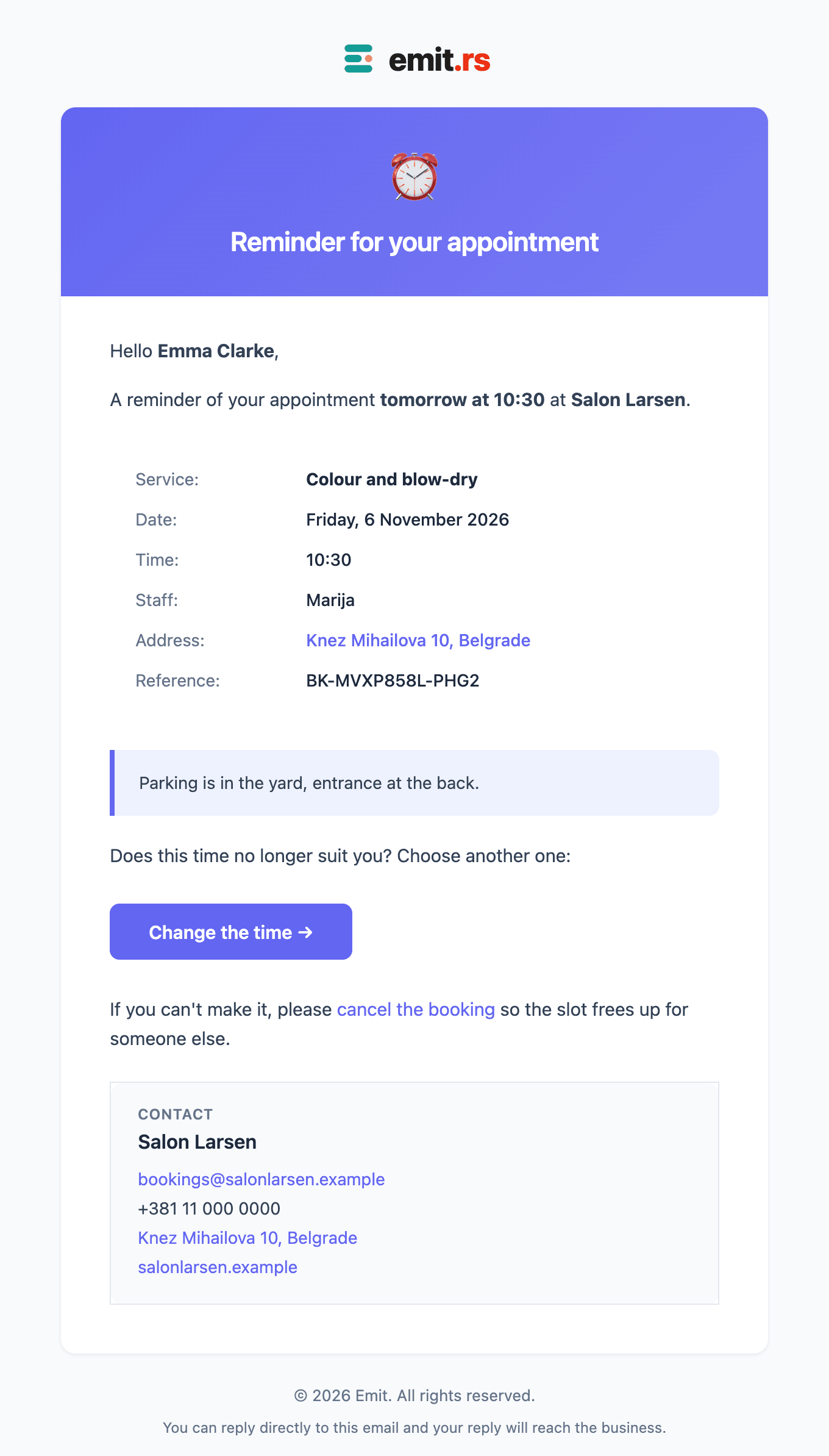
What you set (Site Settings → Reservations):
- Send the guest a reminder before the appointment (on from the start).
- How long before: 2 hours, 24 hours (the day before) or 48 hours.
- Extra message in the reminder (optional): parking, entrance, what to bring.
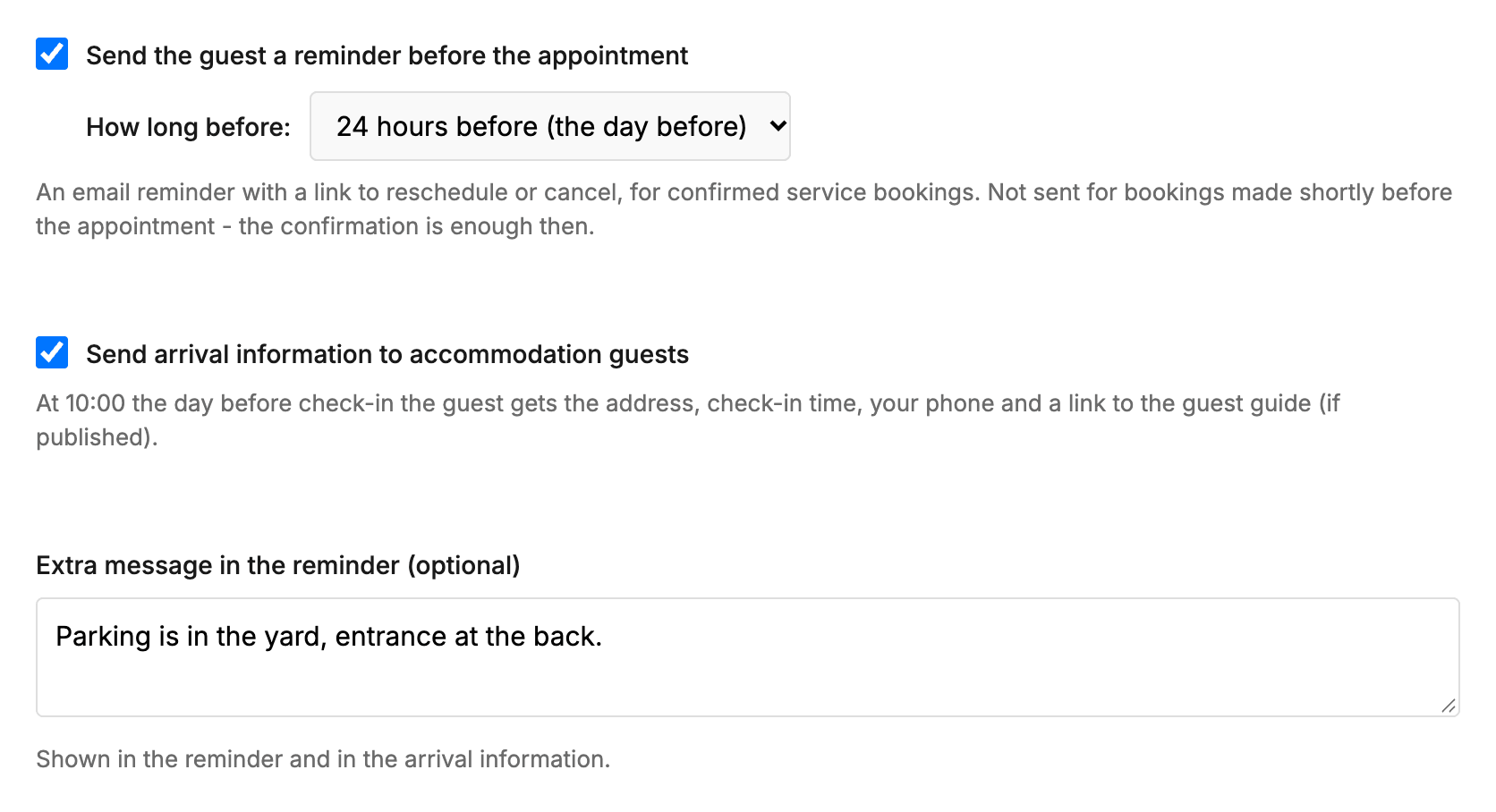
No reminder goes out for appointments booked shortly before they start, because the confirmation is enough then. Bookings waiting for your confirmation get no reminder until you confirm them.
Arrival information (accommodation)
Guests of apartments, rooms and hotels get an email the day before check-in, at 10:00, with the arrival and departure dates, check-in time, address with a map link, a link to the guest guide and your phone number.
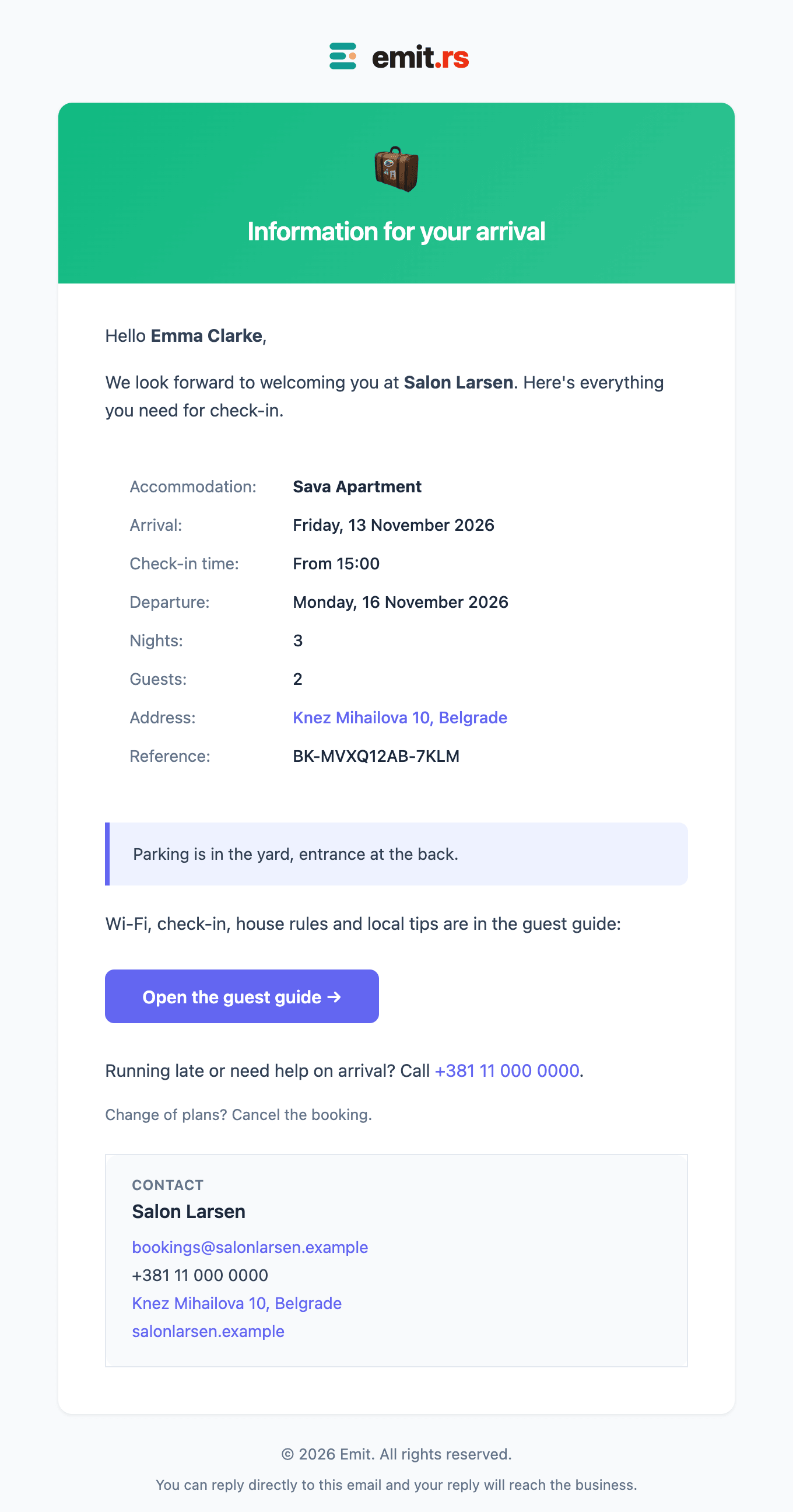
It's turned on with Send arrival information to accommodation guests, and the same Extra message in the reminder appears here too.
Your new booking notification
For every new booking you get an email with all the appointment and client details and a View the booking button that opens it in the dashboard.
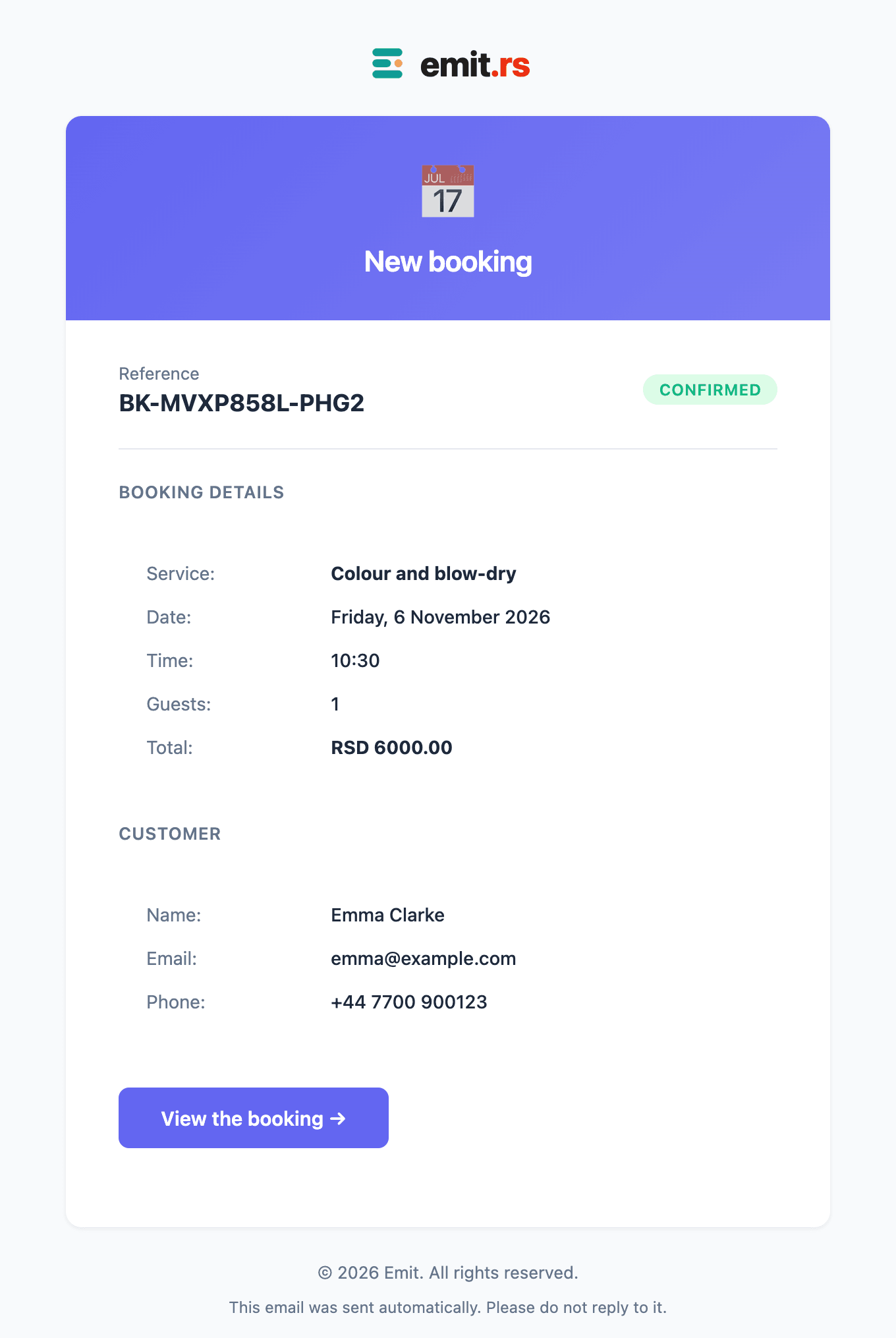
It goes to the address in Booking Notification Email (Site Settings → Reservations). If that's empty, to the Business Email in Account → Business Info, and if that's empty too, to the email you sign in to Emit with.
Shop
The buyer immediately gets an order confirmation with the items, shipping, coupon, total and payment method. If they chose bank transfer, the email also has the payment details with an IPS QR code.
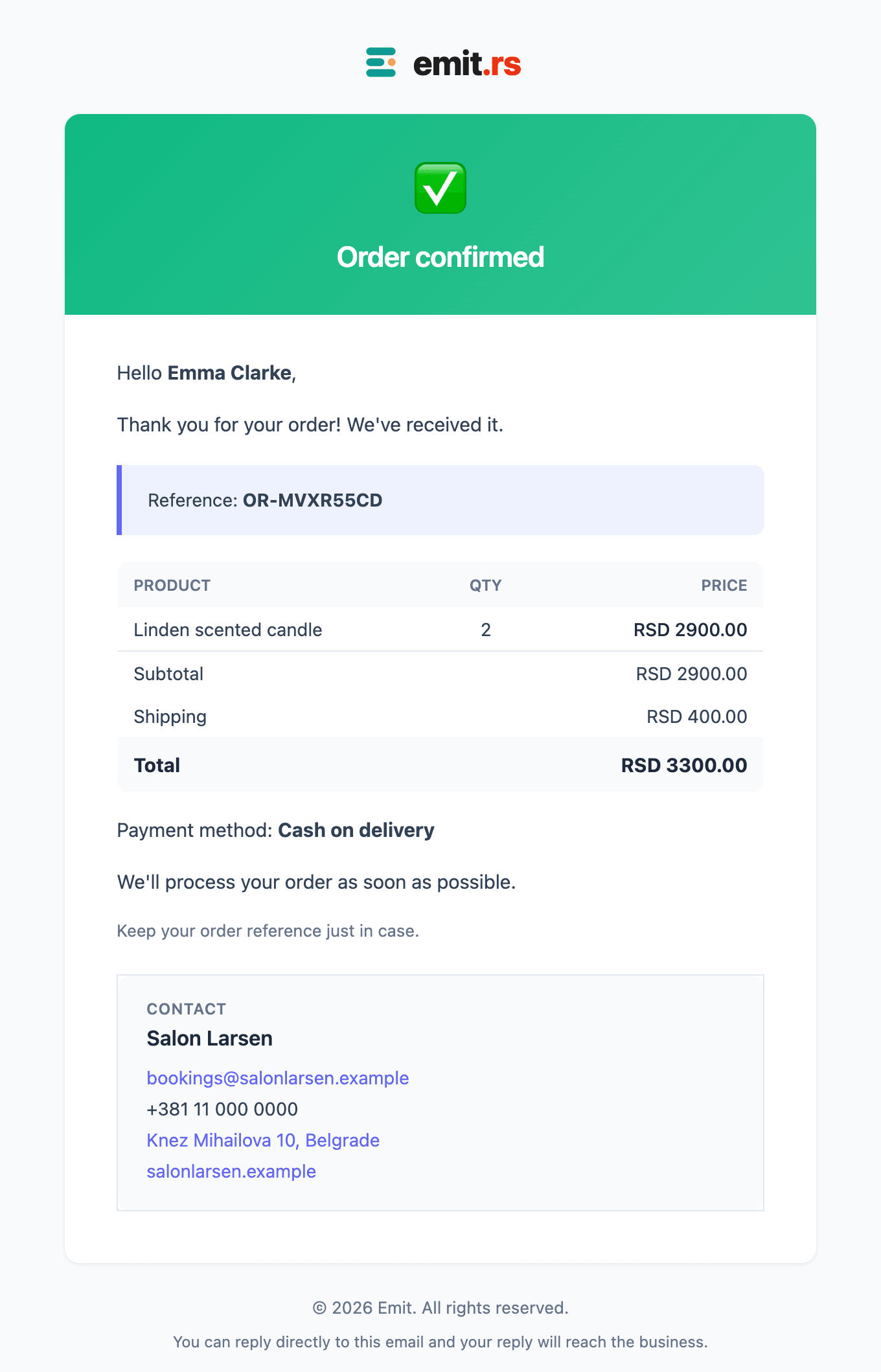
You get an order notification at the Order Notification Email (Site Settings → Shop Settings), or at your business email if that field is empty.
When you change an order's status in the dashboard (for example to "sent"), the buyer doesn't get an automatic email. If you want to let them know, reply to their email. More on orders: orders and courier export.
Forms
When someone sends a form on your site, the message goes to the address in the block's Send submissions to (email) field, or to your business email. Clicking Reply writes straight to the sender. In detail: a contact form that reaches the right person.
What language the emails are in
- Clients get emails in the language of the page they booked or ordered from. Someone booking on the Serbian page gets a Serbian email. Someone booking on an
/en/page gets English, including the reminder and arrival information that arrive days later. - Bookings you enter yourself in the dashboard go to the client in your site's main language.
- You get emails in the language of your dashboard. You switch it with the SR | EN buttons at the bottom of the left menu.
- The emails exist in Serbian and English. If your site has a third language, clients on those pages get English emails.
How to add an English version of your site: a two-language website.
In short
- Check your Business Email, phone and address in Account → Business Info: they appear in every email to clients.
- Fill in Booking Notification Email and Order Notification Email if notifications should go to someone else.
- Choose Booking Confirmation: automatic or manual.
- Keep the reminder on and choose when it goes out, with an extra message.
- For accommodation, turn on arrival information and the guest guide link.
- If you ask for a deposit, choose a deadline that matches how often you check your bank statement.
- Book yourself a test appointment and see how the emails look in your inbox.