Two things small shops most often do "by hand": a sale people only hear about on Instagram, and a discount agreed in a message ("mention code MILICA10 and I'll take it off"). The first isn't visible on the site, the second is easy to forget or abuse.
On Emit there are tools for both that run by themselves: a sale price on the product (with dates and a countdown) and a coupon the buyer enters in the cart.
Before you start: where things are
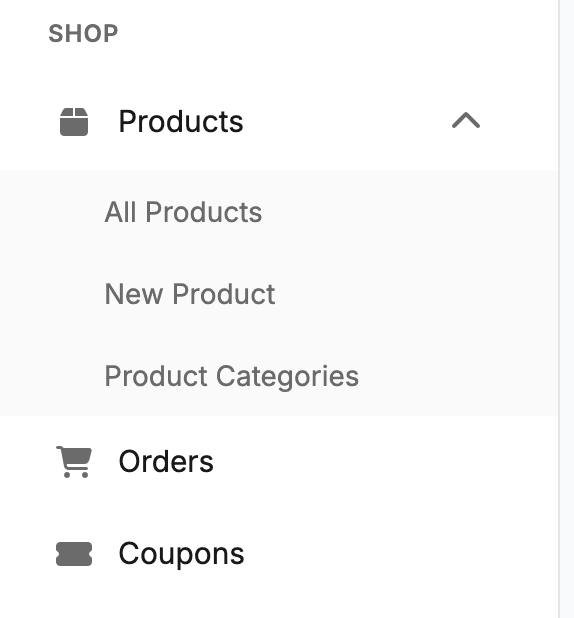
Log in at emit.rs/en/login. In the main menu on the left, in the Shop group:
- Products → All Products: a sale price is set on each product.
- Coupons: all promo codes in one place.
A sale on a product
Use it when the discount belongs to the product: a seasonal sale, end of a batch, "candle week".
- Open the product (Products → All Products, the blue pencil in its row).
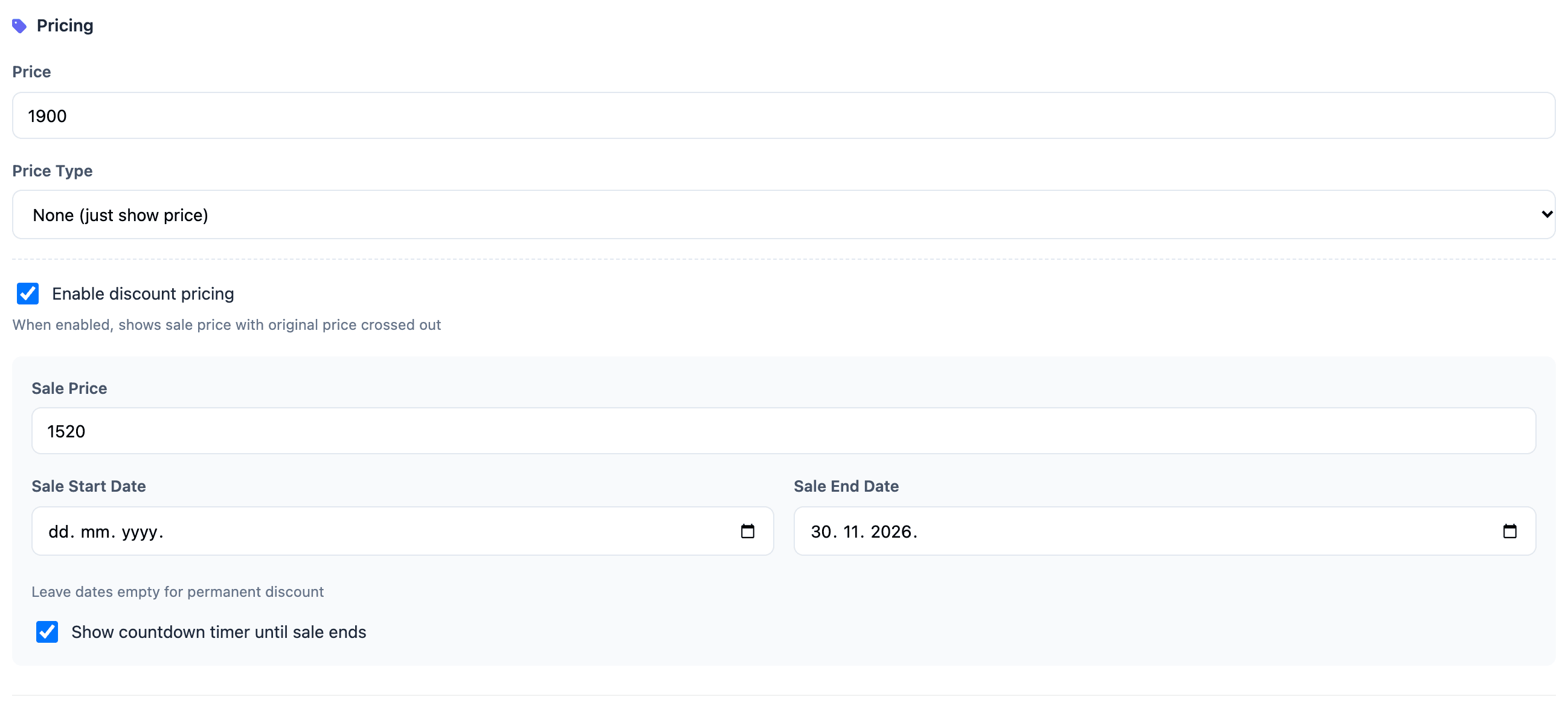
- In the Product Details panel, under Pricing, tick Enable discount pricing.
- Enter the Sale Price.
- Optionally enter a Sale Start Date and Sale End Date. Empty dates mean the sale runs until you turn it off.
- For a sale with a deadline, tick Show countdown timer until sale ends.
- Click Publish.
On the site the old price is shown crossed out, with a sale badge and a countdown to the end:
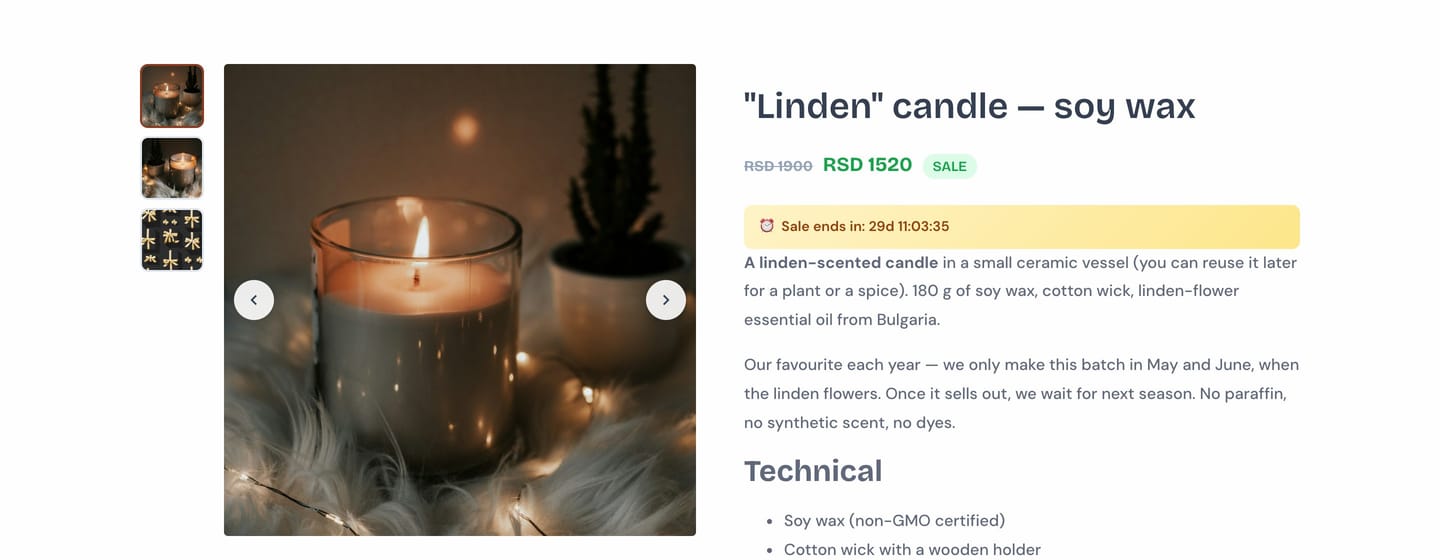
The sale switches on at the start date and off after the end date, and that applies in the cart too: once the sale is over, the order is charged at the regular price, whatever was left in the buyer's cart.
A discount coupon
Use it when only some people should get the discount: Instagram followers, newsletter subscribers, first-time buyers.
- In the left menu click Coupons, then New Coupon in the top right corner.
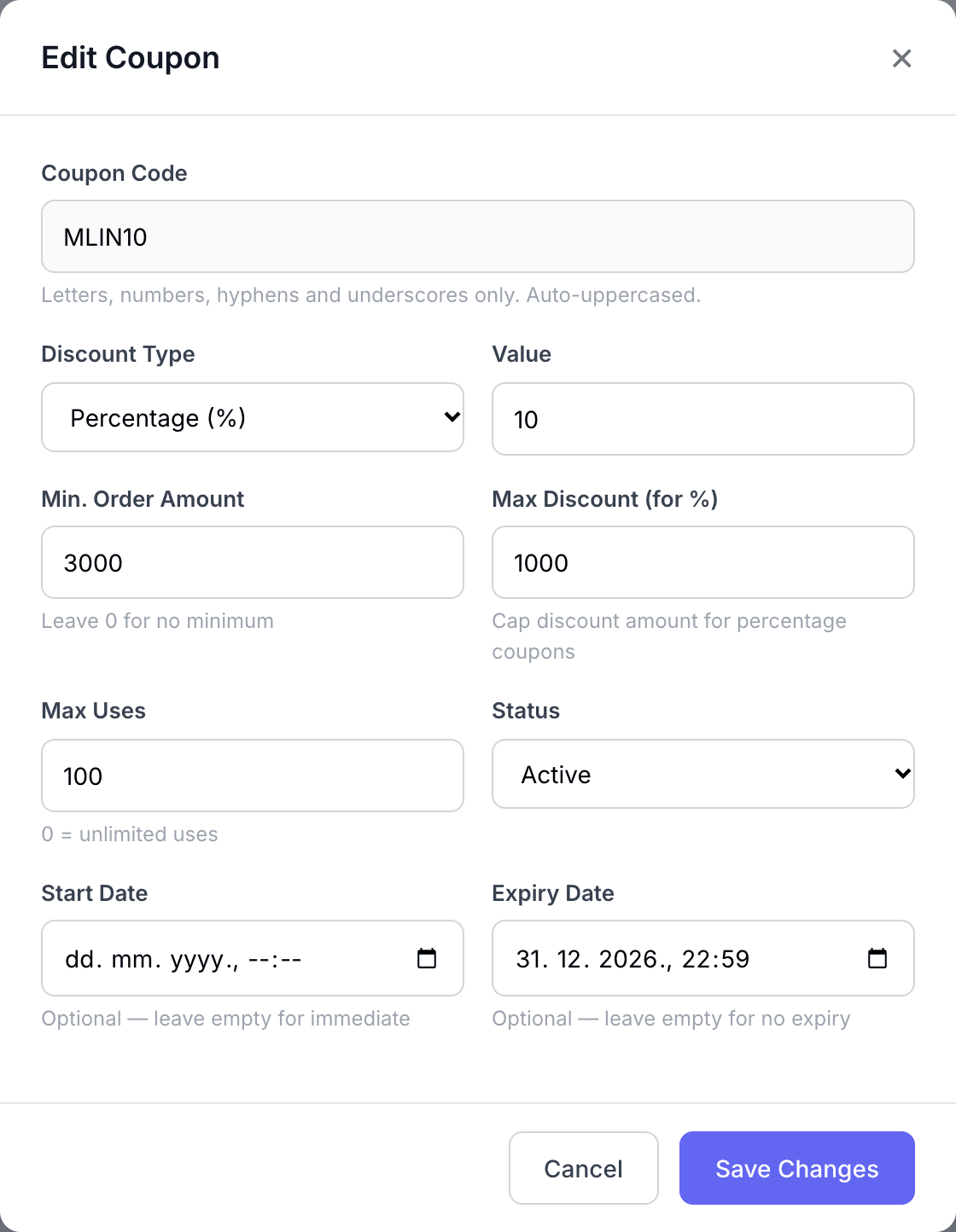
- Fill in the form:
- Coupon Code: what the buyer types, e.g. MLIN10. Letters are uppercased automatically.
- Discount Type: Percentage (%) or Fixed Amount.
- Value: e.g. 10 (percent) or 500 (dinars).
- Min. Order Amount: the coupon only works from this cart total. 0 means no minimum.
- Max Discount (for %): a cap on a percentage discount, so a large order doesn't eat your margin.
- Max Uses: how many times in total the code can be used. 0 means unlimited.
- Status: Active.
- Start Date and Expiry Date: optional.
- Click Create Coupon.
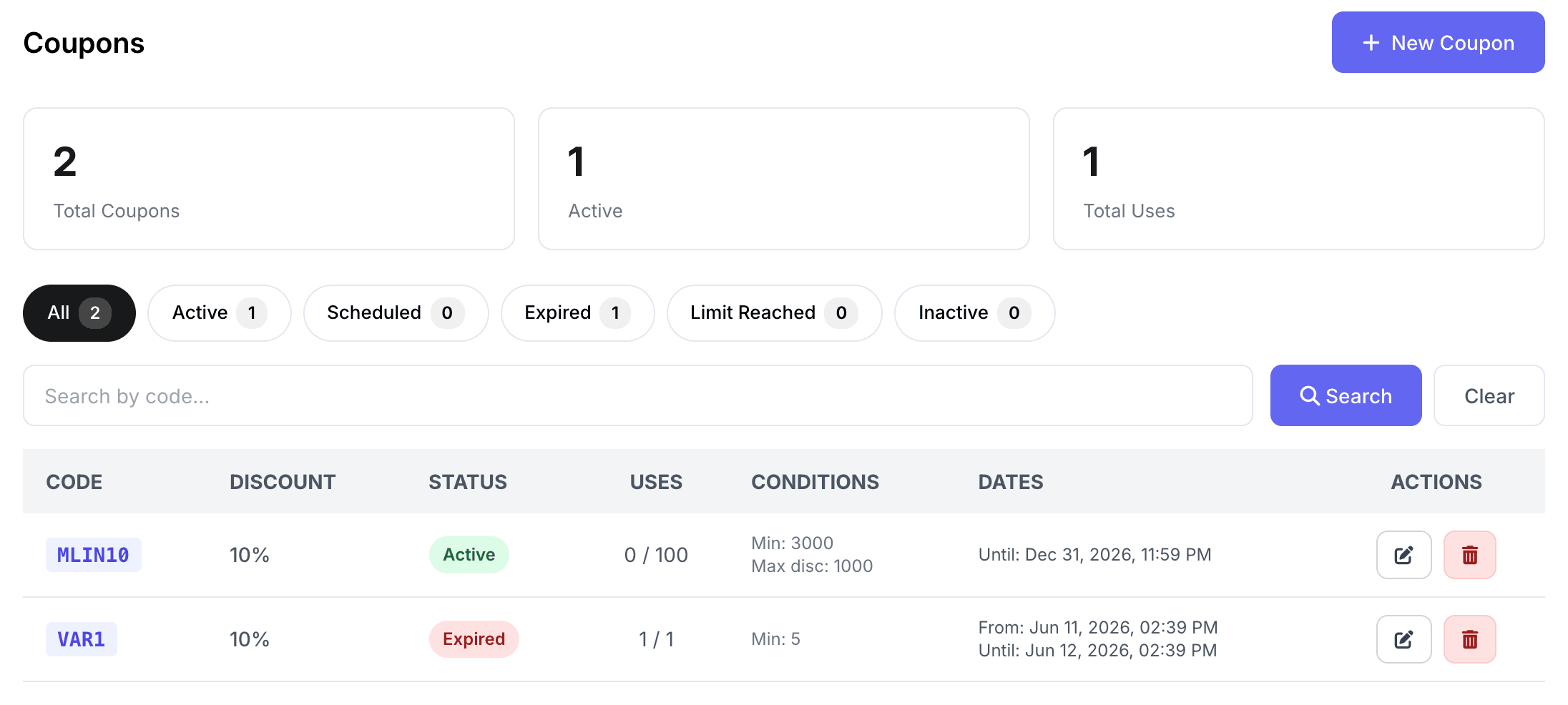
On the Coupons page you see every code, how often it's been used and its status: Active, Scheduled (starts later), Expired, Limit Reached or Inactive (turned off by hand). The status is worked out automatically from the dates and the number of uses.
What the buyer sees
In the cart the buyer types the code and clicks Apply. The discount shows in the order summary straight away, and the same line appears in the order and in the email you receive:
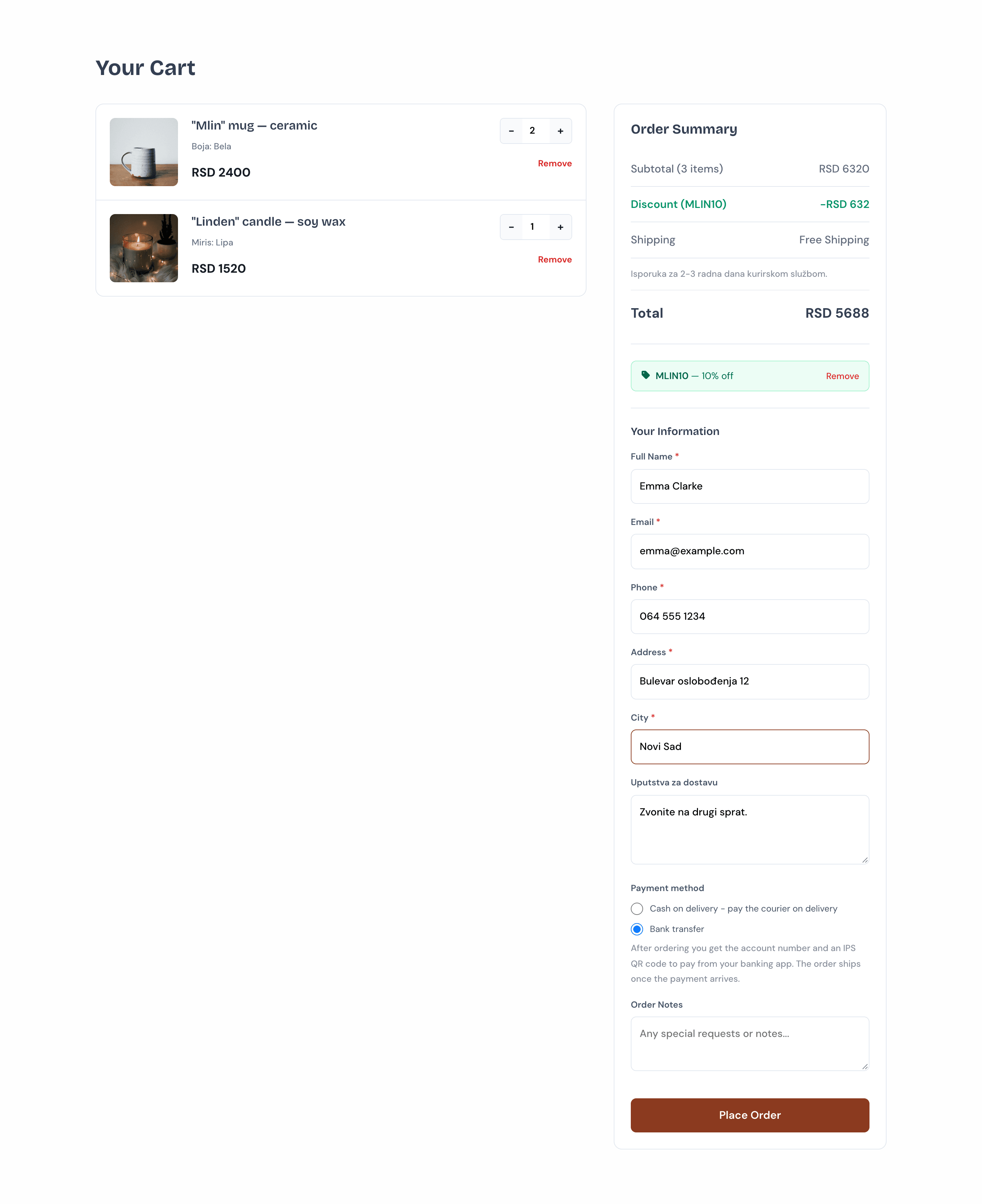
The discount applies to the products, before shipping. The final amount is always calculated by the server, so the buyer can't change it in the browser.
Which tool when
| Goal | Tool |
|---|---|
| A sale on one product or category | Sale price on the product |
| A sale with a deadline, "until Friday" | Sale price + end date + countdown |
| A discount for followers or the newsletter | A coupon with an expiry and a usage limit |
| A bigger average cart | A coupon with Min. Order Amount |
| A discount on several of the same product | Volume Pricing on the product (how) |
In short
- A sale: Enable discount pricing, sale price, end date, countdown.
- A coupon: code, type, value, minimum cart, discount cap, limit, expiry.
- Check the coupon's status on the Coupons page when a buyer says a code doesn't work.
- A test order with the coupon before you announce the code.