With one apartment, the guest opens it and checks the dates. With five, in different places and for different group sizes, the guest doesn't want to open each one. They want to type "19 to 22 November, two adults" and see what's free.
In this post we set up two things:
- several units on the same site,
- a search on the home page that shows only units free for the chosen dates and number of guests.
Before you start: where things are
Log in at emit.rs/en/login. The dashboard opens with the main menu on the left. You need:
- Bookables (Reservations group): all the units you rent out.
- Pages (Content group): the page you put the search on, usually the home page.

Step 1: One unit per place
Every apartment, room or house a guest chooses separately is one bookable, with its own photos, price and calendar. We showed how to create the first one in An apartment booking page from scratch.
You don't have to start from zero for the next ones:
- In the left menu, under Reservations, click Bookables, then All Bookables.
- Next to the unit most similar to the new one, click the purple duplicate icon on the right of the row.
- Open the copy with the blue pencil and change the name, photos, price and address. House rules and extra services carry over, so just check them.
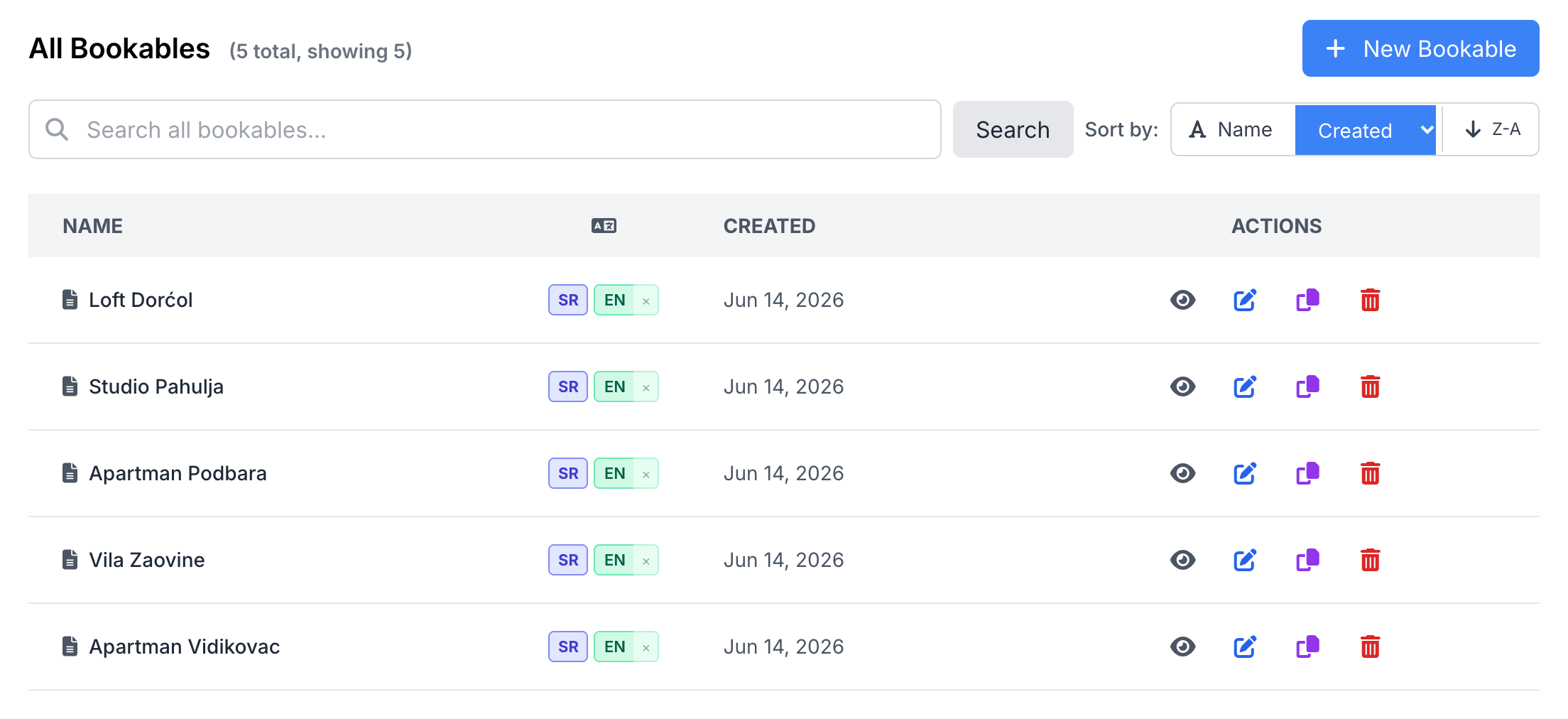
Each unit has its own calendar. A booking for Apartman Vidikovac doesn't block Vila Zaovine.
Several identical rooms: capacity instead of copies
If you have three identical studios that guests don't choose individually, don't create three units. Create one and in Capacity & Availability set Capacity: 3. The same date can then be booked three times, and only the fourth booking closes it.
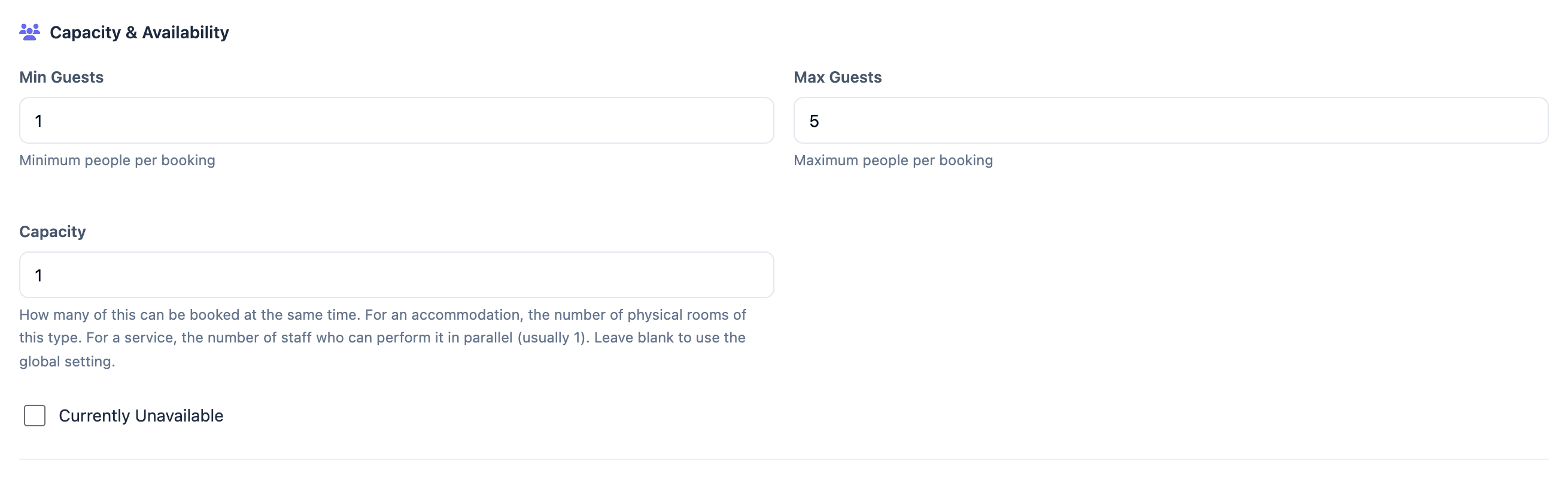
Be sure to fill in Max Guests for every unit. The search uses it to decide which units fit: a studio for two isn't shown to a family of five.
Step 2: Add the search to the home page
- In the left menu click Pages, then All Pages, and click the blue pencil next to the home page.
- Click the dark tab with the » arrows on the left edge of the screen. A side panel opens.
- Open Content Blocks and click + Browse blocks.
- In the Add Block window, type "search" in the search field at the top and click Insert on the Search Block.
- Use the arrows in the block list to move it to the top, so the search is the first thing guests see.
Step 3: Set up the search's look
Below the block's preview on the page are its settings:
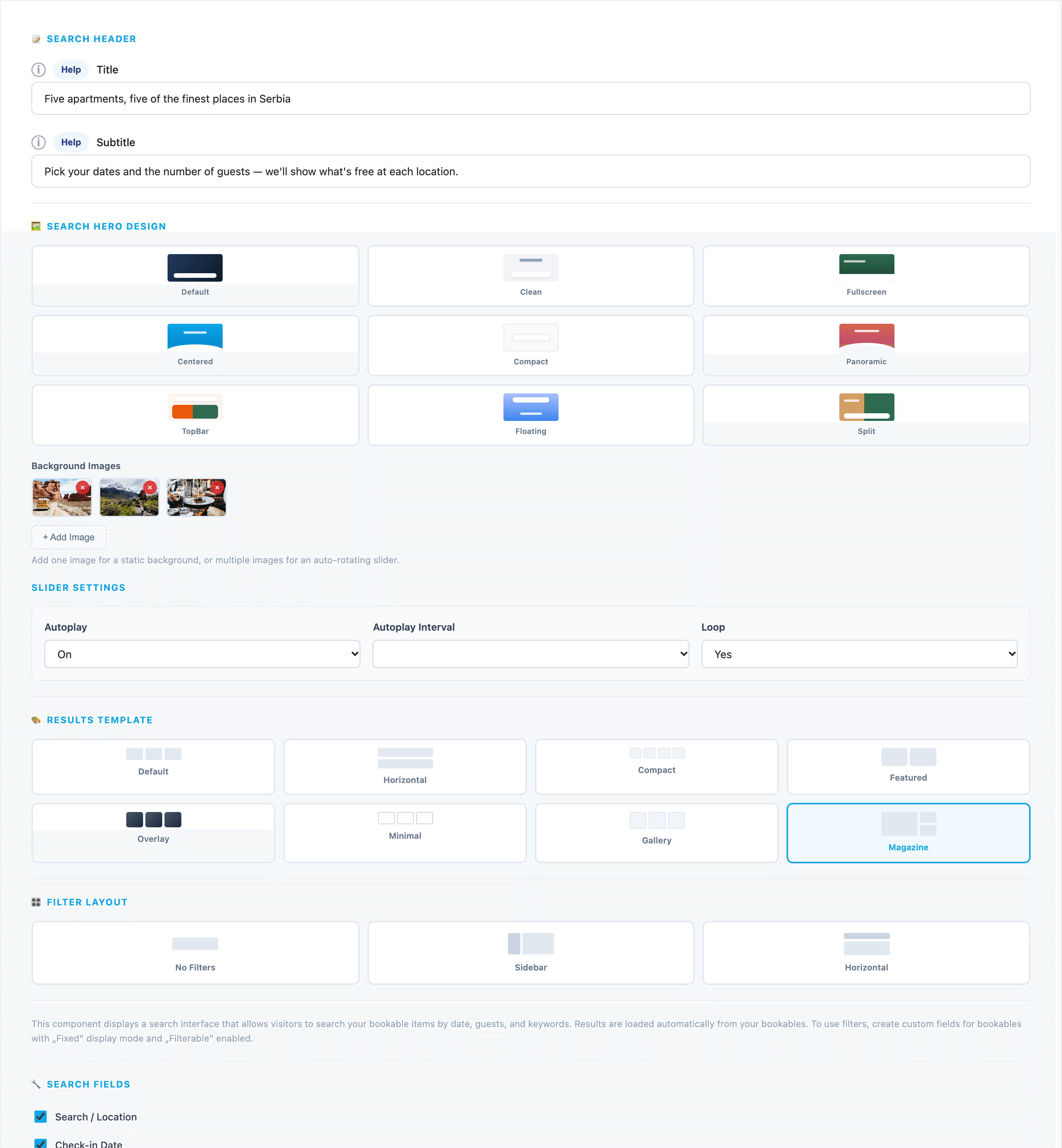
- Search Header: the title and subtitle above the search fields.
- Search Hero Design: nine header looks, from a compact bar to a full-screen photo.
- Background Images: one image for a calm background, or several for a slider that rotates by itself.
- Results Template: how the unit cards below the search look (grid, horizontal, magazine...).
- Filter Layout: no filters, in a sidebar, or horizontally above the results.
- Search Fields: tick what guests fill in: a name or location search, check-in date, check-out date and number of guests.
Click Publish.
What the guest sees
At the top of the home page is the search:
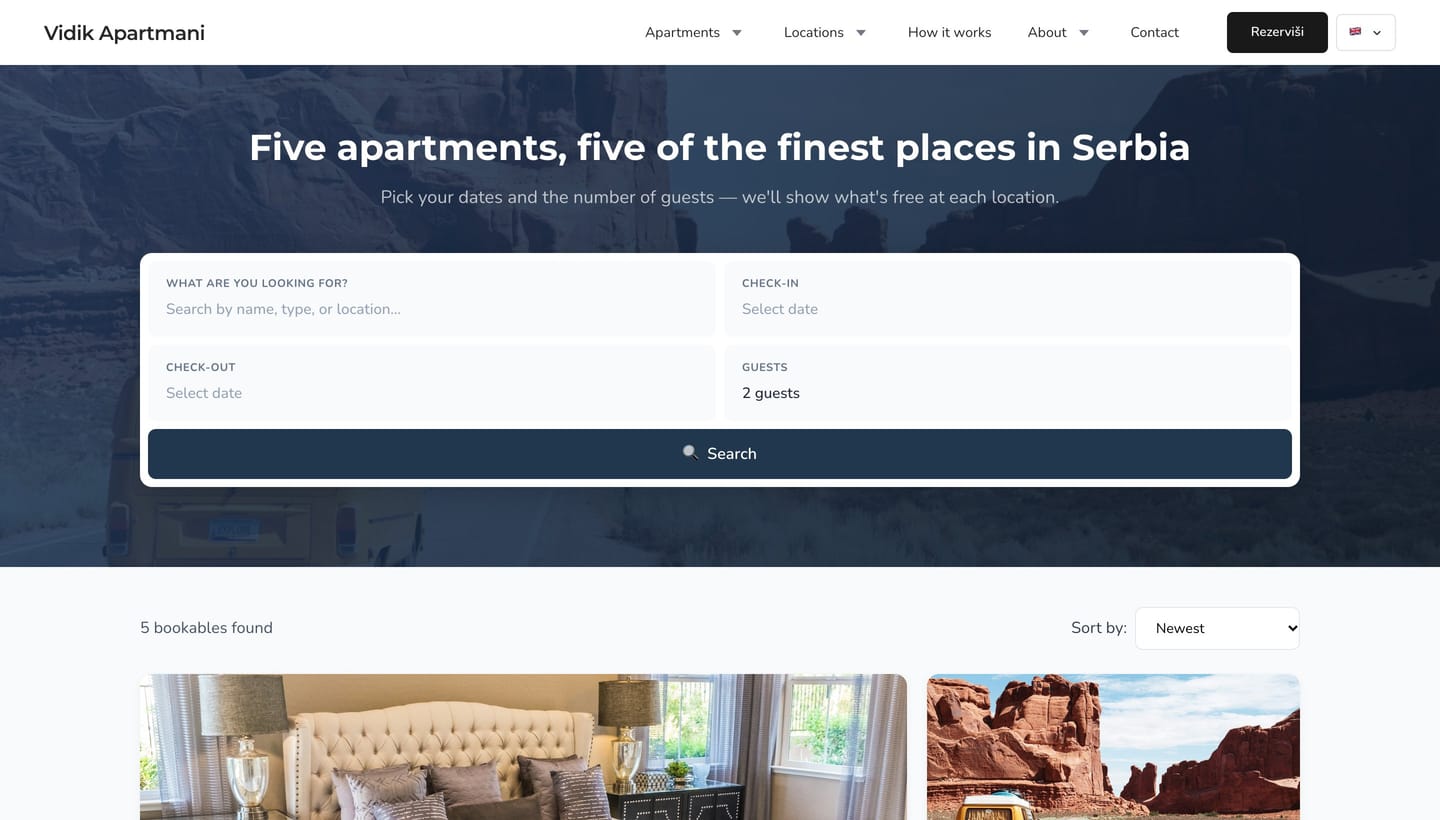
Below it are cards for every unit, with a photo, address, nightly price and maximum guests. When the guest enters dates and a number of guests and clicks Search, the list narrows to the units free for the whole period that take that many people. Booked units and units marked Currently Unavailable aren't shown.
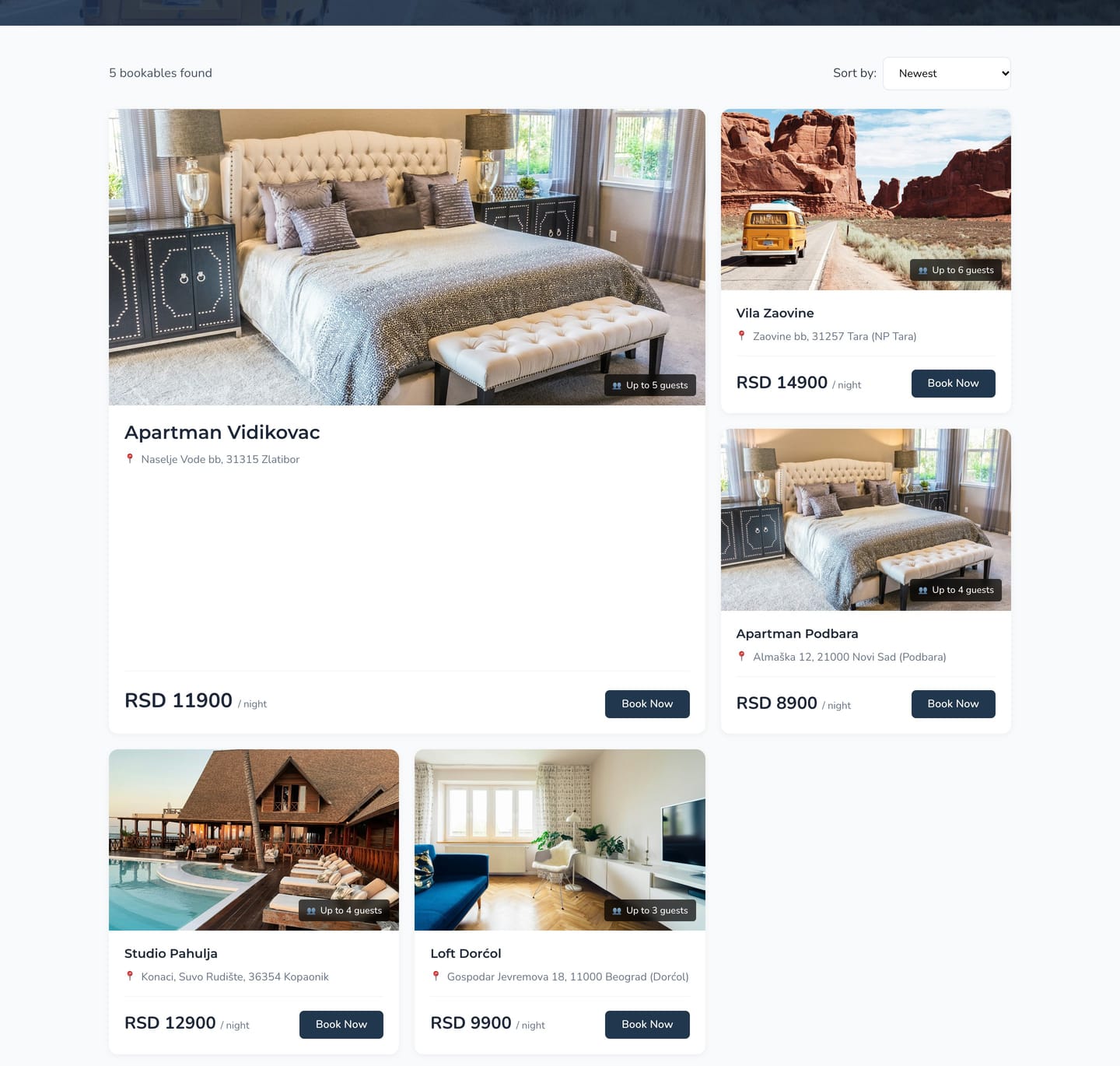
Book Now opens that unit's page, where the guest picks dates and completes the booking.
Filters on your own criteria
For filters such as "location" or "sea view", create a custom field for bookables: in the left menu, under Settings, click Custom Fields. Set Display Mode to Fixed and tick Enable filtering. Then fill in the field's value on each unit, choose a Filter Layout in the search block (sidebar or horizontal), and the filter appears next to the results.
In short
- One bookable for each place guests choose separately; duplicate an existing one to save time.
- For identical rooms, one unit with a higher Capacity.
- Max Guests filled in on every unit.
- A Search Block at the top of the home page.
- Header design, background and results template.
- A test search with dates when at least one unit is booked.
If you host guests from abroad, the same site can also be in English, with its own address for each language: A multilingual vacation rental website.