Guests arrive at 10 pm, tired from the trip. First message: "What's the WiFi password?" Second, half an hour later: "Where does the rubbish go?" Third, in the morning: "What time is check-out?" It was all in the message you sent a week ago, but nobody searches their inbox for it.
A guest guide is one page per apartment with everything a guest needs: WiFi with a copy-password button, how to get in, house rules, parking and your contact. Guests open it by scanning a QR code on the wall or from the link in the confirmation email, in their own language.
Before you start: where things are
Log in at emit.rs/en/login. In the left menu, under Reservations, click Guest Guides. Guides exist for your units, so if you don't have any yet, start with An apartment booking page from scratch.

The page has two levels:
- Property-wide guide (shared defaults): what's the same in every apartment, e.g. the host contact, parking, rubbish collection. Filled in once.
- Per-accommodation guides: what's specific to each apartment, e.g. the WiFi and the door code.
A value entered on an apartment wins; leave a field empty and the shared value is used.
Step 1: Shared defaults
- In the Property-wide guide row, click Edit. The Shared defaults & property-wide guide window opens.
- Fill in Contact name and Contact phone. Enter the phone with the country code and without the leading zero: 0641234567 becomes +381641234567.
- Tick Show WhatsApp button and/or Show Viber button if guests can message you there.
- Click Add section for everything else: parking, rubbish, places to eat, getting to the centre. Each section has a heading, text and an optional image.
- Click Save.
Step 2: A guide for each apartment
- Under Per-accommodation guides, click Edit next to the apartment.
- Tick Publish this guide. Until it's ticked, the guide stays hidden.
- Welcome message: one or two sentences, in a human voice.
- WiFi: Network name (SSID) and Password, copied character by character from the router, plus an optional Note (where the router is).
- Access instructions: the door or key box code and exactly where it is.
- Fill in the contact and sections only if they differ from the shared ones.
- Click Save.
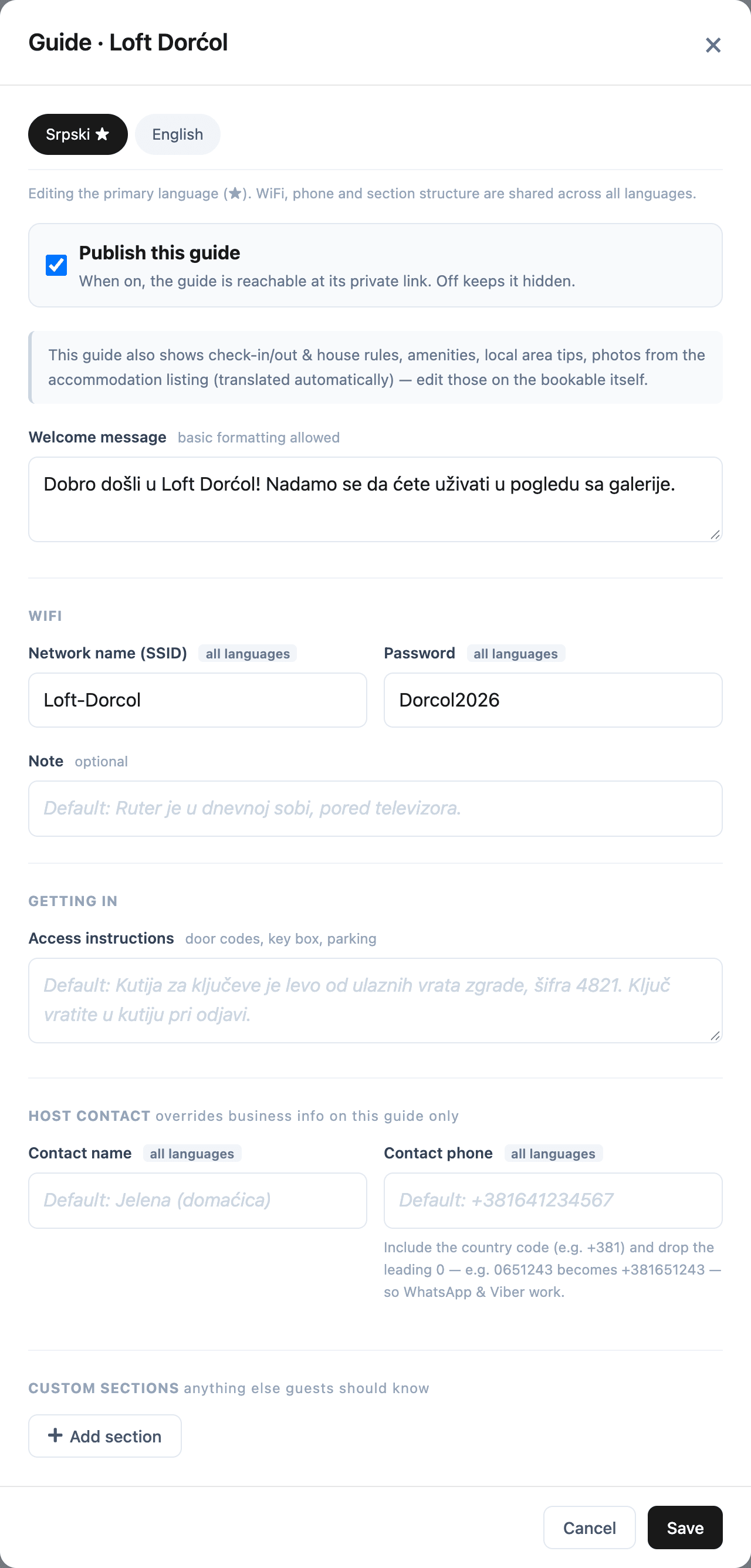
Check-in, check-out, house rules, amenities and photos come into the guide automatically from the apartment page. You don't retype them, and when you change them on the apartment, the guide changes too.
Several languages: at the top of the window are your site's languages (e.g. Srpski and English). Click English and type the translations. WiFi, phone and section order are shared across languages. Guests switch language in the guide with one tap.
Step 3: A QR code for the wall
- Click QR next to the apartment. The Guest QR code window opens.
- Click Print for a ready-to-print card, or PNG / SVG if you're sending it to a print shop.
- Copy link copies the guide's private link, for a message to a guest.
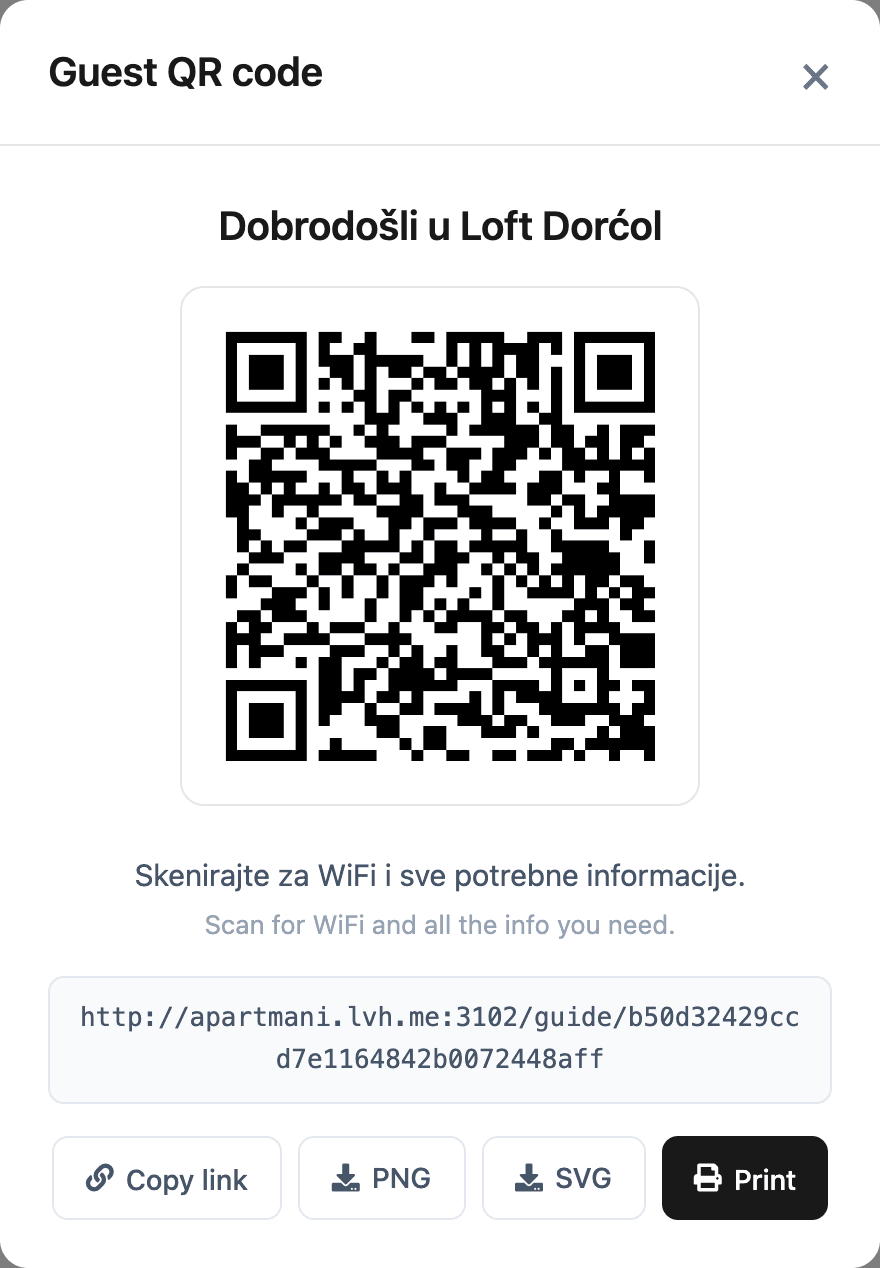
Print it on thicker paper and put it in a frame: on the inside of the front door, next to the router or on a table. Paper stuck up with tape spoils the look of the apartment.
The link is private: it isn't shown on your site or in search engines. Only someone who scans the code or gets the link has it.
Step 4: The link in the booking confirmation
So guests get the WiFi and access instructions before they arrive:
- In the left menu click Site Settings, then in the Sections menu click Reservations.
- Tick Send guest guide link in booking confirmation.
- Click Save Changes.
From then on the confirmation email includes a link to that apartment's guide.
What the guest sees
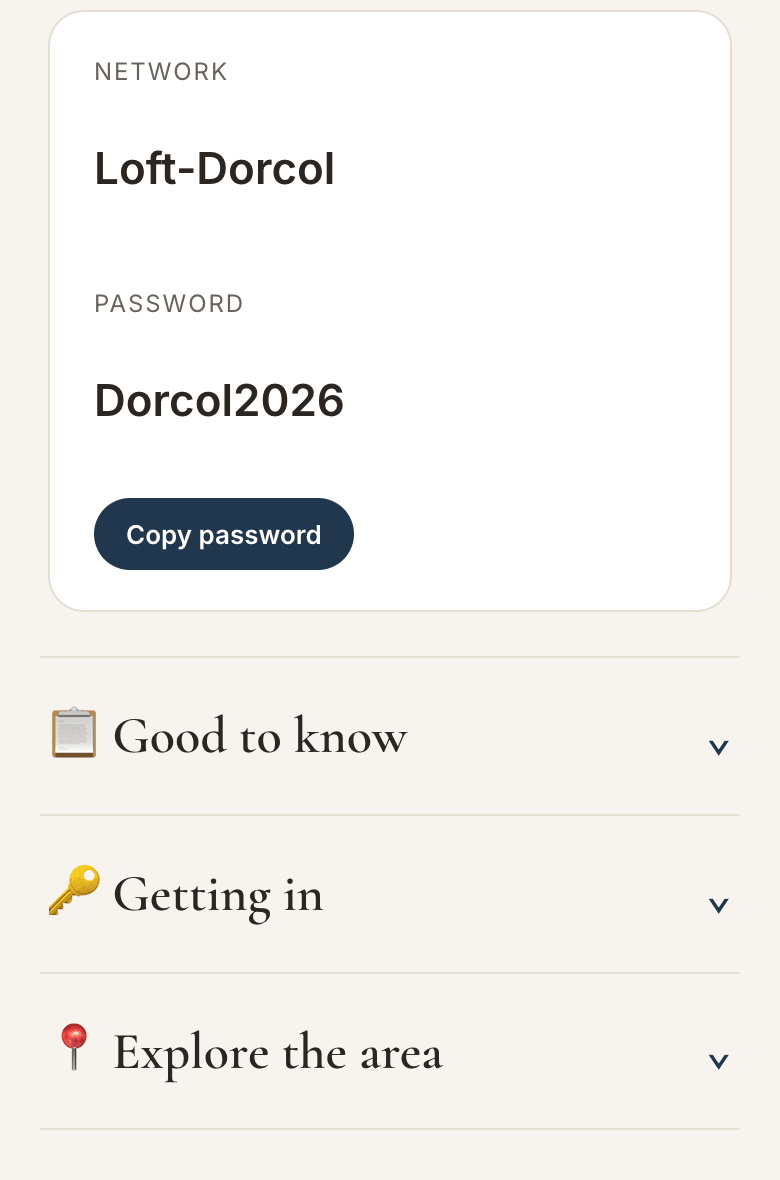
On their phone, the guest opens the guide with the apartment's name and your welcome message. Below are sections they open with a tap: WiFi with a copy-password button, good-to-know info, getting in, the area, your sections and your contact. They can also print the guide or save it as a PDF.
In short
- Guest Guides → Property-wide guide → Edit: contact, WhatsApp/Viber, shared sections.
- For each apartment: Publish this guide, welcome message, WiFi, access instructions.
- Translations in the English tab.
- QR → Print, framed by the entrance.
- Send guest guide link in booking confirmation in the booking settings.
- Scan the code with your own phone and check the WiFi password.
If you host guests from abroad, see also how to make the whole vacation rental website multilingual.