Why SEO matters and how to think about keywords is covered in SEO for small businesses. This post is only the practical part: where on Emit you enter the title and description for Google, how to read the SEO analysis, and what your site does by itself.
The short answer to "what do I have to do": three fields for every important page (focus keyphrase, SEO title, SEO description) and, once for the whole site, the site title and description. Everything else (sitemap, robots.txt, structured data, redirects when you change a page's address) is automatic.
Before you start: where things are
Log in at emit.rs/en/login. Your site's dashboard opens, with the main menu on the left:
- Pages (Content group): each page's SEO is set in the page editor.
- Site Settings (Settings group): the title and description of the whole site.
- Redirections and robots.txt (Settings group): old addresses and bot access.

Step 1: a title and description for Google on every page
What people see in Google results (the blue title and two lines of text below it) is set separately for each page.
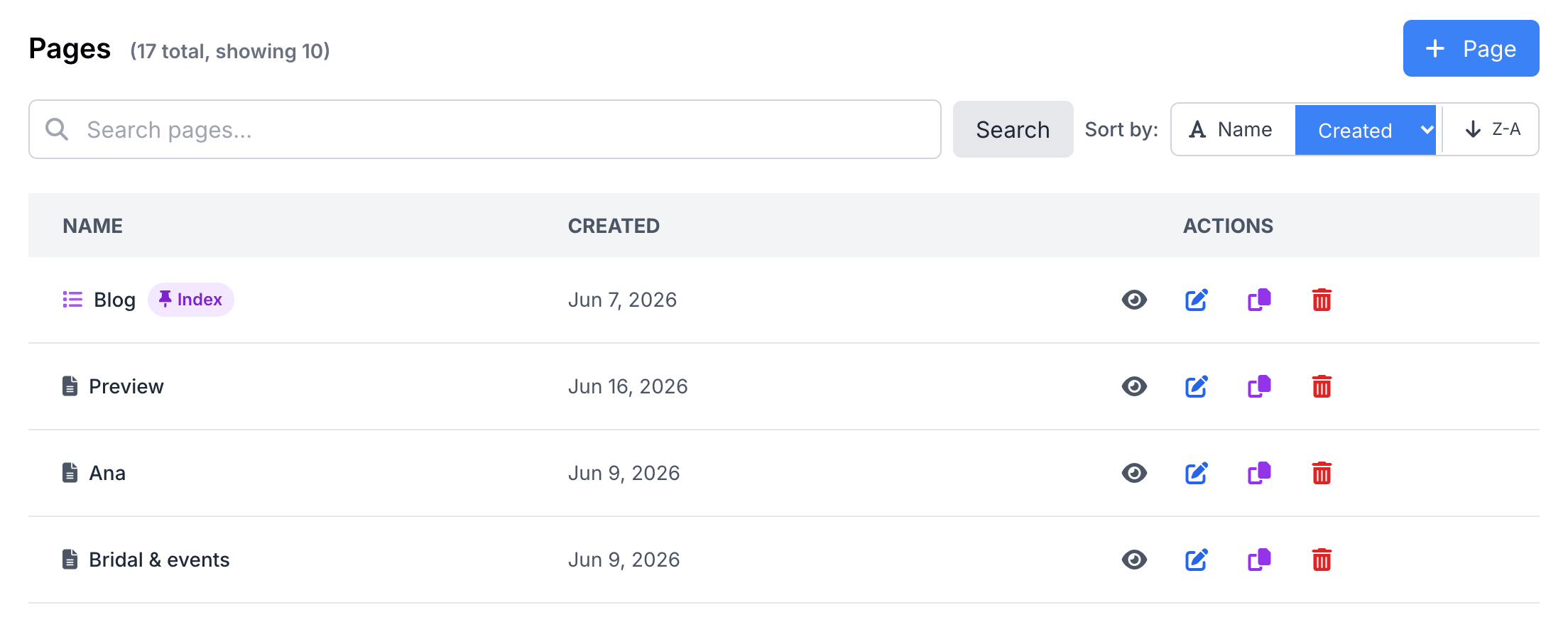
- In the left menu click Pages, then All Pages.
- Next to the page you're editing, click the blue pencil icon.
- In the editor, click the gear icon in the top right corner. A panel with the page settings opens on the right.
- Open SEO Settings.
- In Focus Keyphrase, type what your client would type into Google, e.g. "boutique hotel Belgrade" or "hairdresser Novi Sad".
- A little lower, fill in SEO Title (50 to 60 characters) and SEO Description (around 150 characters). Put the keyphrase in both, naturally, the way you'd say it.
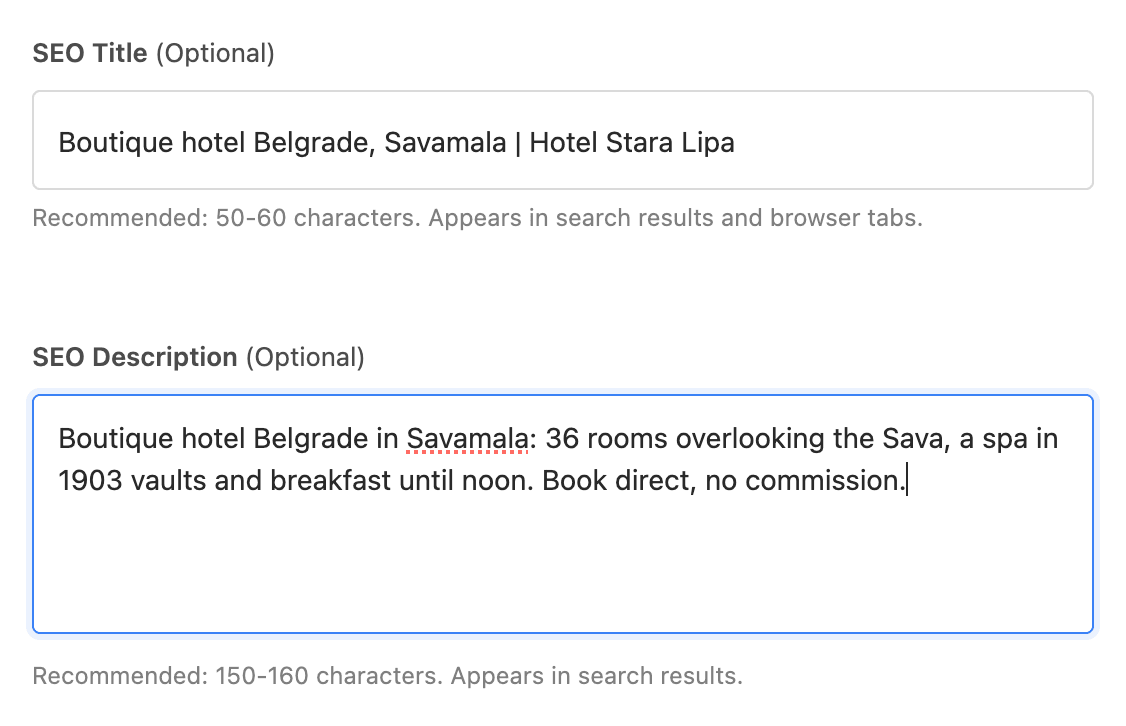
If you leave the SEO title empty, the page title is used.
Step 2: read the SEO analysis and the Google preview
As soon as you enter a keyphrase, an SEO Analysis appears above the fields: a list of checks with green ticks and yellow warnings, and a score at the bottom. Below it is the Google Preview, how the page will look in search results. Both update as you type.
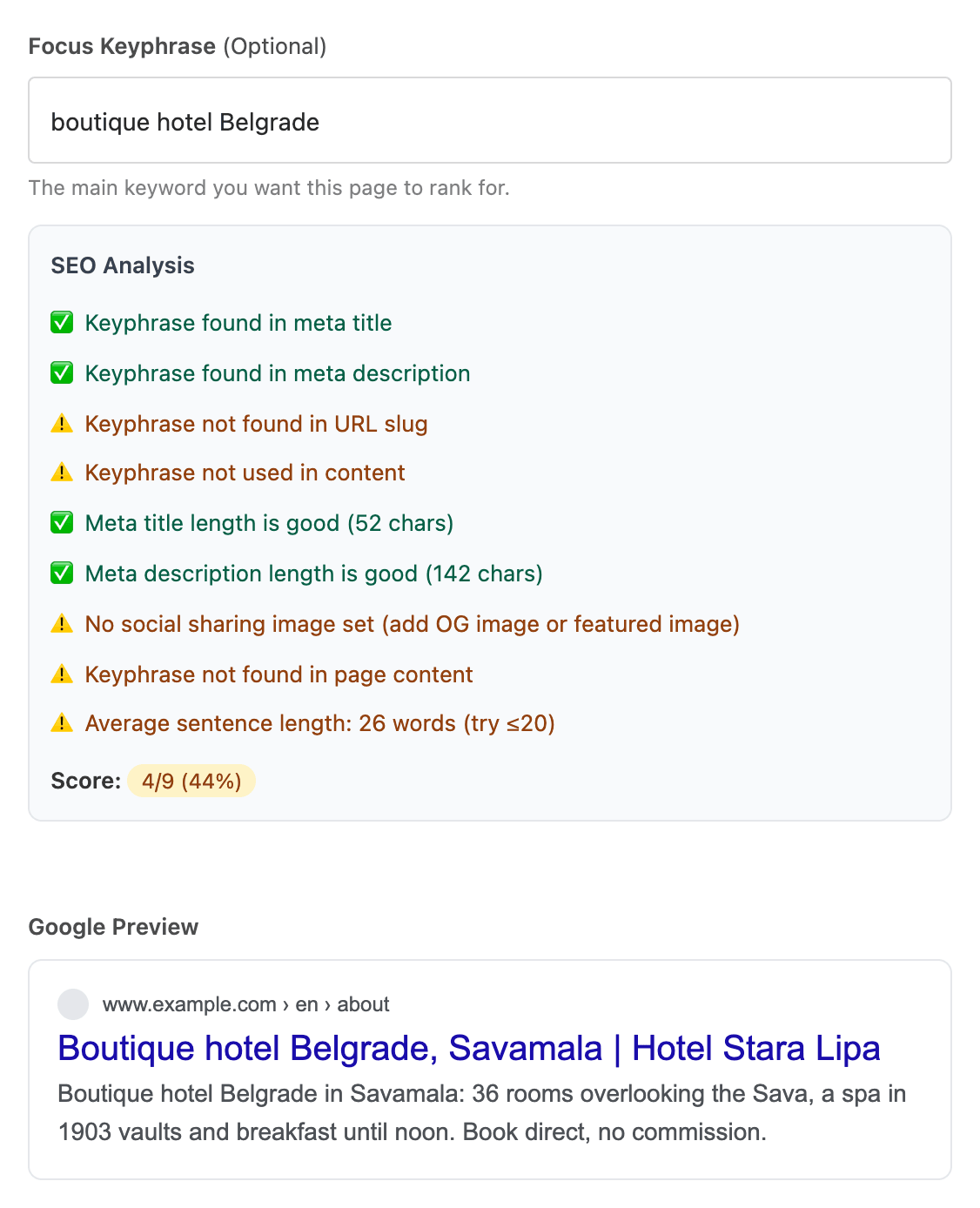
How to read the warnings:
- Keyphrase not found in page content. Mention it at least once in the page text, ideally in the first paragraph.
- Keyphrase not found in URL slug. The page address doesn't contain the phrase. Choose an address with the phrase for new pages; you don't have to change existing ones.
- No social sharing image set. At the bottom of the same panel, in OG Image, add a 1200 x 630 pixel image. It shows when someone shares the link on Facebook, Viber or WhatsApp.
- Average sentence length. Shorter sentences are easier to read, especially on a phone.
The score doesn't have to be 100%. The goal is a good title and description, and text that genuinely answers what people are searching for.
Finally, click Publish in the top right corner of the editor.
Step 3: the title and description of the whole site
The site title appears after every page title (e.g. "Contact · Hotel Stara Lipa"), and the site description is the fallback for pages without their own.
- In the left menu click Site Settings.
- In the Sections menu on the left, click SEO & Meta.
- Fill in Site Title and Meta Description. If your site has several languages, pick the language above the field (e.g. Srpski or English) and enter the text for each.
- In Title Separator, choose the character between the page title and the site name.
- Click Save Changes.
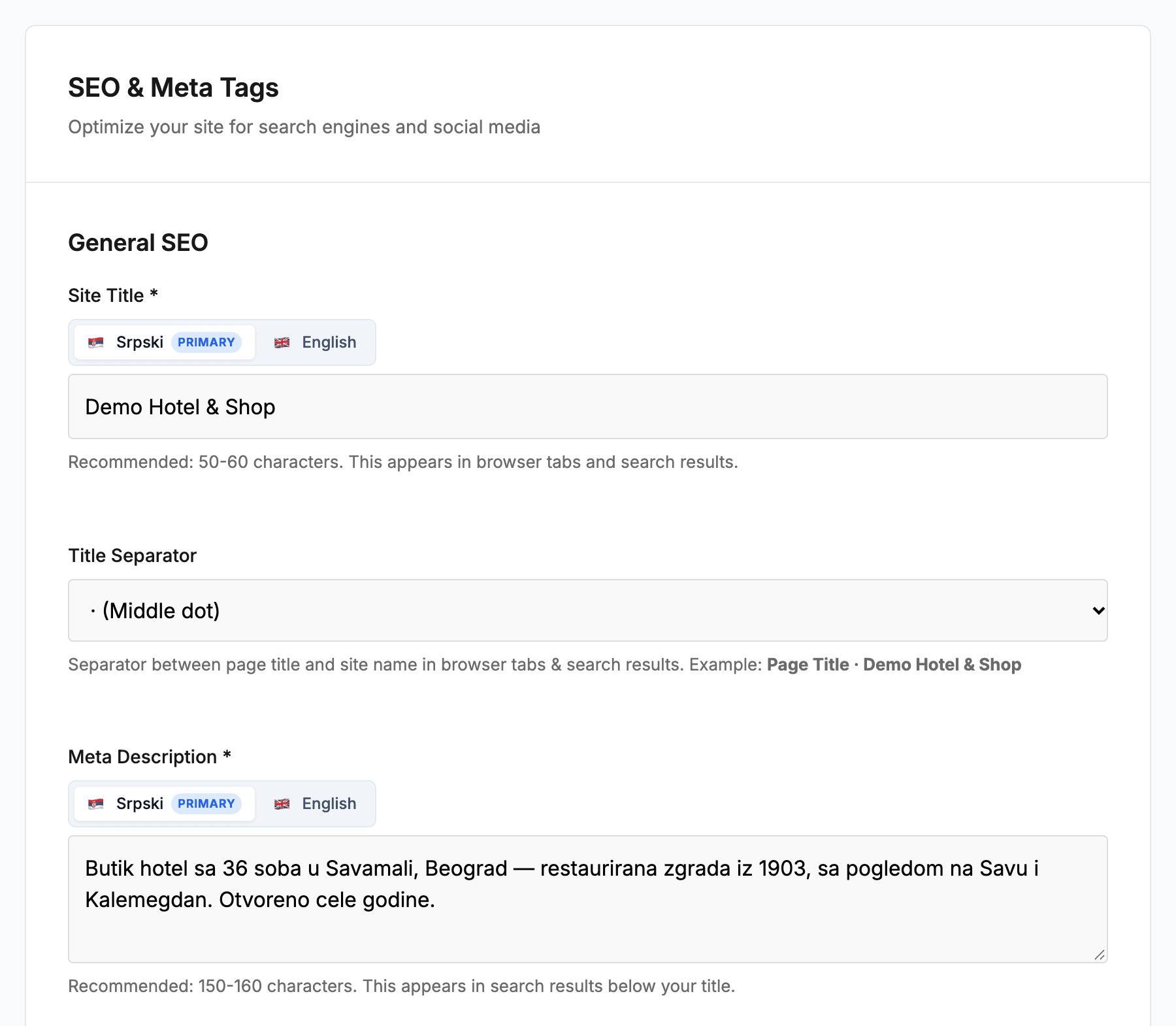
The same section holds the Open Graph title, description and image for the whole site: what shows when someone shares your home page.
Step 4: redirects for old addresses
When you change a page's address, move it or delete it, Emit creates a permanent (301) redirect from the old address to the new one by itself. So a link someone saved, or that Google already knows, doesn't lead to a 404 error.
You need a manual redirect when moving from an old site or printing a short link:
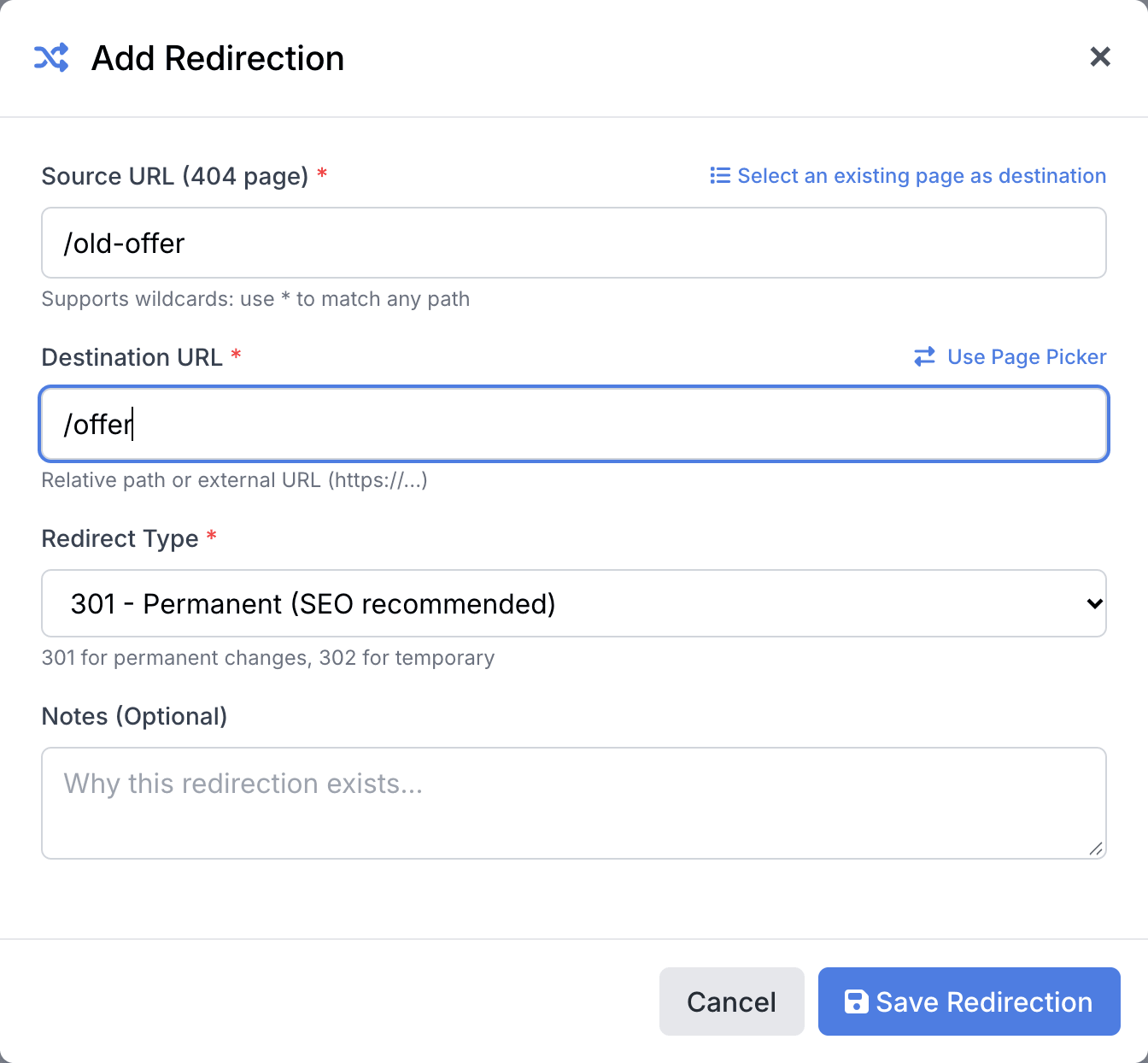
- In the left menu click Redirections.
- Click + Add Redirection in the top right corner.
- In Source URL (404 page), enter the old path, e.g.
/old-offer. - In Destination URL, enter the new path, or click Select an existing page as destination to pick it from a list.
- Leave Redirect Type on 301 - Permanent.
- Click Save Redirection.
What happens on its own
You don't need to set these up, but it's good to know they exist:
- Sitemap. At
/sitemap.xmlthere's a list of all published pages. - Structured data. Emit builds a description of your business into every page, in a format Google reads (business type, address, opening hours, FAQs, products, accommodation). More in the lesson Structured data.
- Search engine notification. When you publish a page, Emit notifies search engines that support IndexNow, so a new page reaches the results faster.
- llms.txt. A short description of the site for AI assistants, at
/llms.txt. How ChatGPT and others choose whom to recommend is covered in AI search and small businesses. - Filtered shop pages (price filters, sorting) are automatically marked so Google doesn't index them, so you don't get duplicates.
Step 5: AI bots (optional)
In the left menu click robots.txt. Under AI bots there are two switches:
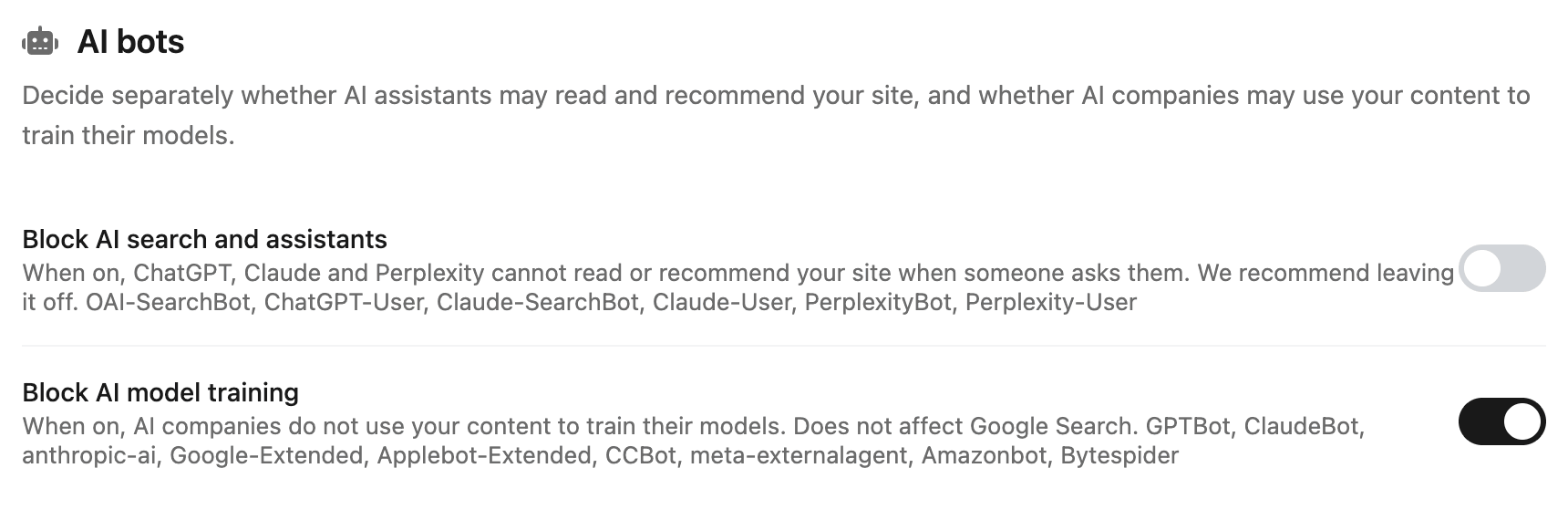
- Block AI search and assistants: leave it off, so ChatGPT, Claude and Perplexity can read you and recommend you when someone asks about your line of business.
- Block AI model training: on by default. It doesn't affect Google search.
Click Save settings if you changed anything.
In short
- For every important page: Focus Keyphrase, SEO Title and SEO Description (editor → gear → SEO Settings).
- Look at the SEO analysis and fix the yellow items that make sense.
- Add an OG Image to pages people share.
- Fill in Site Title and Meta Description in Site Settings → SEO & Meta, for each language.
- When moving from an old site, add redirects for the old addresses.
- Keep AI search allowed.
When your site is ready, connect your own domain: Custom domain and going live. For a local business, your Google Business Profile matters just as much.